See Inside Your Build: X-ray, Outline, Layers and Flat Views
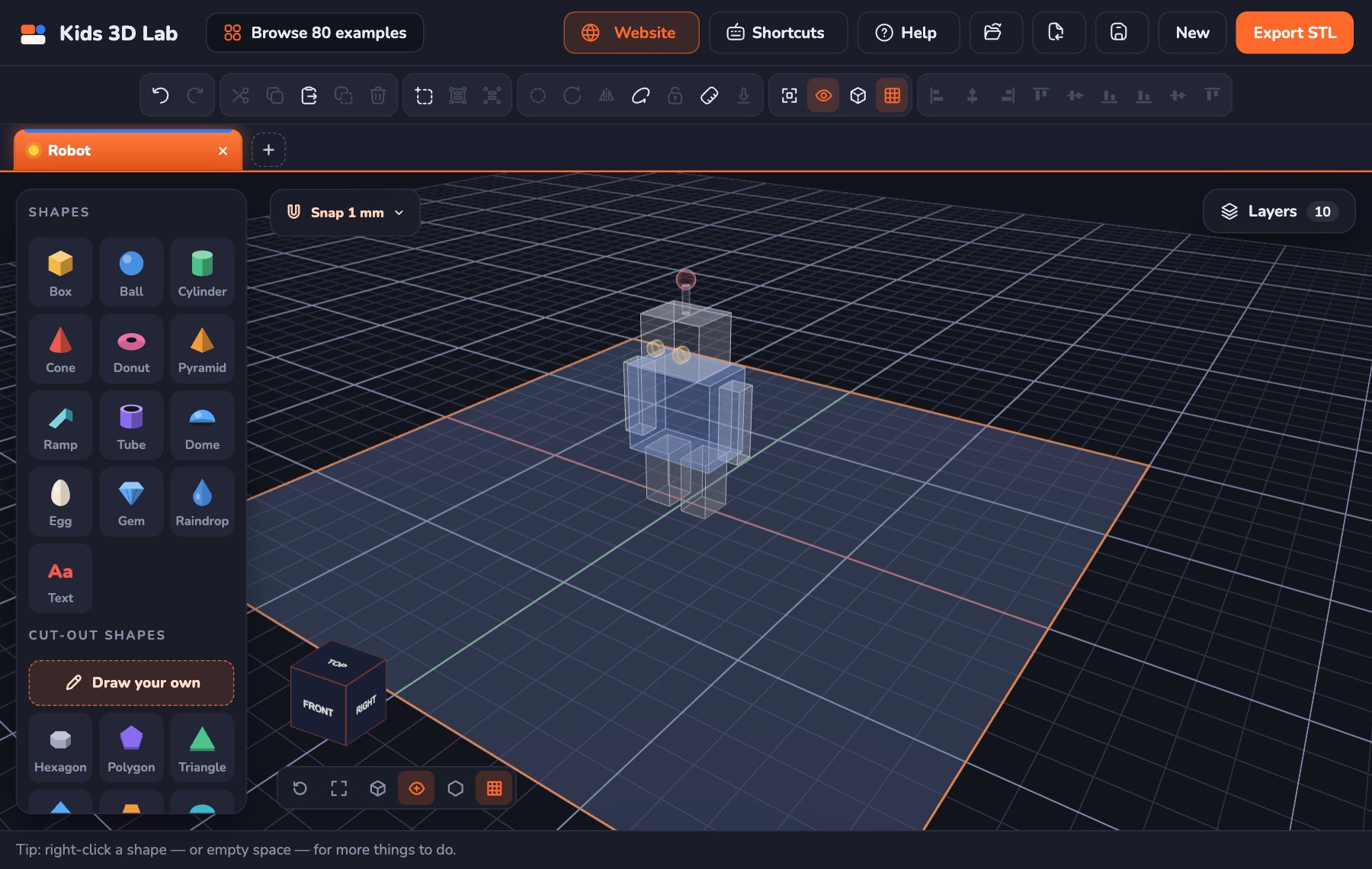
Some builds get busy. An eye hides inside a head. A hole is buried in a box. A tiny shape is too small to click. Kids 3D Lab now has new ways to see inside your build and find every shape.
X-ray: see through everything
Press X. Every shape turns see-through, and its edges glow, like an X-ray picture at the doctor's.
- You can see shapes hiding inside other shapes.
- You can see exactly how deep a hole goes.
- The shape you picked stays solid, so you always know which one it is.
Press X again to go back.
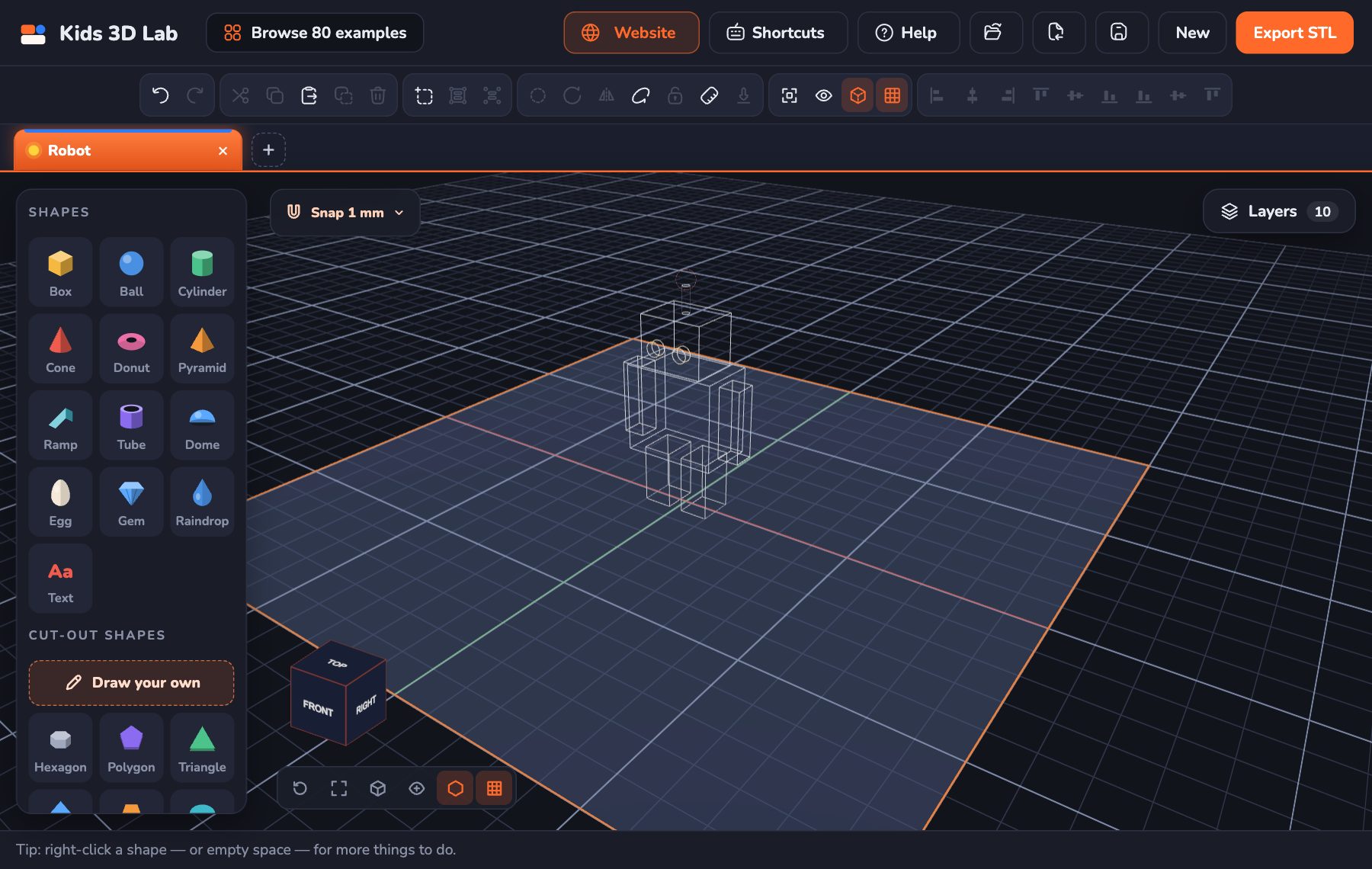
Outline: just the lines
Press O. Now there is no colour at all, only the lines of every shape. It looks like a drawing on paper. Outline is great for checking that parts line up.
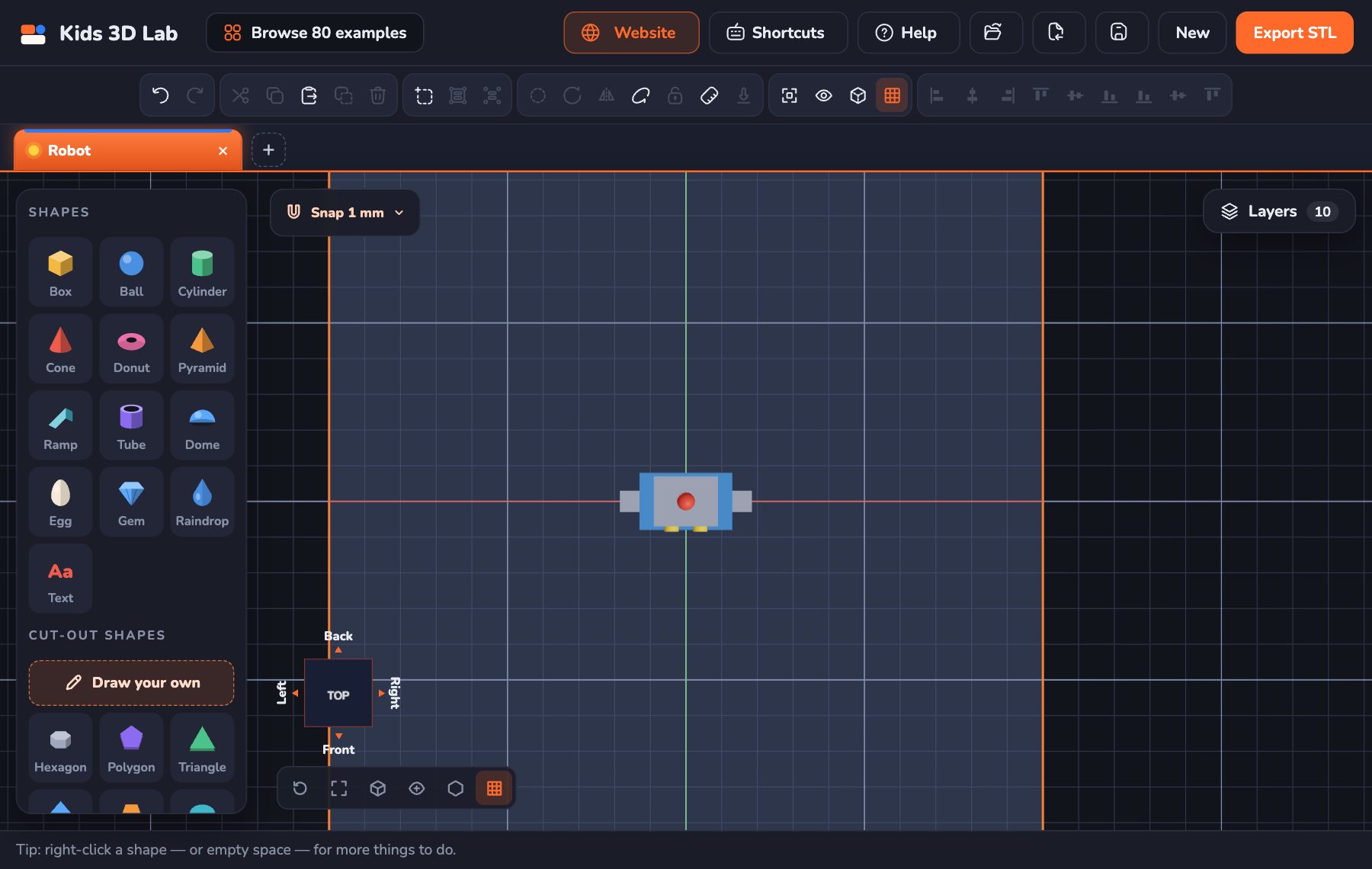
Flat views, like a drawing
Click TOP on the view cube at the bottom left. The view goes flat. Nothing leans, and you can't see the sides of anything, even at the very edge of the plate. Real engineers use views like this to line things up.
Now look at the cube. Little arrows show up all around it:
- From TOP, Back is above the cube, Front is below, Left is on the left and Right is on the right.
- Click an arrow to look from that side.
- From the front, the back or a side, a grid stands up behind your build. Use it to check how tall things are.
Turn the view a little bit, and it goes back to normal 3D.
Layers: every shape in a list
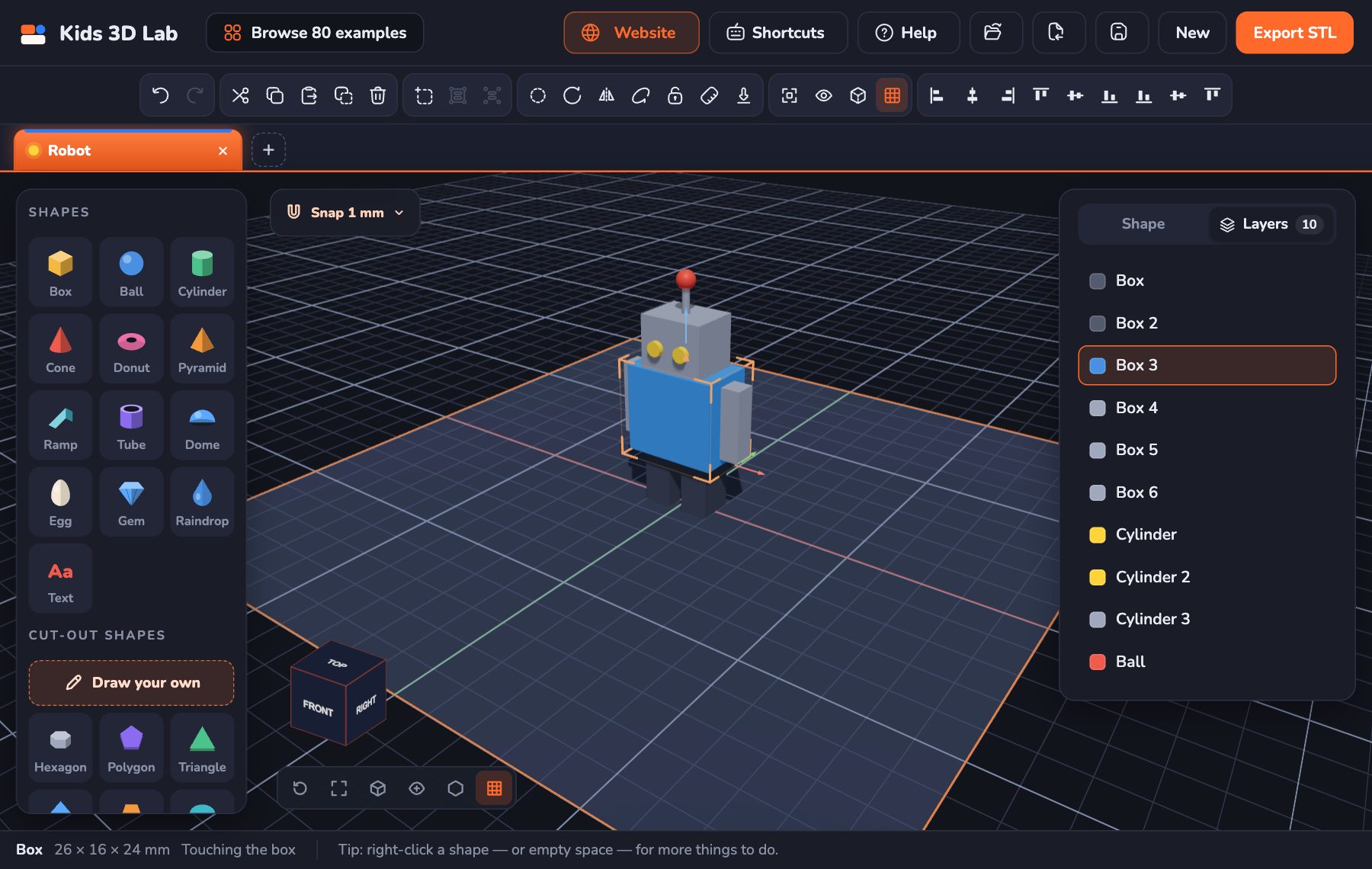
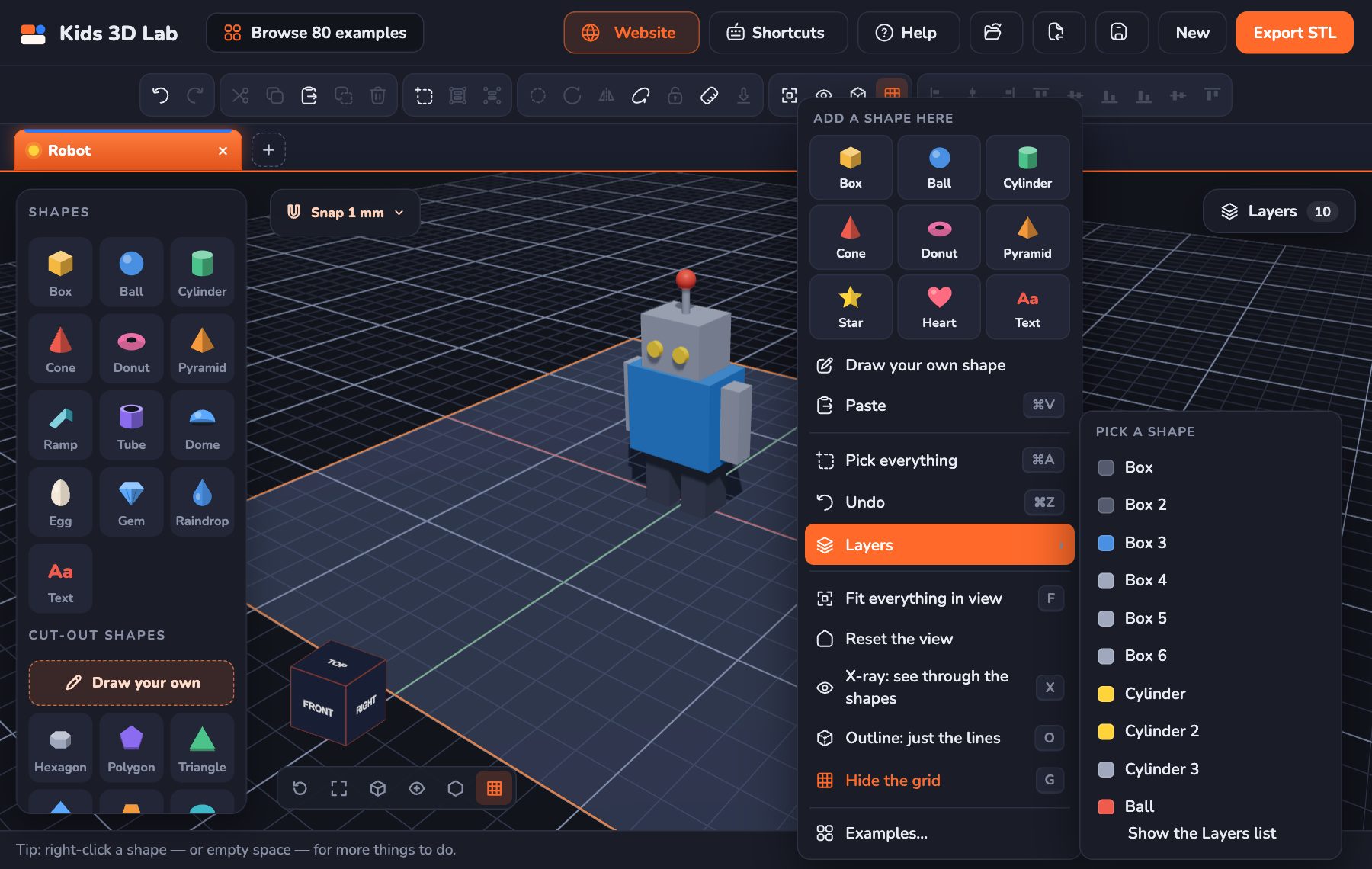
Layers lists every shape in your build: Box, Box 2, Ball, Cone… Click a name to pick that shape. It's the easiest way to pick a tiny shape, or one hidden inside another.
- Nothing picked? Click the Layers button at the top right.
- Something picked? Click the Layers tab at the top of the panel.
- Hold Shift and click to pick more than one.
- A striped square means the shape is a hole. Shapes in a group are listed under their group.
The right-click menu
Click the right mouse button (don't drag it) to open a menu.
- On a shape: paint it, copy it, delete it, make it a hole, turn it, flip it, group it or lock it.
- On empty space: add a shape right where you clicked, paste, undo, and switch on X-ray, Outline or the grid.
- Point at Layers › in the menu to see every shape and pick one.
More little changes
- The tool row. The editing buttons have a row of their own under the top bar, so there's room for all of them. Hold your mouse over a button to see its name and its key.
- The bar at the bottom. It shows the picked shape's name and size, where it is while you drag it, and little notes, like "This hole cuts nothing yet".
- The grid. Press G to hide the grid, and again to bring it back.
- More room. When nothing is picked, the panel on the right goes away, so you can see more of your build.
- Examples are one click away. Click Browse 80 examples at the top.
New keys to try
| Key | What it does |
|---|---|
| X | X-ray: see through the shapes |
| O | Outline: just the lines |
| G | Grid on or off |
| Right-click | Open the menu |
Try it: find the hidden ball
Here's a little game to practise everything at once.
- Click New build. Add a Box and make it 40 wide, 40 deep and 40 tall.
- Add a small Ball, 10 across. Slide it right into the middle of the box, so you can't see it any more. Set its Z to 15.
- Click empty space, so nothing is picked. Where did the ball go?
- Press X. There it is, inside the box!
- Now press X again and open Layers. Click Ball to pick it, even though you can't see it.
- Click TOP on the view cube. Then click Front next to the cube. Is the ball really in the middle?
Can you hide a second ball, and find it with Outline?
For grown-ups
Flat orthographic views are how real engineering drawings work: no perspective, so sizes and positions can be compared by eye anywhere on the page. It's a good moment to talk about plans and elevations, like an architect's drawings of a house from the top and the front. X-ray and Layers help children understand that a model is made of separate parts, even when they look like one piece. For every button in the app, see The Kids 3D Lab Guide.
Keep reading
 App skills
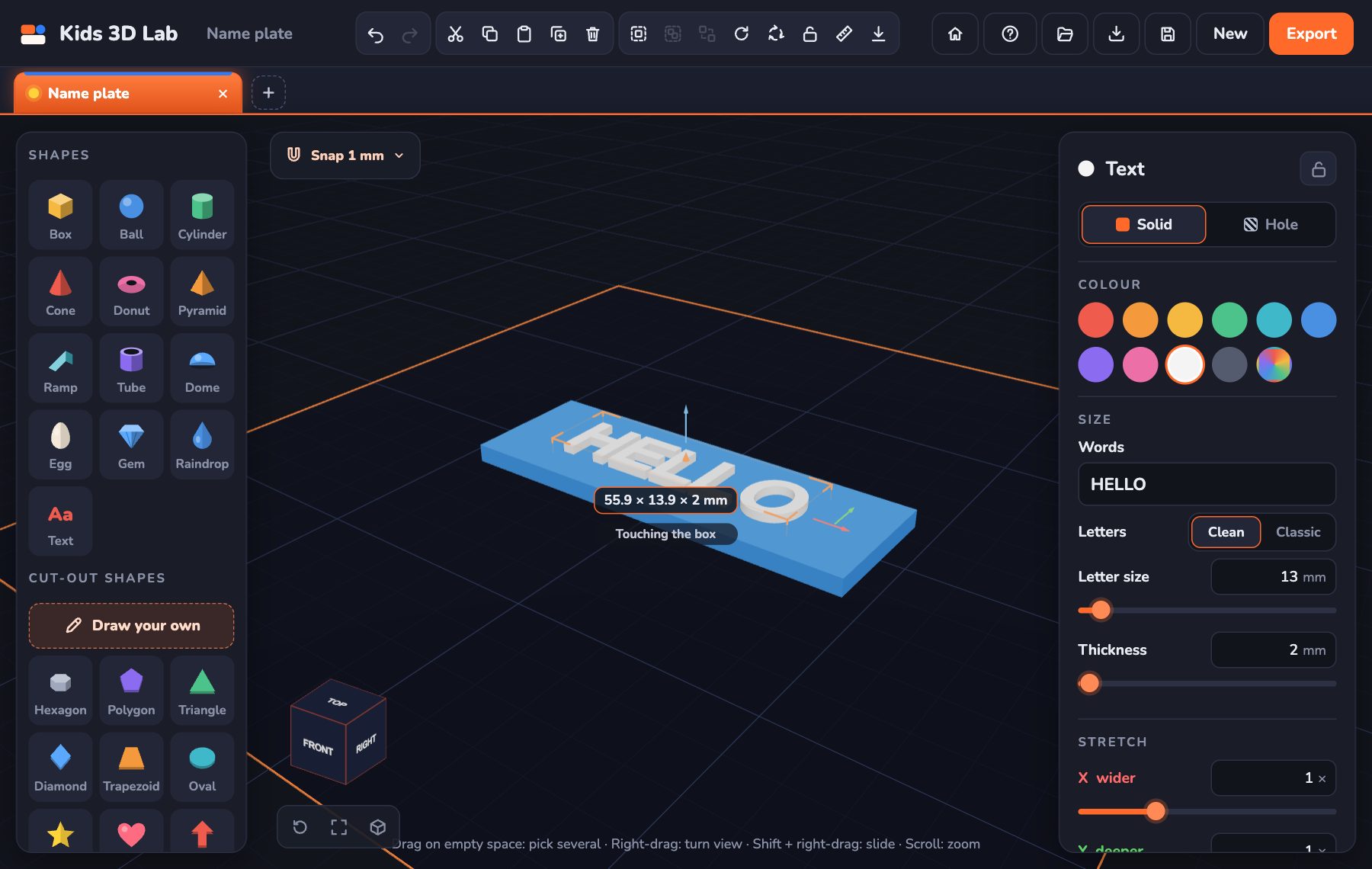
Make Your First 3D Model in 10 Minutes
A step-by-step guide to your very first 3D model — a name tag with your own name on it.
5 min read
App skills
Make Your First 3D Model in 10 Minutes
A step-by-step guide to your very first 3D model — a name tag with your own name on it.
5 min read
 App skills
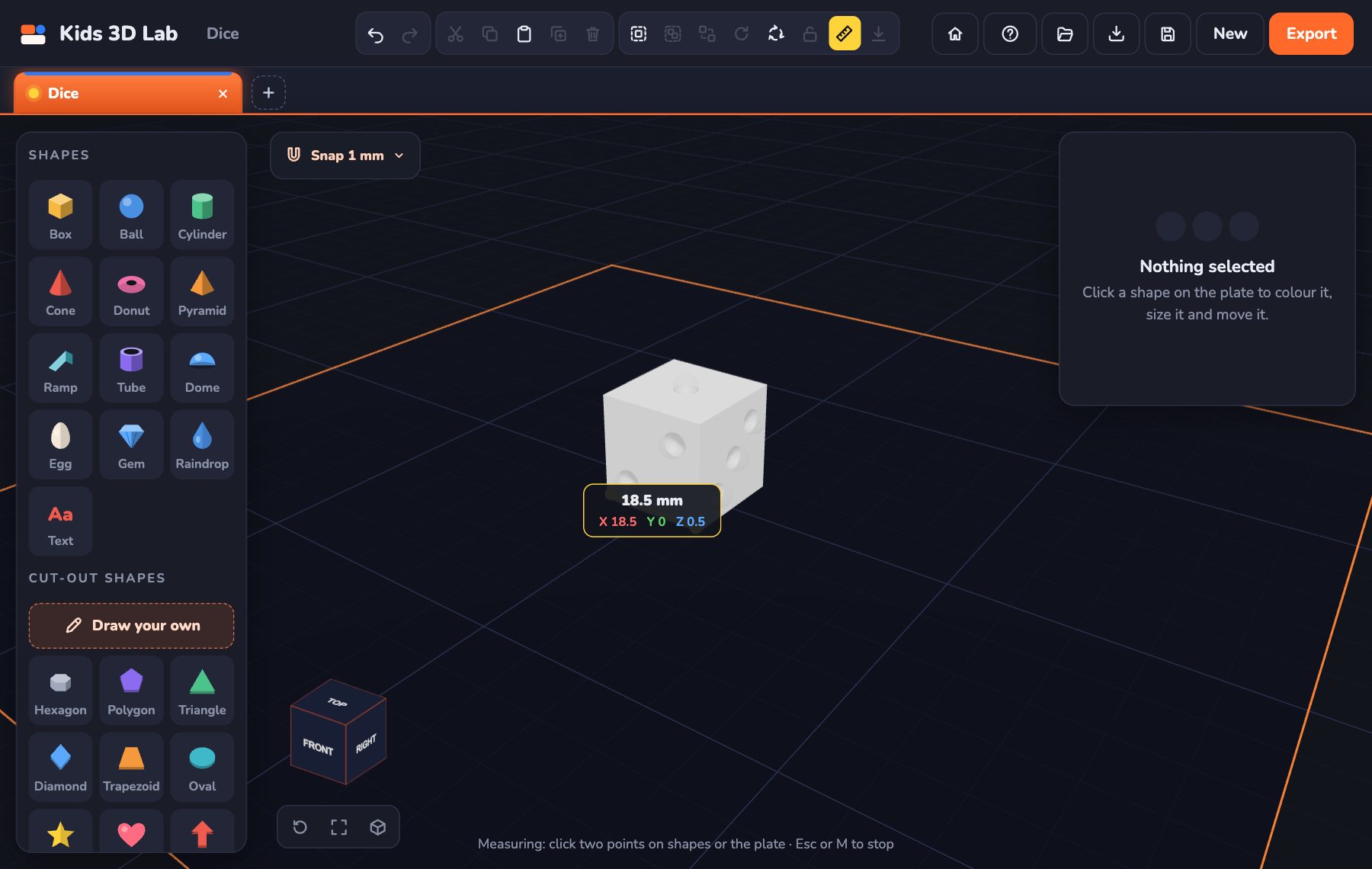
Millimetres Made Easy: How Big Is Your Model?
Every number in Kids 3D Lab is in millimetres. Learn how big a millimetre is, and how to make your model just the right size.
5 min read
App skills
Millimetres Made Easy: How Big Is Your Model?
Every number in Kids 3D Lab is in millimetres. Learn how big a millimetre is, and how to make your model just the right size.
5 min read
 App skills
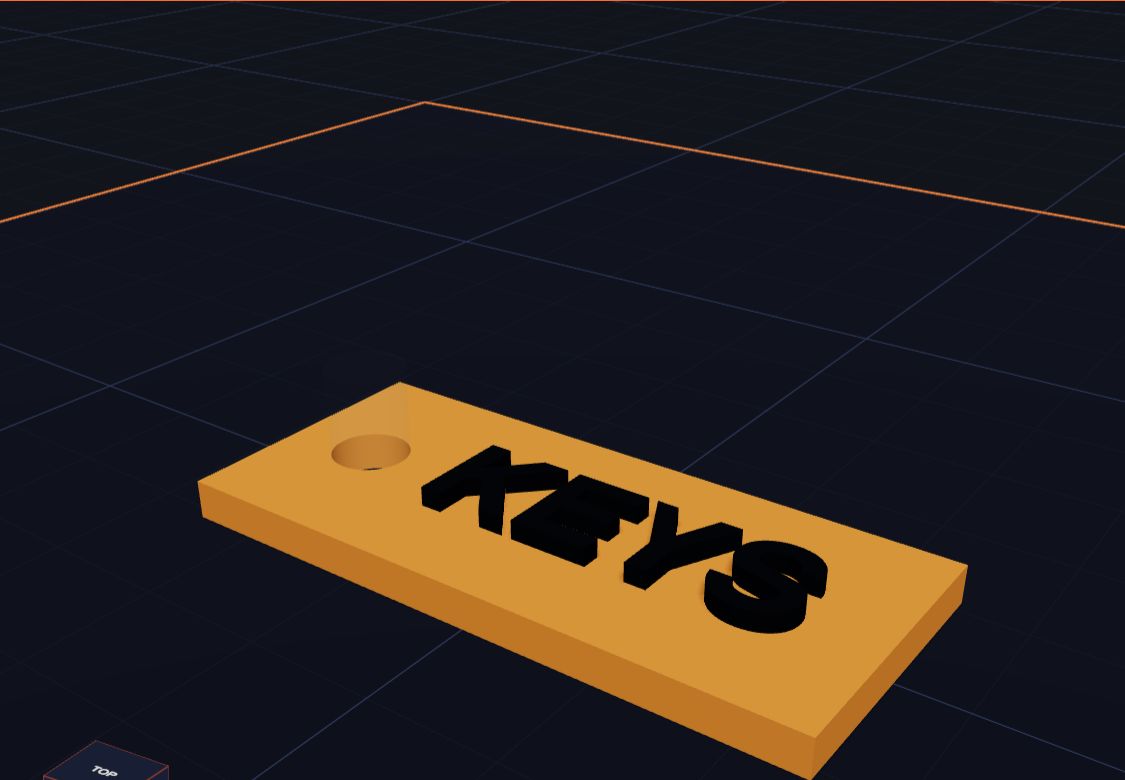
How Holes Work (and How to Make a Key Tag)
In Kids 3D Lab any shape can become a hole. Learn how holes cut into other shapes, and make a key tag with a hole for the ring.
6 min read
App skills
How Holes Work (and How to Make a Key Tag)
In Kids 3D Lab any shape can become a hole. Learn how holes cut into other shapes, and make a key tag with a hole for the ring.
6 min read