Show Off Your Build: Save It as a Picture
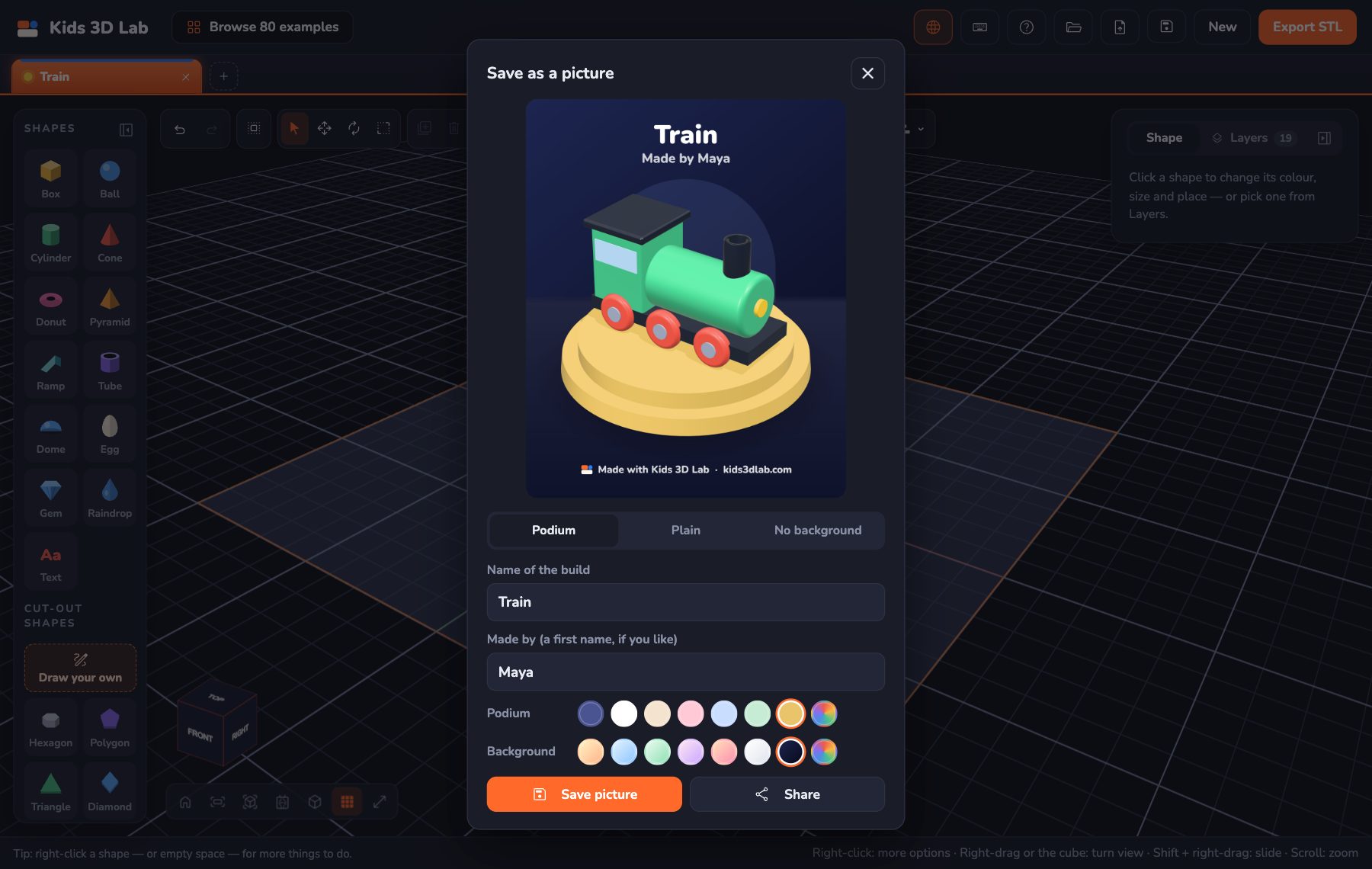
You built something great. A car, a rocket, a castle! Now you want to show it to Grandma, or to your friends at school. Kids 3D Lab can turn your build into a bright picture, ready to keep or share. You don't need a 3D printer for this. You don't even need to finish printing. Your picture is ready in a few seconds.
How to make a picture
- Turn the view to show the best side of your build. The picture shows it the way your screen shows it.
- Click Save at the top, then Save as a picture.
- Pick a look (see below).
- Type the name of the build. Made by is for your first name, if you like.
- Pick the colours.
- Click Save picture. On a phone or tablet, click Share to send it straight to someone.
That's it! The picture goes to the same place as your other downloads. On a phone, it can go straight into your photos.
Three looks
At the top of the box there are three buttons. Each one makes a different kind of picture.
- Podium. Your build stands on a round stand, on a floor, with an arch behind it. It looks like a prize in a shop window! This is the best look for showing off.
- Plain. Just your build on a bright background, with its shadow under it. Simple and clean.
- No background. Only your build, and see-through all around. You can put it on a poster, a card, a slide or a school project. Whatever is behind it shows through.
The picture in the box changes as soon as you click. Try all three and see which one you like best.
Pick the colours
There are two rows of colour circles: one for the Podium and one for the Background.
- The first podium colour matches the background, so they always go well together.
- The other podium colours are white, cream, pink, blue, mint and gold.
- The background colours are Sunny, Sky, Mint, Candy, Sunset, Cloud and Space.
- The rainbow circle at the end of each row lets you pick any colour at all.
Try a gold podium on a dark blue Space background. It looks like a trophy!
Tips for a great picture
A few small things make a big difference.
- Show the best side. Close the box, turn the view, then open it again. A car looks great from the front corner. A house looks great from a little above. A rocket looks great from the side.
- Pick colours that stand out. A red car on a red background is hard to see. A red car on a blue background pops right out. Colours that are far apart on the rainbow look good together.
- Give it a good name. "My build" is fine, but "Super Speedy Racer" is much more fun. The name is printed big at the top of the picture.
- Tidy up first. Is there a little shape left over somewhere on the plate? It will be in the picture too. Delete it, or move it away.
- Holes are fine. Holes cut into your shapes show in the picture, just like in the app. A hole on its own, cutting nothing, doesn't show.
A sharp picture
The picture is big: 2160 by 2700 dots. That's the right shape for most social media, and it stays sharp even when you zoom in. Your build looks shiny, like a plastic toy, with real shadows. The podium has a floor under it, so it stands in a little room instead of floating in the air.
What can you do with your picture?
Pictures aren't only for sharing online. Here are some ideas:
- Make a card. Print the picture and fold it in half. Write a message inside. A picture of a 3D heart or a star makes a lovely birthday card.
- Keep a design diary. Save a picture of each build. Stick them in a notebook and write what you learned, like "I used a hole for the window".
- Show "before and after". Save a picture of your build, then print it with a 3D printer. Put the picture and the real thing side by side. Do they look the same?
- Make a poster. Use pictures with No background and put them all together on one big page. A poster of all your vehicles, or all your animals!
- Share a challenge. Send a picture to a friend and ask: "Can you build this?" Then compare your two builds.
Try it: a picture for each look
- Open the Train from Browse 80 examples.
- Turn the view so you can see the wheels and the chimney.
- Click Save, then Save as a picture.
- Save one picture on a Podium, one Plain, and one with No background.
- Which one do you like best? Why?
Now do it with something you made yourself! Change the colours of your build first, and see how the picture changes too.
Questions kids ask
Does saving a picture save my build? No. A picture is just a picture. To change your build later, use Save and then Save the build. That saves a .kids3d file you can open again.
Can I save a picture of just one part? Every shape on the plate goes into the picture. To show one part, copy it into a new tab, then save the picture there.
Why is my build so big in the picture? Kids 3D Lab always makes your build fill the picture nicely, so even a tiny build looks great. The size in the picture isn't the real size.
For grown-ups
The picture is drawn on your own device, in the browser. Nothing is uploaded, and there's no account. The Made by box is optional. If you share pictures online, a first name is plenty, and you may prefer to leave it empty. "Save as a picture" is a nice end to a project: children can see their finished design, talk about it, and share it with family before (or instead of) printing it. Teachers can collect pictures from a class to make a gallery wall, or ask children to add a picture of their design to a design diary, next to notes about what they changed and why. For every button in the app, see The Kids 3D Lab Guide.
Keep reading
 App skills
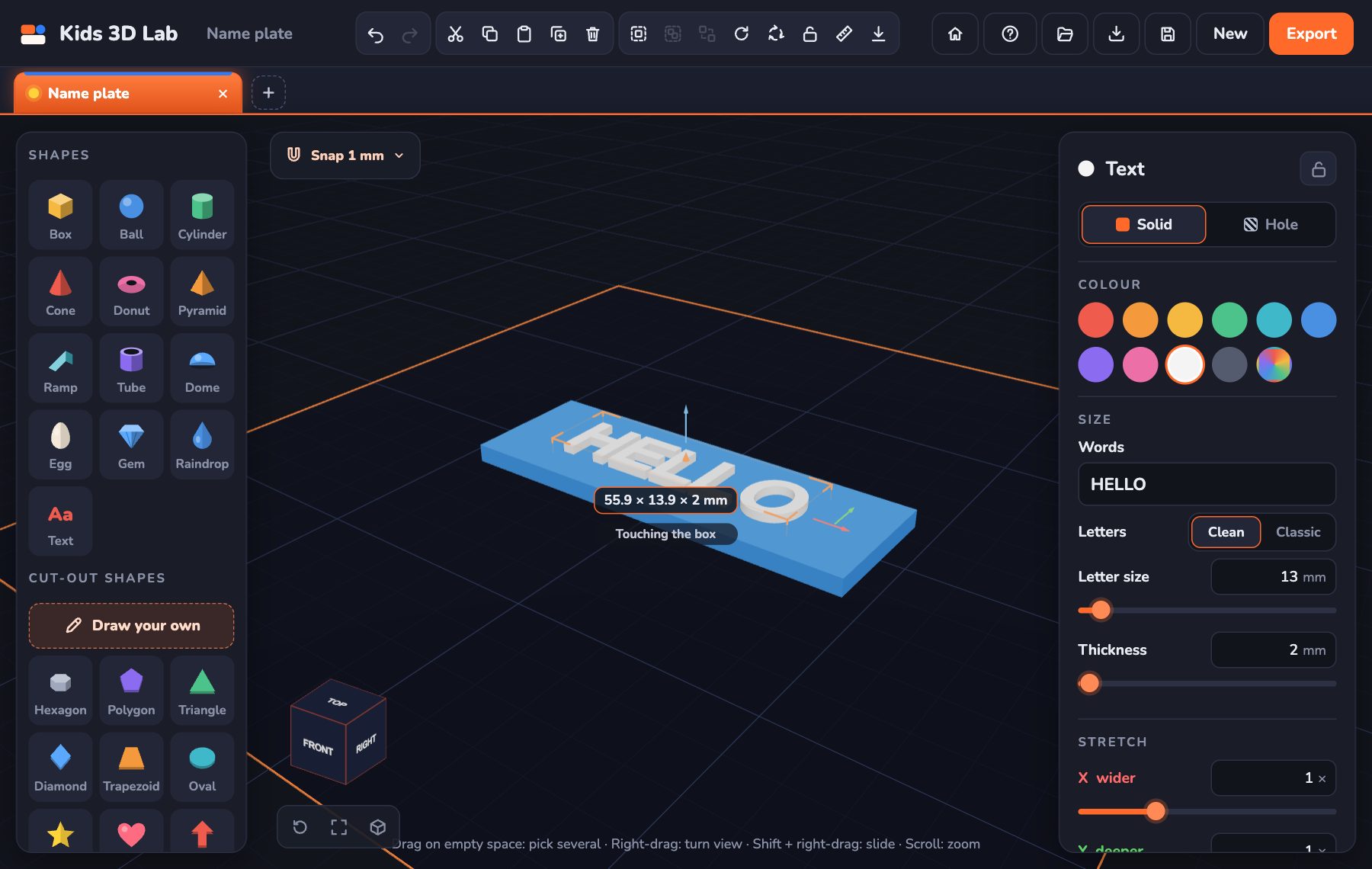
Make Your First 3D Model in 10 Minutes
A step-by-step guide to your very first 3D model — a name tag with your own name on it.
5 min read
App skills
Make Your First 3D Model in 10 Minutes
A step-by-step guide to your very first 3D model — a name tag with your own name on it.
5 min read
 App skills
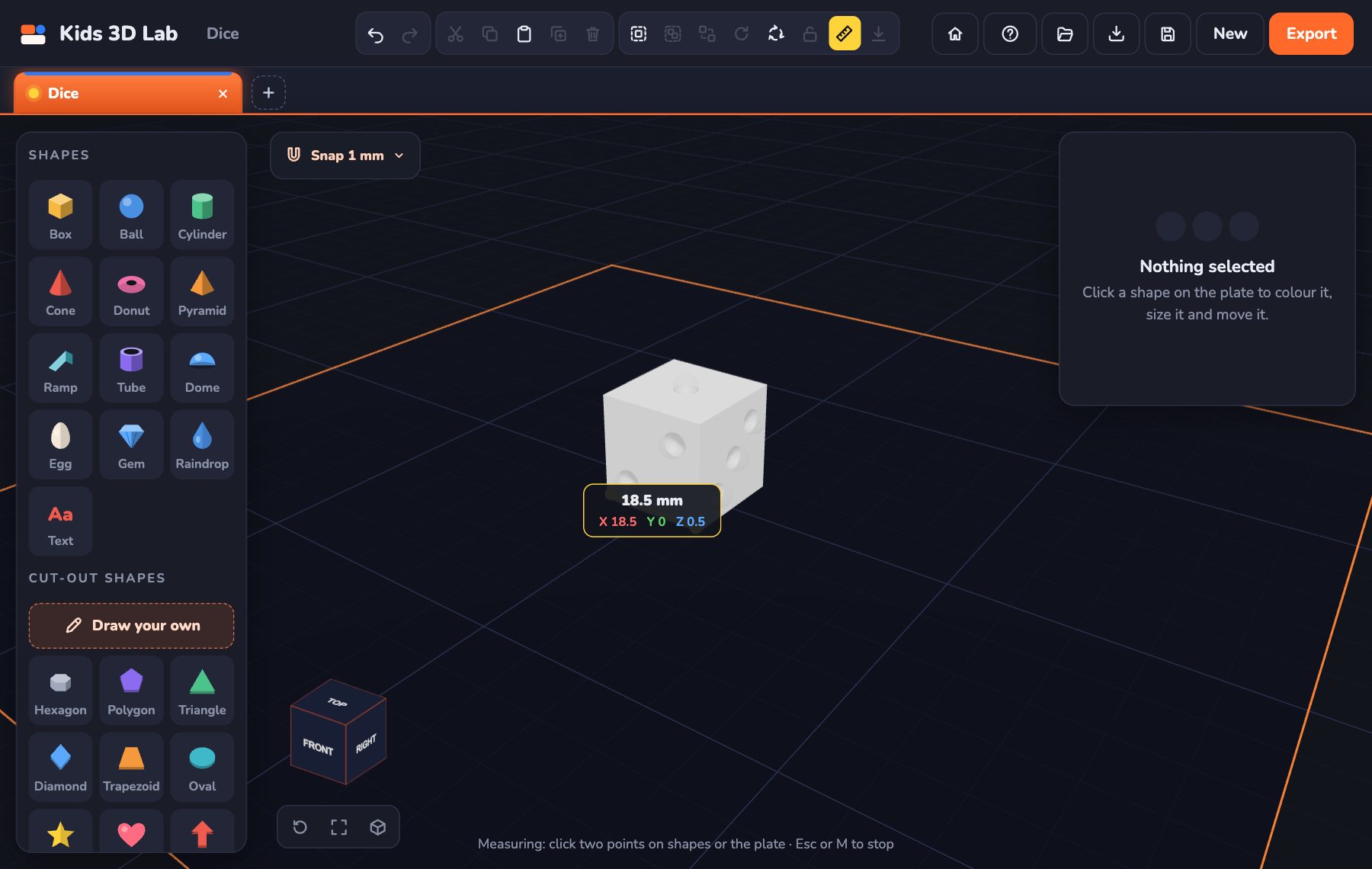
Millimetres Made Easy: How Big Is Your Model?
Every number in Kids 3D Lab is in millimetres. Learn how big a millimetre is, and how to make your model just the right size.
5 min read
App skills
Millimetres Made Easy: How Big Is Your Model?
Every number in Kids 3D Lab is in millimetres. Learn how big a millimetre is, and how to make your model just the right size.
5 min read
 App skills
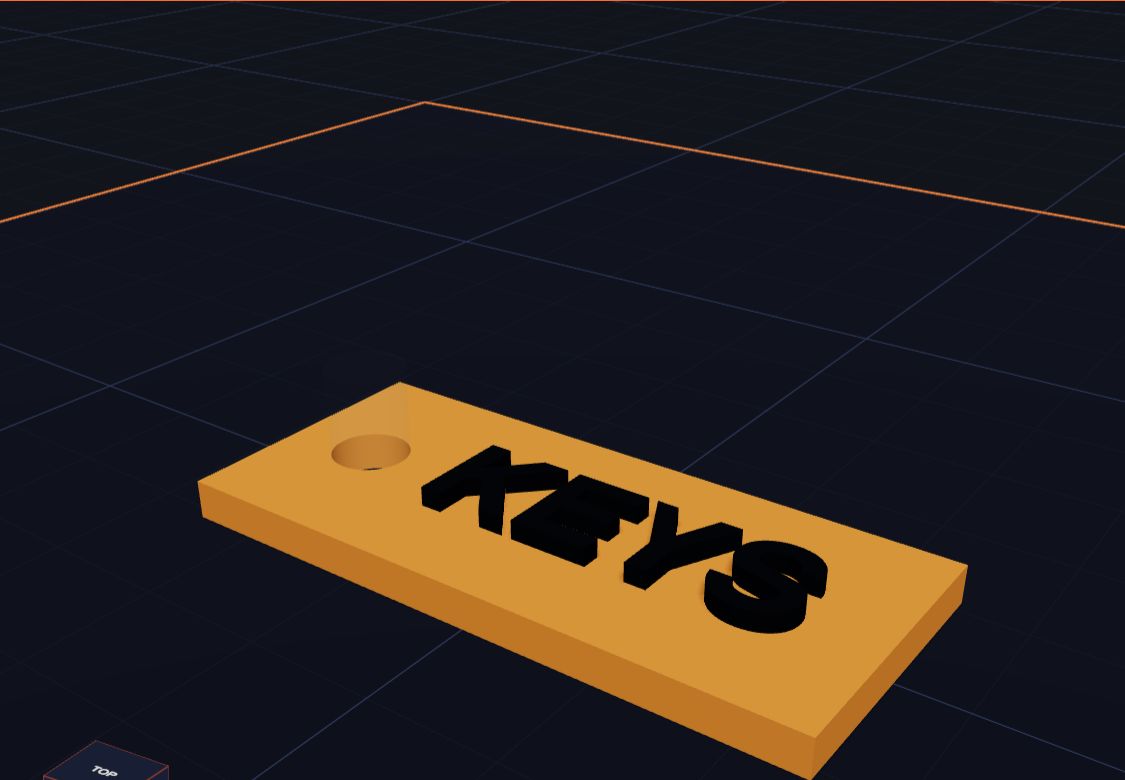
How Holes Work (and How to Make a Key Tag)
In Kids 3D Lab any shape can become a hole. Learn how holes cut into other shapes, and make a key tag with a hole for the ring.
6 min read
App skills
How Holes Work (and How to Make a Key Tag)
In Kids 3D Lab any shape can become a hole. Learn how holes cut into other shapes, and make a key tag with a hole for the ring.
6 min read