Can You Use a 3D Printer Without a Computer?
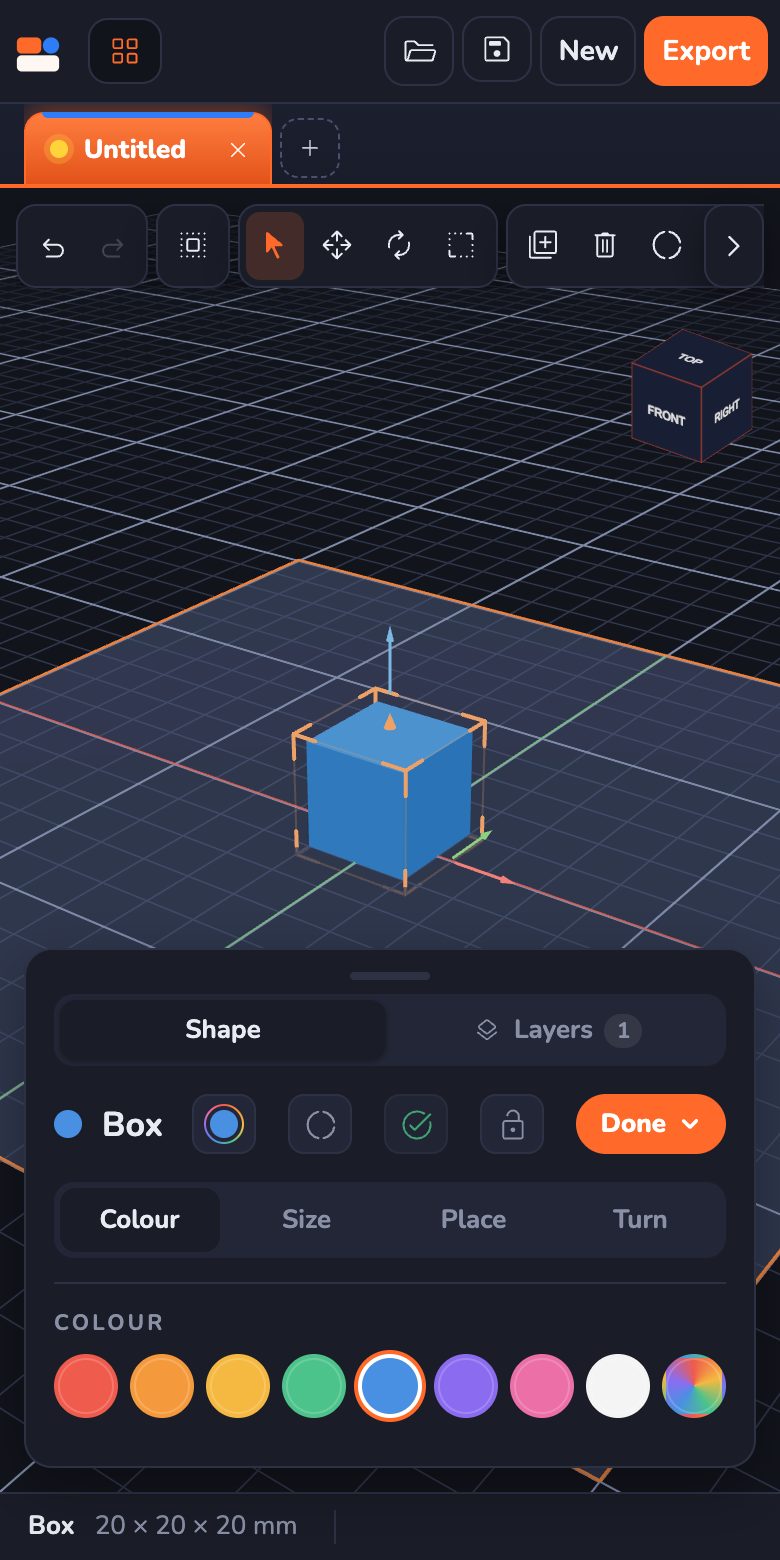
Lots of families don't have a big computer at home. Maybe you have a tablet, a phone or a school Chromebook instead. So can you still use a 3D printer? The short answer is yes, mostly. A 3D printer doesn't need a computer plugged into it while it prints. But there is one step, called slicing, that needs some kind of computer — and a tablet or phone can often do it.
This guide explains each step in plain words, so you know exactly what you need. It's written for grown-ups, but kids can read along too.
The three steps of every 3D print
Every 3D print goes through the same three steps:
- Design it. You make the shape in a 3D design app, like Kids 3D Lab, and save it as an STL or 3MF file.
- Slice it. A program called a slicer cuts the shape into hundreds of thin layers and writes a list of moves for the printer. This list is usually a G-code file.
- Print it. The printer reads the moves and builds the shape, one layer at a time.
Only the first two steps need a screen. The printer does the third step all by itself.
Step 1: Design without a computer
You don't need a computer to design. Kids 3D Lab runs in the web browser, so it works on:
- an iPad or an Android tablet,
- a phone (the screen is small, but it works),
- a Chromebook.
There's nothing to install and no account to make. On a tablet, you tap a shape to add it, drag to move it, and use the sliders to change its size. When the model is ready, click Export, then Download STL (or 3MF with colours). The file goes to your device's downloads.
Practice gameMove itSlide a ball left and right (X), back and front (Y), and up (Z).Play →Step 2: Slicing without a computer
This is the step people worry about. Most slicers are programs for Windows or Mac. But you have other choices:
- The printer's phone app. Many newer printers come with an app for your phone or tablet. Depending on the printer, the app can send ready-made models to the printer, start prints over Wi-Fi, and sometimes slice your own files too. Check what your printer's app can do.
- A slicer in the web browser. Some slicers run in a browser tab, so they work on a Chromebook or a tablet. Kiri:Moto is a free one.
- Ask for help once. A friend, a school or a library can slice your file on their computer and save the G-code onto an SD card or USB stick for you. You can print it again and again.
Step 3: Printing without a computer
Once the file is sliced, the printer doesn't need a computer at all. You can give it the file in one of these ways:
- SD card or USB stick. Most home printers have a slot. Copy the G-code file onto the card, put it in the printer, and choose the file on the printer's little screen.
- Wi-Fi. Many newer printers connect to your home Wi-Fi. You send the file from the phone app and watch the print from your sofa.
- Built-in models. Some printers come with a few test models already on the card, like a little boat or a cube. They're good for a first try.
What you need, in short
| You have | Can you design? | Can you slice? | Can you print? |
|---|---|---|---|
| A tablet or phone | Yes, in the browser | With the printer's app or a browser slicer | Yes, over Wi-Fi or with an SD card |
| A Chromebook | Yes, in the browser | With a browser slicer | Yes |
| No device at home | At school or a library | At school or a library | Yes, from an SD card |
Don't have a printer at all?
That's fine too. Libraries, schools and print services can print your design. Read How to 3D Print Without Owning a 3D Printer to see how each one works.
Try it: design on a tablet
- Open Kids 3D Lab on a tablet or phone.
- Tap Text and type your name.
- Tap Box and make it a little bigger than your name. That's a name tag!
- Tap Export, check the Ready to print? box, and download the STL file.
- Ask a grown-up to slice it with the printer's app, or take it to a library on a USB stick.
Questions parents ask
Can a 3D printer work without a computer?
Yes. While it prints, a 3D printer doesn't need a computer connected. It reads the job from an SD card, a USB stick or over Wi-Fi. You only need some kind of device to design and slice the file first.
Can I 3D print from my phone?
Often, yes. Many printers have a phone app that can start a print over Wi-Fi. You can also design on your phone in Kids 3D Lab, which runs in the browser.
Can I use a 3D printer with an iPad?
Yes. Design in the browser on the iPad, then slice with your printer's app or a browser slicer, and send the file over Wi-Fi or on an SD card.
Do I need to install anything to design?
No. Kids 3D Lab runs in the web browser with nothing to install and no account.
For grown-ups
When choosing a printer for a home without a computer, look for Wi-Fi and a good phone app that can slice your own files, not only print ready-made models. An SD card or USB slot is a handy backup. Our guide The Best Family 3D Printer lists more things to check. Keep the first prints small, such as name tags or keychains: they print quickly and use little plastic. For every button in the app, see The Kids 3D Lab Guide, and for safety tips read Is 3D Printing Safe for Kids?.
Keep reading
 3D printing
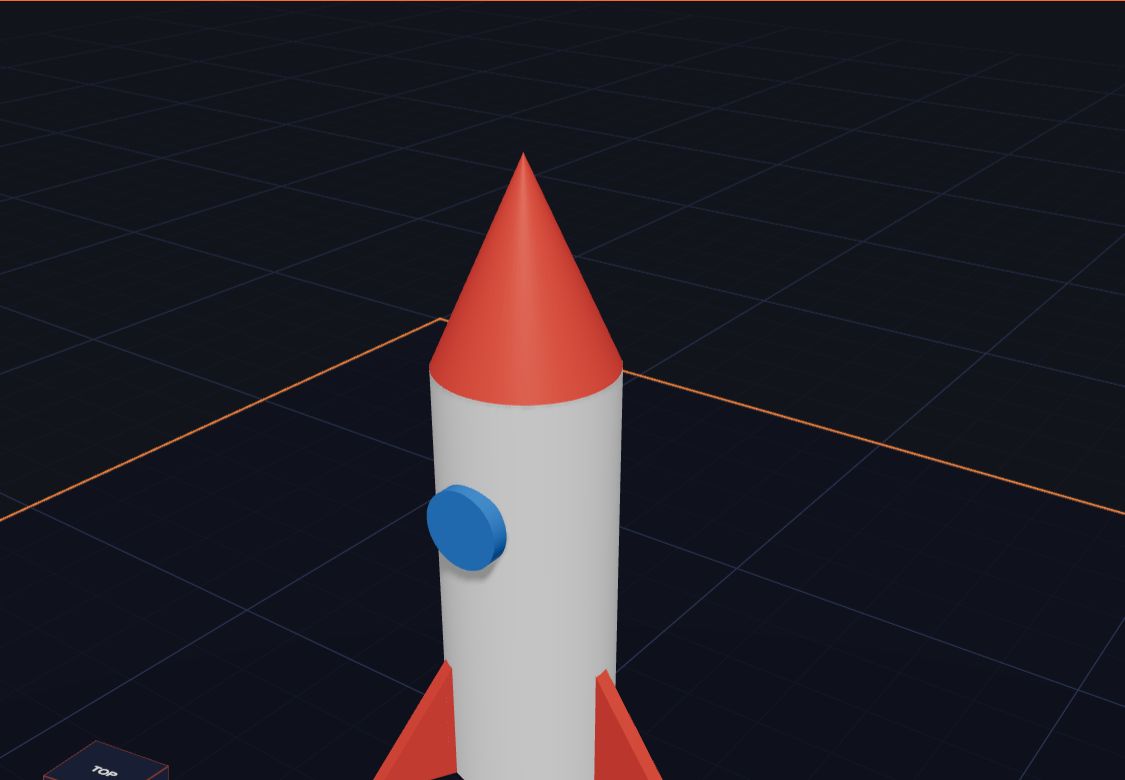
What Is 3D Printing? Explained for Kids
What is a 3D printer, and what does it do? A 3D printer makes real things you can hold, one thin layer at a time. 3D printing explained for kids, with fun facts.
6 min read
3D printing
What Is 3D Printing? Explained for Kids
What is a 3D printer, and what does it do? A 3D printer makes real things you can hold, one thin layer at a time. 3D printing explained for kids, with fun facts.
6 min read
 3D printing
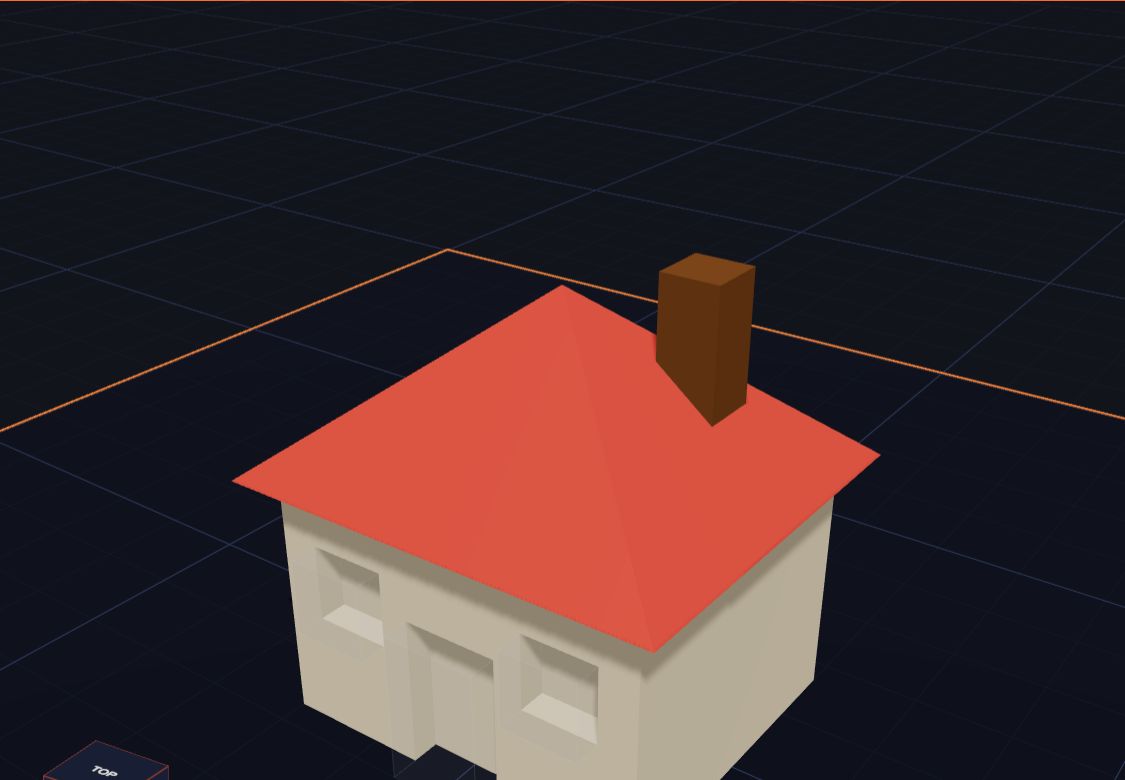
Getting Your Model Ready to Print
Six simple checks before you 3D print — flat bottoms, no floating parts, the right size — plus how to save the file for your printer.
6 min read
3D printing
Getting Your Model Ready to Print
Six simple checks before you 3D print — flat bottoms, no floating parts, the right size — plus how to save the file for your printer.
6 min read
 3D printing
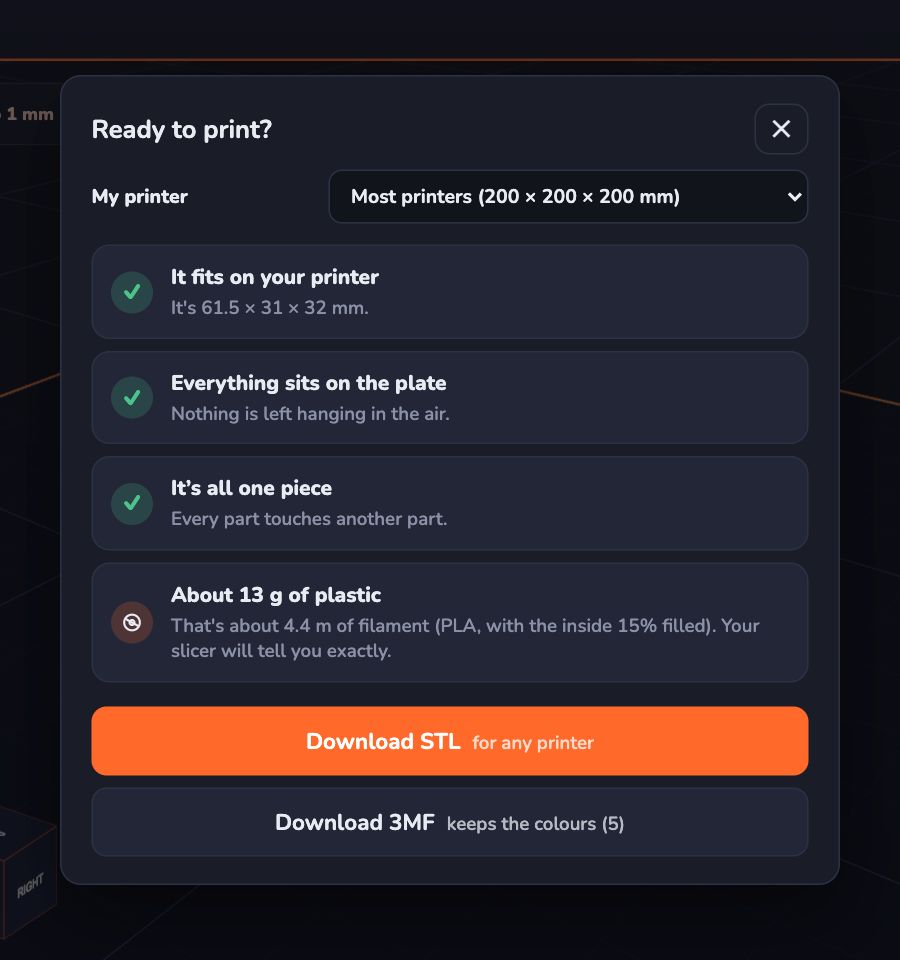
The Best Family 3D Printer: How to Choose Your First One
What makes a good family 3D printer for kids — size, safety, ease of use and plastic — explained in plain words, with questions to ask before you buy.
7 min read
3D printing
The Best Family 3D Printer: How to Choose Your First One
What makes a good family 3D printer for kids — size, safety, ease of use and plastic — explained in plain words, with questions to ask before you buy.
7 min read