Blog ›
Getting Your Model Ready to Print
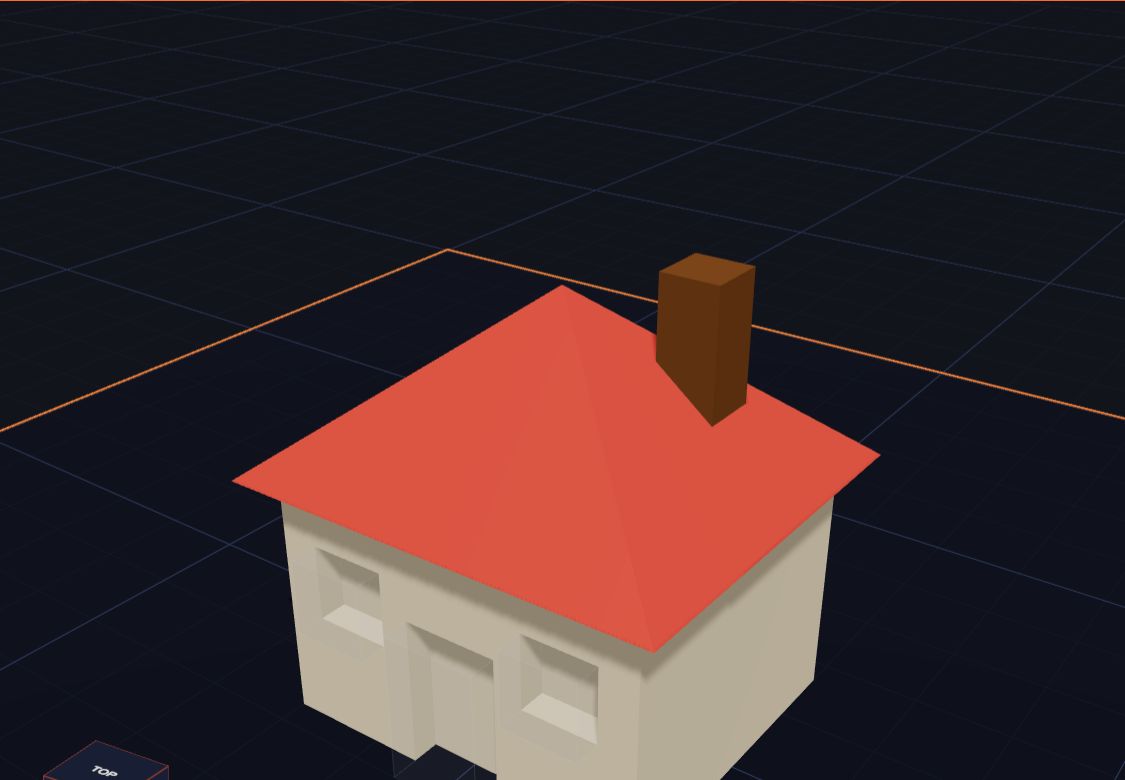
Your model looks great on the screen. But will it print well? Here are six easy checks to do before you press print.
1. Is the bottom flat?
The printer builds from the bottom up. So your model needs a flat bottom to stand on the plate.
A ball only touches the plate at one tiny point. That will wobble! Sit it on a flat base, or cut the bottom off with a box hole.
2. Is anything floating?
Every part must touch another part. If an eye floats in front of a face, it will fall down while printing.
Turn the view around with the right mouse button and look from every side. When you pick a shape, Kids 3D Lab tells you how far away the nearest shape is. If it says "Touching", good!
3. Is it big enough?
Very thin parts break easily. Try to keep walls at least 2 mm thick, and small sticks at least 3 mm wide.
Tiny text is hard to print. Make letters at least 8 mm tall.
4. Is it small enough?
Check that your model fits on your printer. Many printers can print about 200 × 200 mm. Small models also print faster!
5. Watch out for overhangs
An overhang is a part that sticks out with nothing under it, like a roof edge or an arm held out straight.
The printer can't print in thin air. A gentle slope is fine, but a flat part sticking straight out may droop. Ask a grown-up to turn on supports in the printing app.
6. Did the holes cut?
Look at your holes. Do they go all the way through? If a hole just sits on top of a shape, it cuts nothing. Kids 3D Lab will show a warning.
Let Kids 3D Lab check for you
Click Export at the top right. A box called Ready to print? opens. First, pick your printer. Then Kids 3D Lab checks:
- Does it fit on your printer?
- Is any part floating in the air?
- How many pieces will it print as?
- Does any hole cut nothing?
If something is wrong, click Show me. Kids 3D Lab picks the shapes that need fixing. It also guesses how many grams of plastic your model needs.
Save the file
Click Download STL. Kids 3D Lab makes an STL file. All the shapes join into one piece, and the holes are cut out.
Do you have a printer that prints in more than one colour? Click Download 3MF instead. It keeps your colours, so each colour can use its own plastic.
Then a grown-up opens the STL in a slicer. A slicer is an app that cuts the model into thin layers for the printer. Popular slicers are Cura, PrusaSlicer and Bambu Studio.
Choose your printer
In the Ready to print? box, pick your printer from the list. Kids 3D Lab knows the size of popular printers, like the Bambu Lab A1 mini, the Prusa MK4 and the Creality Ender-3. When you pick one, the plate in Kids 3D Lab changes to the same size, so you can see right away if your model fits.
How much plastic will it use?
The Ready to print? box also guesses how many grams of plastic your model needs, and how many metres of filament that is. A small key tag might use about 5 grams. A big robot might use 50 grams or more. Big solid models use the most, so if you want to save plastic, make your model a little smaller.
Common printing problems
Even with a good model, prints sometimes go wrong. Here's what you might see:
- It came off the plate. The first layer didn't stick. A grown-up can clean the plate and try again. Models with a wide, flat bottom stick best.
- It looks like spaghetti. Something fell over halfway, usually a part that was floating or too thin. Check your model with Export first.
- A thin part broke. Make it thicker next time, at least 2 to 3 mm.
- The hole is too small. Printers make holes a tiny bit smaller than you drew. Make holes about 0.4 mm bigger than the thing that must fit.
- Strings between parts. Little hairs of plastic can appear between parts. They are easy to pull off.
A checklist to print out
Before you print, check each of these:
- The bottom is flat and sits on the plate.
- Every part touches another part.
- Walls are at least 2 mm thick.
- Letters are at least 8 mm tall.
- The model fits your printer.
- Every hole really cuts.
- You saved your build as a .kids3d file.
Questions kids ask
Why does my model print upside down?
It doesn't have to! The slicer prints your model the way it sits on the plate in Kids 3D Lab. If it would print better another way up, turn it in Kids 3D Lab with ↻ 90° or Flip first, then drop it to the plate.
What colour will my print be?
The colour of the plastic in the printer. The colours in Kids 3D Lab are for you to see. If your printer can use more than one colour, Download 3MF keeps your colours.
For grown-ups
For first prints, use PLA plastic, a 0.2 mm layer height and about 15% infill. These are the default settings in most slicers. Keep an eye on the first few layers, because most failed prints go wrong at the very start. For more help getting children started, read Kids 3D Lab for Parents and Teachers.
Keep reading
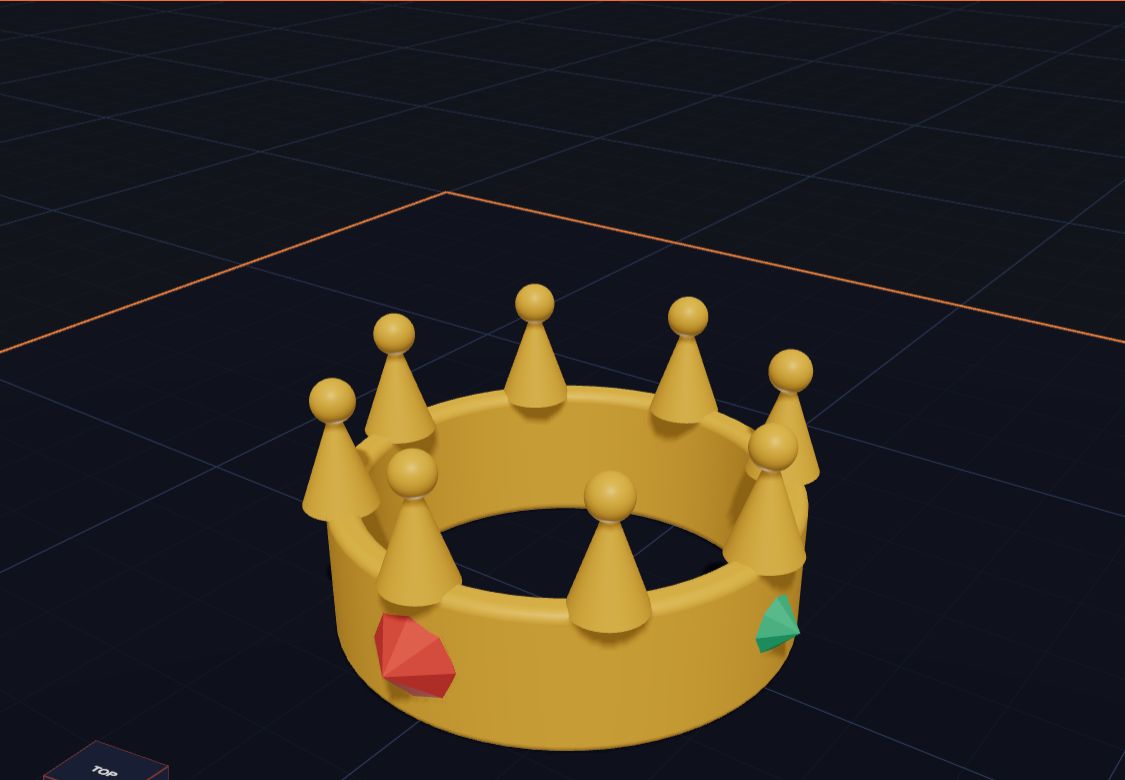 20 Fun Things to Make in Kids 3D Lab
Need an idea? Here are 20 fun, easy things kids can design in Kids 3D Lab, from name tags to crowns, rockets and robots.
5 min read
20 Fun Things to Make in Kids 3D Lab
Need an idea? Here are 20 fun, easy things kids can design in Kids 3D Lab, from name tags to crowns, rockets and robots.
5 min read
 Kids 3D Lab for Parents and Teachers
How Kids 3D Lab helps children aged 5 to 11 learn 3D design, measuring and problem solving — with lesson ideas for home and the classroom.
5 min read
Kids 3D Lab for Parents and Teachers
How Kids 3D Lab helps children aged 5 to 11 learn 3D design, measuring and problem solving — with lesson ideas for home and the classroom.
5 min read
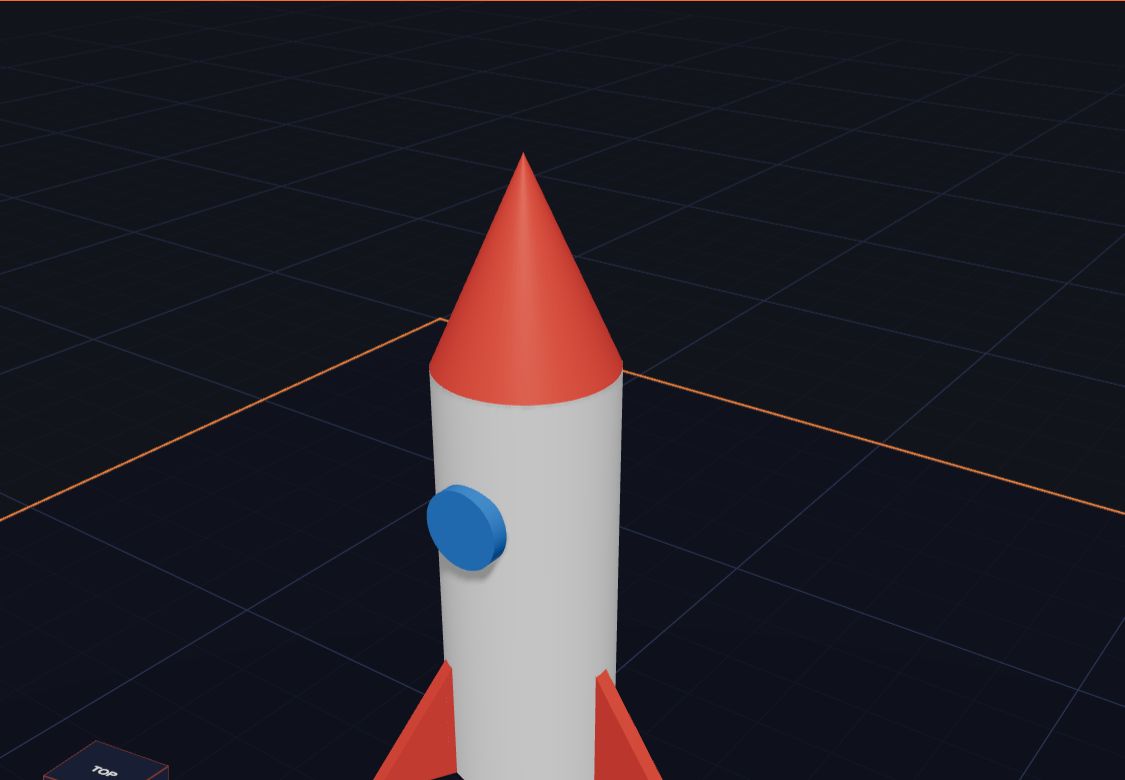 What Is 3D Printing?
A 3D printer makes real things you can hold, one thin layer at a time. Here is how it works, in simple words.
5 min read
What Is 3D Printing?
A 3D printer makes real things you can hold, one thin layer at a time. Here is how it works, in simple words.
5 min read