Blog ›
Turn, Flip and Stretch: Change Any Shape
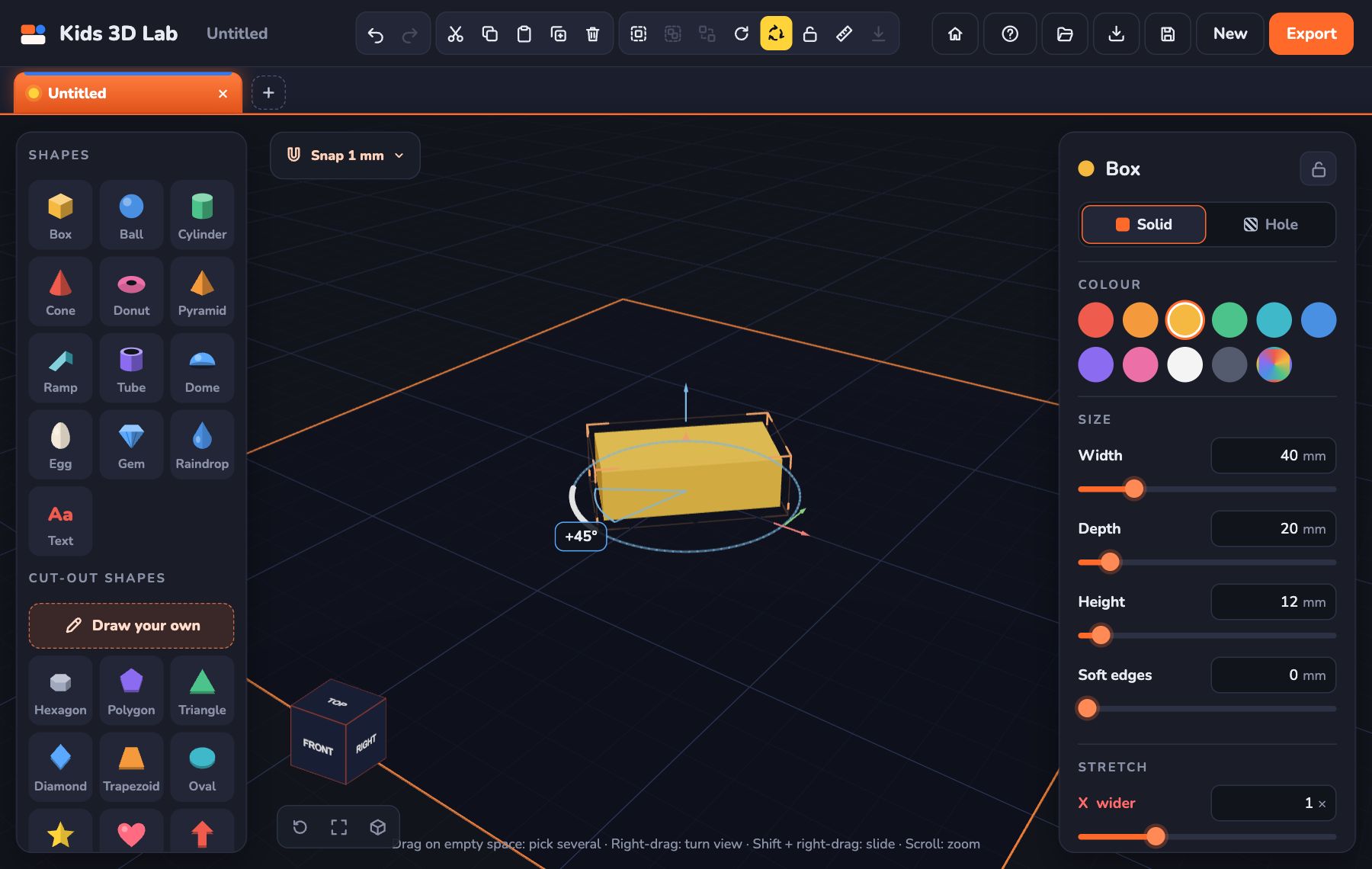
You don't need a new shape every time. You can turn, flip and stretch the shapes you already have to make something new.
Turning with the turn arrows
Pick a shape. Then click the turn button in the top bar. It looks like three arrows chasing each other in a circle. The button turns yellow, and three small curved arrows appear at the corners of your shape.
- The red arrow turns the shape around the X line (left to right).
- The green arrow turns it around the Y line (front to back).
- The blue arrow spins it like a record, flat on the plate.
Grab an arrow and drag it round. A big circle appears around your shape, and a label shows how far you have turned, like +45°.
Done turning? Click the turn button again to hide the arrows.
The shape turns in neat jumps of 15°. Want smaller steps? Use the Snap button above the plate. Or hold Alt while you drag to turn freely.
Quick turns
In the panel, next to X, Y and Z, there is a ↻ 90° button. Click it to turn a quarter turn. You can also press R to spin the picked shape a quarter turn.
Flipping
Flip turns a shape over like a pancake. Under Flip in the panel, pick X, Y or Z. Flip a cone on Z, and it stands on its point, like a spinning top!
Stretching
Stretch makes a shape longer in one direction. Find Stretch in the panel:
- X wider makes it wider.
- Y deeper makes it go further back.
- Z taller makes it taller.
1 means normal. 2 means twice as big that way. 0.5 means half.
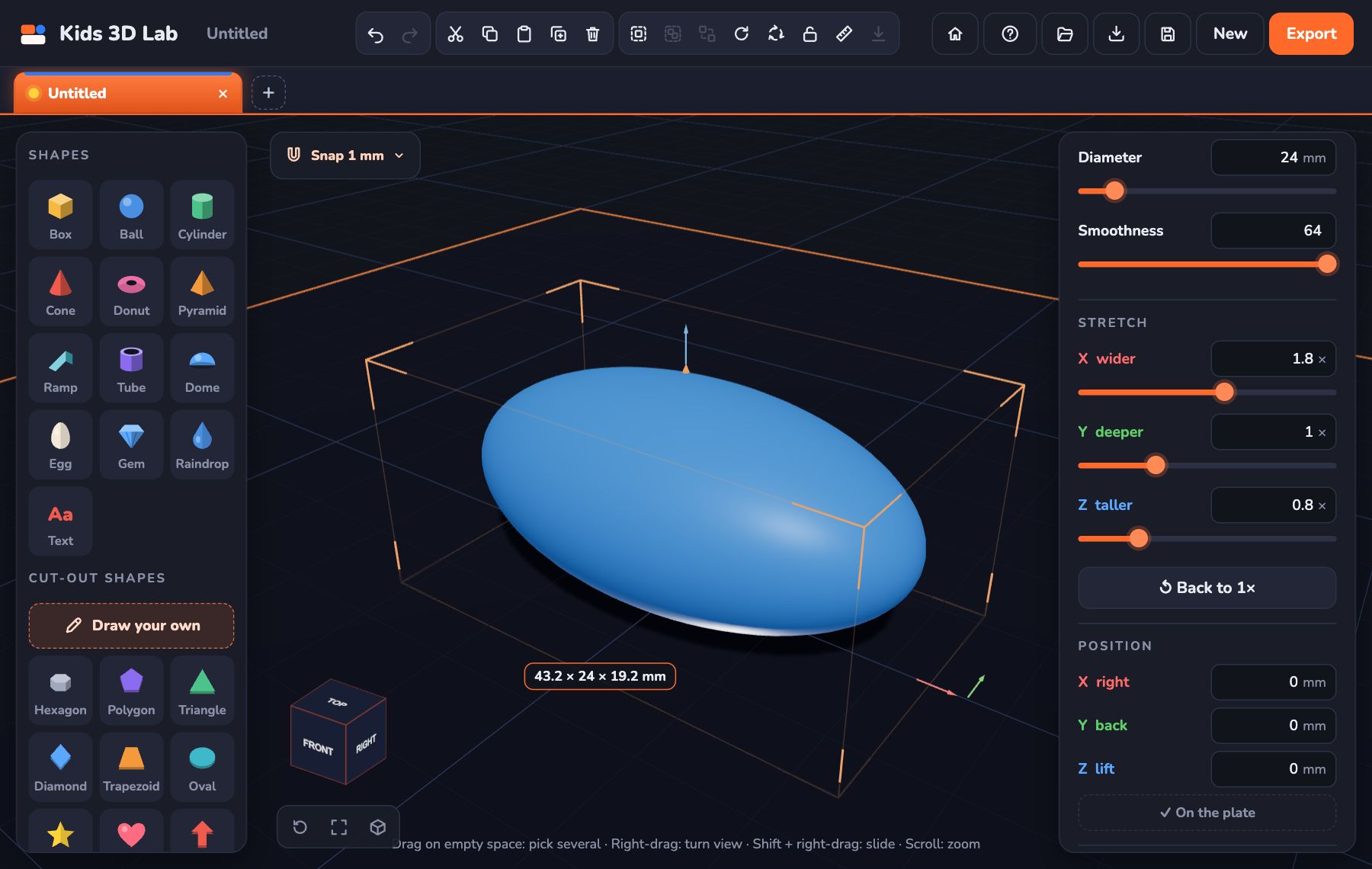
Try these:
- Stretch a Ball wider: you get an oval pebble.
- Stretch a Ball taller: you get an egg or a head.
- Stretch a Star taller: a thick star badge.
- Stretch a Heart wider: a funny wide heart!
To go back, click Back to 1×.
More ways to change a shape
- Soft edges make the corners round or slanted, so they are nice to hold.
- Smoothness decides how many sides a round shape has. Set a Cylinder to 6 and it becomes a hexagon!
- Sweep cuts a round shape like a cake. 270° makes a Pac-Man.
Turning several shapes at once
You can turn a whole group of shapes together, like turning a whole robot around. Pick them all (drag a box around them, or press Ctrl + A for everything). Then click ↻ 90° in the panel, or use the turn arrows. They all turn together around their middle, and stay in the same places next to each other.
Common mistakes
- I turned it the wrong way. Press Ctrl + Z to undo. Or turn it the other way with the same arrow.
- After turning, it's floating or sinking. Click Drop to plate to put it back down.
- The turn arrows are gone. They only show when the turn button in the top bar is on. Click the button with three arrows in a circle.
- Flip did nothing. Some shapes look the same after flipping, like a ball or a cube. That's fine! Try flipping a cone or a ramp.
- Stretch made it huge. Stretch multiplies. 3 means three times as big that way. Click Back to 1× to start again.
Try this next
- A spinning top. Add a Cone and flip it on Z so it stands on its point. Add a flat cylinder on top and a thin handle.
- A pebble. Stretch a Ball: 1.5 wider and 0.6 taller. Paint it grey.
- A star badge. Take a Star, stretch it 0.3 taller, and give it soft edges.
- A leaning tower. Stack five cylinders and turn each one 5° more than the one below.
- A Pac-Man. Add a Cylinder, set its Sweep to 300, and give it an eye.
Questions kids ask
What is the difference between turning and flipping?
Turning spins a shape around, like a wheel. Flipping turns it over, like a pancake, so the top goes to the bottom or the left goes to the right.
What does X, Y and Z mean?
They are the three directions. X is left and right. Y is back and front. Z is up and down. The colours match: red is X, green is Y, blue is Z.
Can I stretch text?
Text changes size with Letter size and Thickness instead. Every other shape can be stretched.
For grown-ups
Turning, flipping and stretching introduce transformations, rotation, reflection and scaling, which appear in maths lessons about shapes and symmetry. Ask children to predict what will happen before they click, then check. The angle label shown while turning makes degrees concrete: 90 is a quarter turn, 180 is half, 360 is all the way round. See The Kids 3D Lab Guide for every tool in one place.
Snap: how far it turns
When you drag a turn arrow, the shape jumps in neat steps. Click the Snap button above the plate to choose the step: 1°, 5°, 15° or 45°, or no snapping at all. Hold the Alt key while you drag to turn it freely.
Keep reading
 Getting Your Model Ready to Print
Six simple checks before you 3D print — flat bottoms, no floating parts, the right size — plus how to save the file for your printer.
6 min read
Getting Your Model Ready to Print
Six simple checks before you 3D print — flat bottoms, no floating parts, the right size — plus how to save the file for your printer.
6 min read
 20 Fun Things to Make in Kids 3D Lab
Need an idea? Here are 20 fun, easy things kids can design in Kids 3D Lab, from name tags to crowns, rockets and robots.
5 min read
20 Fun Things to Make in Kids 3D Lab
Need an idea? Here are 20 fun, easy things kids can design in Kids 3D Lab, from name tags to crowns, rockets and robots.
5 min read
 Kids 3D Lab for Parents and Teachers
How Kids 3D Lab helps children aged 5 to 11 learn 3D design, measuring and problem solving — with lesson ideas for home and the classroom.
5 min read
Kids 3D Lab for Parents and Teachers
How Kids 3D Lab helps children aged 5 to 11 learn 3D design, measuring and problem solving — with lesson ideas for home and the classroom.
5 min read