The Best Free 3D Design Software for Kids (2026)
The best free 3D design software for your child depends mostly on their age, and on what they want to make. A five-year-old needs big buttons and no sign-up. A curious ten-year-old is ready for more tools. A teenager can start using the same software engineers use.
This guide sorts the most popular free tools by age, and explains what each one is good for. We make Kids 3D Lab, so we've tried to be fair: every tool here is good, just for different children.
What to look for
Before choosing, think about four things:
- Age and reading level. Can your child read the buttons? Are the words simple?
- Accounts. Does it need an email and password? For young children, a tool without an account is simpler and keeps their data private.
- Where it runs. Browser tools work on Chromebooks and most computers with nothing to install. Downloaded apps need a more powerful computer.
- What it makes. Toys and name tags? Machine parts? Characters for a game? Different tools suit different things.
Ages 5 to 8: first steps
Kids 3D Lab
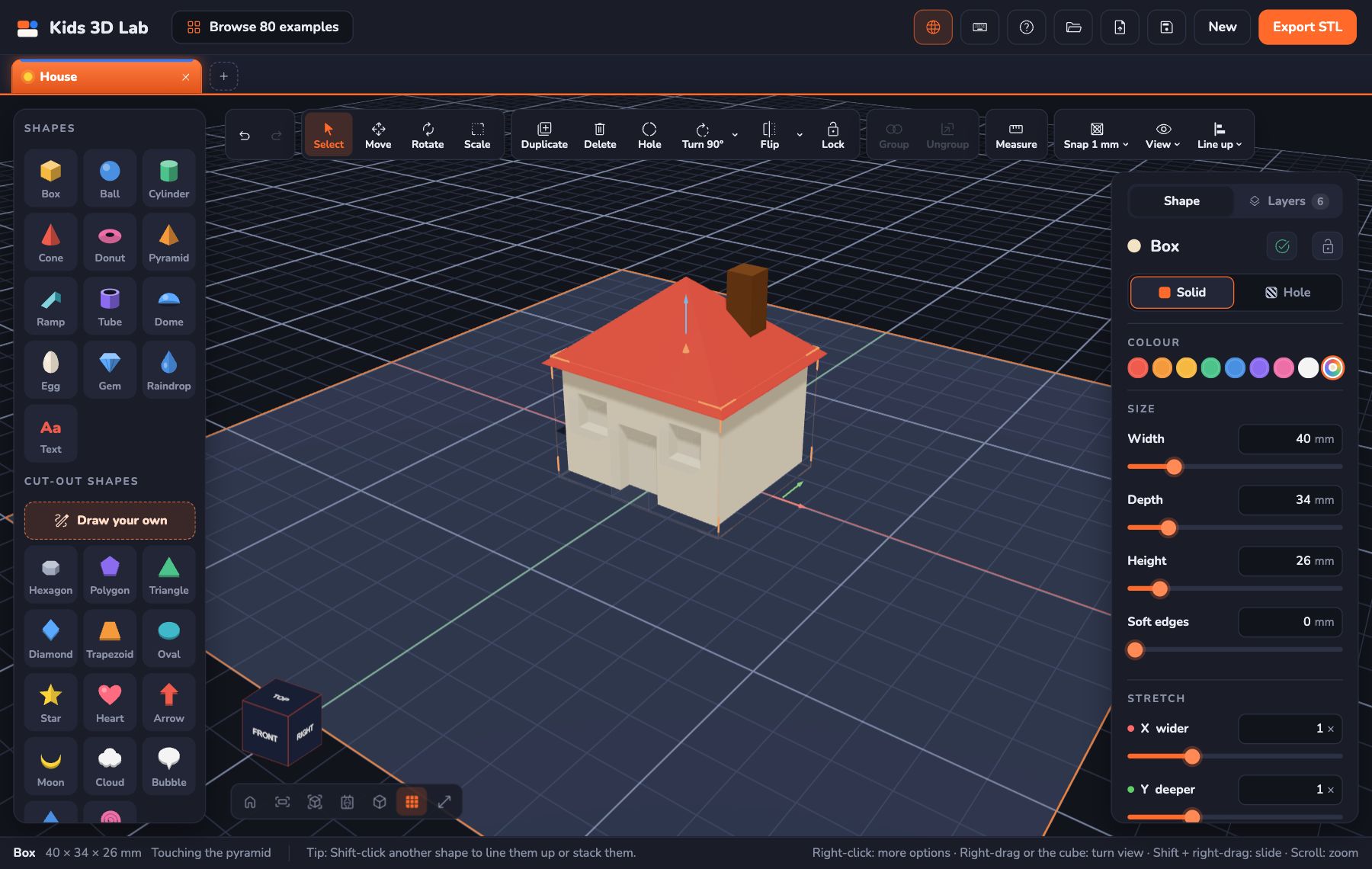
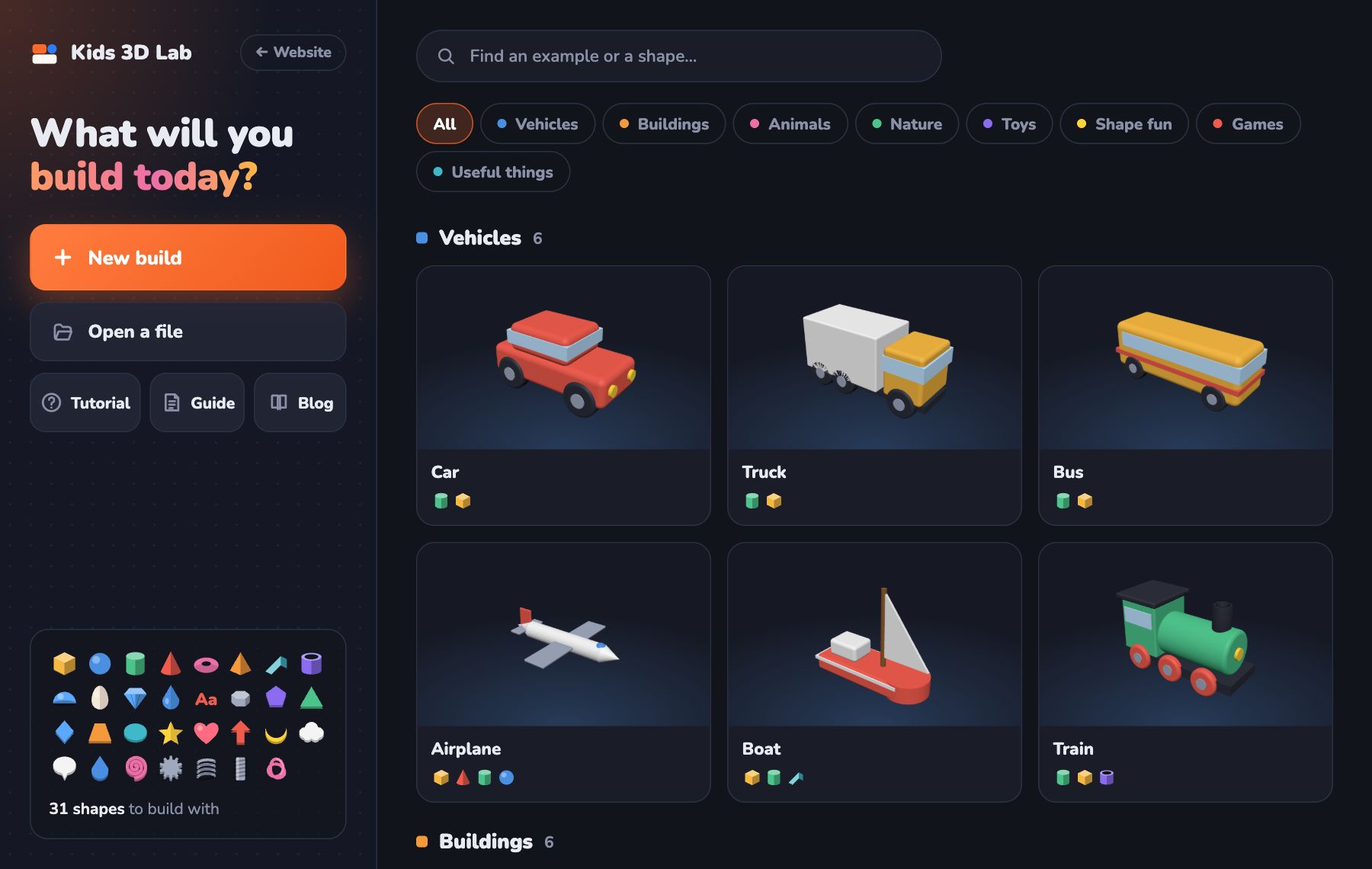
Kids 3D Lab is made for young children. You build by clicking shapes and snapping them together, like blocks. Every button uses plain words, and there's a step-by-step tutorial written for kids aged 5 and up. It even has a Tinkercad-style Workplane, so a shape can stand on the side of another one.
- Account: none. Nothing is uploaded, and work stays on your computer.
- Runs: in the web browser, on computers, Chromebooks and tablets.
- Good for: name tags, toys, simple gifts, first prints, learning shapes and measuring.
- Ready to print: checks the model and saves STL or colour 3MF files.
Its limits: it's designed for simple, chunky models, not complex machines. When children outgrow it, Tinkercad is a natural next step.
Ages 8 to 12: growing skills
Tinkercad
Tinkercad, from Autodesk, is the best-known 3D design tool for schools. It also builds with simple shapes, but it has more features, plus extras for electronics and coding.
- Account: needed. Younger children usually join through a teacher's class code or with a parent's help.
- Runs: in the web browser.
- Good for: school projects, more detailed models, kids who are confident readers.
If your child finds Tinkercad a little hard at first, see our guide to Tinkercad Alternatives for Young Kids.
BlocksCAD
BlocksCAD lets kids build 3D models by coding with blocks, a bit like Scratch. Instead of dragging shapes, children snap code blocks together, and the model appears.
- Good for: children who like coding and puzzles. It teaches maths and programming at the same time.
3D Slash
3D Slash works like a 3D version of a block-building game: you start with a big cube and chip pieces away. Many children find it fun and familiar.
- Good for: blocky, pixel-style models and quick creations.
Ages 12 and up: real engineering tools
Onshape
Onshape is professional design software that runs in the browser. Engineers use it to design real products. It has a free plan for students and teachers.
- Account: needed.
- Good for: teens interested in engineering, robotics clubs and precise parts.
Autodesk Fusion
Fusion is a powerful design program used by engineers and makers. It's free for personal hobby use and for education, with an account.
- Runs: downloaded to a computer (it needs a fairly powerful one).
- Good for: teens ready for a big challenge, robotics and mechanical parts.
Blender
Blender is free, open-source software for 3D art, animation and games. It's amazing for characters and sculpting, but less suited to exact measurements.
- Good for: teens who love art, animation and game design.
OpenSCAD
OpenSCAD is free, and you design by writing code. You type instructions, and the model appears.
- Good for: teens who enjoy programming.
The quick comparison
| Tool | Best ages | Account? | Runs in | Best for |
|---|---|---|---|---|
| Kids 3D Lab | 5–10 | No | Browser | First models, young children |
| Tinkercad | 8–14 | Yes | Browser | School projects |
| BlocksCAD | 9–14 | Varies | Browser | Coding and maths |
| 3D Slash | 8–14 | Varies | Browser | Blocky models |
| Onshape | 12+ | Yes | Browser | Engineering |
| Fusion | 13+ | Yes | Download | Engineering, robotics |
| Blender | 12+ | No | Download | Art, animation, games |
| OpenSCAD | 13+ | No | Download | Coding models |
Our advice
- Start simple. A tool your child can use alone today beats a powerful one they give up on. Early wins build confidence.
- Move up when they're ready. When your child starts asking "how do I do…?" and the answer is "you can't in this app", it's time for the next step.
- Skills carry over. Thinking in 3D, measuring, and combining shapes work the same everywhere. Nothing they learn early is wasted.
Questions parents ask
Is Tinkercad free?
Yes, Tinkercad is free to use. It needs an account. Check Autodesk's website for the current rules about children's accounts.
What do schools use?
Many primary and middle schools use Tinkercad. Secondary schools often move on to Onshape or Fusion. Some teachers use simpler tools like Kids 3D Lab with younger classes.
Do we need a 3D printer?
No. Designing is the main skill, and it's fun on its own. When you want to print, libraries and schools can often help. See How to 3D Print Without Owning a 3D Printer.
Can my child use these on an iPad?
Browser tools may work on tablets, with some limits. Kids 3D Lab works on tablets with touch. Most powerful programs need a computer.
What is CAD, and is there CAD for kids?
CAD means computer-aided design: designing things on a computer before they are made. Every program in this list is a kind of CAD. Kids 3D Lab is CAD made for kids from about 5, free and in the browser. Read more in What Is CAD?
For grown-ups
There's no single best tool, only the best tool for this stage. For children aged 5 to 8, look for no accounts, plain language and quick success. From around 8, more features and school tools make sense. Teens can use professional software for free, which is a remarkable opportunity. When your child is ready to move on, our guide What to Learn After Kids 3D Lab maps out the path.
Keep reading
 Grown-ups
Free 3D Design for Kids: A Guide for Parents and Teachers
A free 3D design app for kids aged 5 to 11, right in the browser — no account, no adverts. How children learn shapes, measuring and problem solving, with lesson ideas for home and school.
6 min read
Grown-ups
Tinkercad Alternatives for Young Kids
Looking for a 3D design app for a young child? Here is how Kids 3D Lab, Tinkercad and other kids' 3D tools compare, and how to pick one.
7 min read
 Grown-ups
3D Design Lesson Plans for Grades 3 to 5
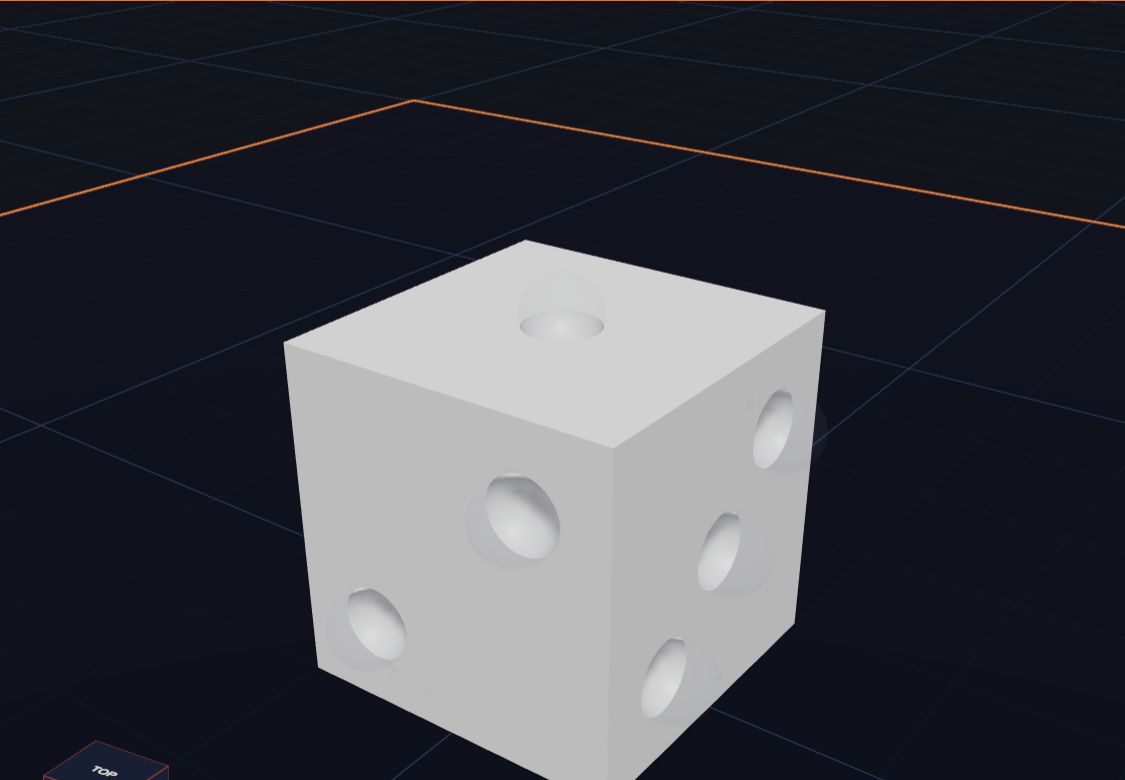
Five ready-to-use 3D design lessons for grades 3 to 5 with Kids 3D Lab — shapes, measuring, holes, symmetry and a design challenge — with goals, steps and ideas for checking learning.
7 min read