Blog ›
Tinkercad Alternatives for Young Kids
Tinkercad is the 3D design app most people know. It is free, it runs in a web browser, and schools all over the world use it. So why would anyone look for something else?
Because children are all different. A 10-year-old who loves coding needs something different from a 6-year-old who has just learned to read. This post looks at a few good 3D design tools for kids, and helps you pick the right one.
What makes a 3D app good for kids?
Before we look at the apps, here is what matters most for young designers:
- Easy words. Buttons should say what they do, like "Hole" or "Put on top of the box". Young children can't guess what a word like "extrude" means.
- Big, clear buttons. Small hands on a trackpad need big things to click.
- No account, or an easy one. Every password is one more thing to forget. And children's data should be kept safe.
- Real sizes. If the numbers are real millimetres, a child learns to measure while they design.
- A path to printing. The best part of 3D design is holding what you made. The app should help you get ready to print.
- Room to grow. A good app is easy on day one, but still fun after twenty projects.
Tinkercad
Tinkercad is made by Autodesk, a big company that also makes design software for engineers.
What's good: It is free and very popular. There are lots of lessons, videos and projects online. It also has a circuits mode and a coding mode for older children. Many teachers already know it.
What can be hard: You need an account to use it. Younger children usually join through a teacher's class, or a parent signs them up. Some menus use grown-up words, and the screen has a lot of buttons. For a child of 5 or 6, that can be a lot to take in.
Best for: Children about 8 and up, especially in schools that already use it.
Kids 3D Lab
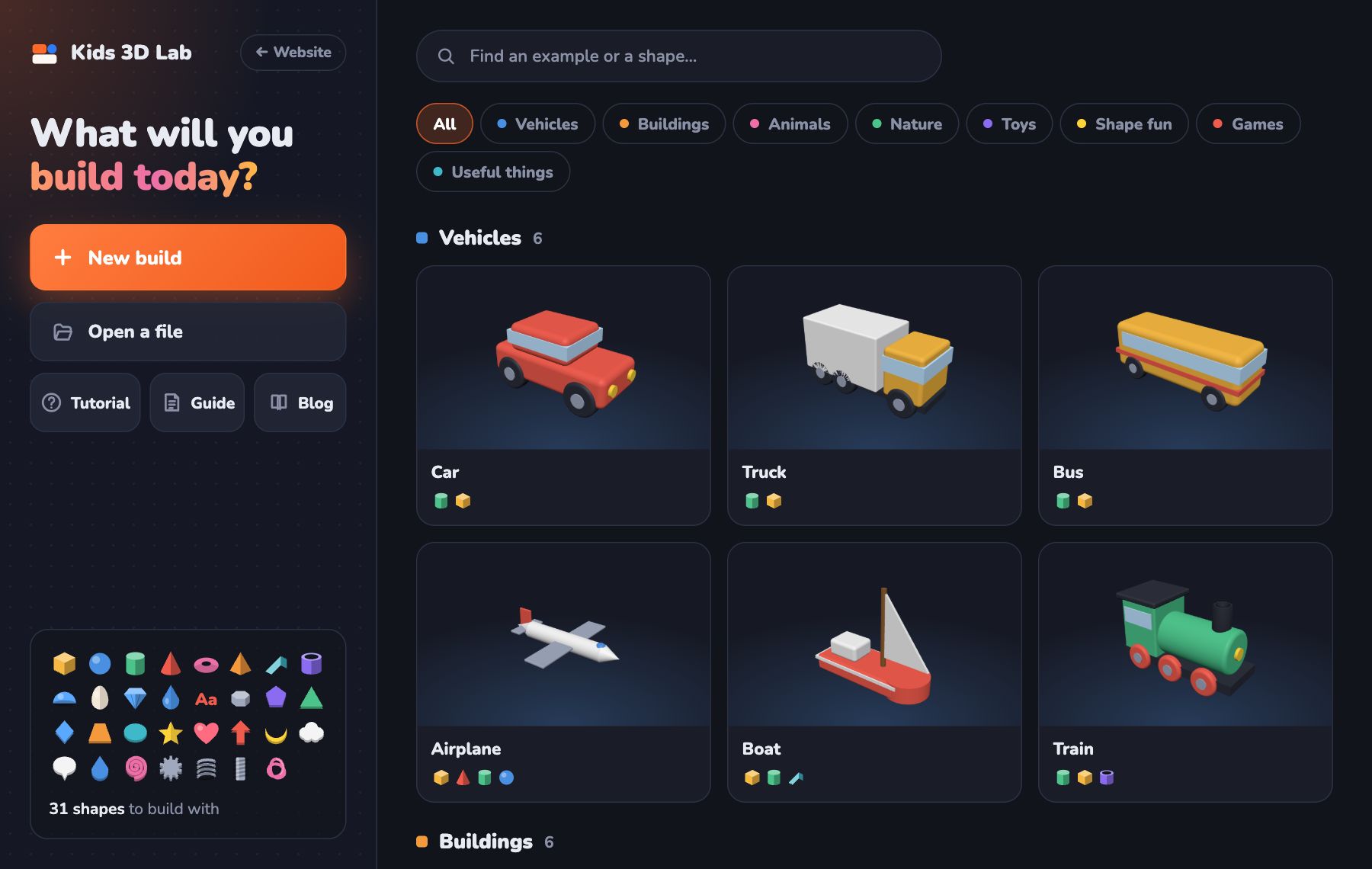
Kids 3D Lab is the app on this website. It was made for children from about 5 years old, and it is free.
What's good:
- There is no account and nothing to install. You open the page and start building.
- Nothing is uploaded. Builds stay on your own computer, in the browser and in files you save. There are no adverts.
- Buttons use easy words. To cut a hole, you click Hole. To stack, you click Put on top of the box.
- There are 31 shapes, including stars, hearts, gears, springs and text.
- There are 60 examples to open and take apart, like a car, a robot and a snowman.
- A Ready to print? check tells you if your model fits your printer, if anything is floating, and how much plastic it needs.
- It saves STL files for any printer, and 3MF files that keep your colours.
What can be hard: It is newer, so there are fewer videos about it online. It does not do electronics or coding.
Best for: Children from about 5 to 11, families, and anyone who wants to start in a few minutes.
Other tools worth knowing
- BlocksCAD builds 3D models with coding blocks, a bit like Scratch. It's great for children who already love coding. It teaches both coding and 3D at the same time.
- SketchUp for Schools is a version of SketchUp that runs in the browser. It is good for buildings and rooms. It works best for older children, and schools sign in with a school account.
- Makers Empire is a 3D design app made for schools, with lessons and challenges. Schools usually use it with a paid plan.
Apps change their plans and prices over time, so check each website for the latest details.
A quick comparison
| Kids 3D Lab | Tinkercad | BlocksCAD | |
|---|---|---|---|
| Account needed | No | Yes | For saving |
| Best starting age | About 5 | About 8 | About 9 |
| Works in the browser | Yes | Yes | Yes |
| Way of building | Shapes | Shapes | Coding blocks |
| Cuts holes | Yes | Yes | Yes |
| Print check | Yes | No | No |
Which one should you pick?
Here is a simple way to choose:
- Is your child under 8? Start with Kids 3D Lab. It has the fewest words to read and nothing to sign up for.
- Does your child's school use Tinkercad? Then it's worth learning Tinkercad too, so home and school match.
- Does your child love Scratch or coding? Try BlocksCAD.
- Is your child designing houses and rooms? SketchUp for Schools is made for that.
The good news is that the big ideas are the same in every app. You add shapes, move them, change their size and cut holes. A child who learns those ideas in one app can move to another app later without starting again.
Try this first
Whatever app you choose, a great first project is a name tag. It uses the most important tricks: a shape, some text and a hole. Here's how it goes in Kids 3D Lab:
- Click New build.
- Add a Box. Make it 50 wide, 20 deep and 3 high.
- Add Text and type your name.
- Click the box, Shift-click the text, and click Put on top of the box.
- Add a Cylinder, click Hole, and cut it through one end.
There are step-by-step pictures in Make a Name Keychain.
Questions parents ask
Is Kids 3D Lab really free?
Yes. There are no adverts and no paid extras. You don't need an account.
Can my child use two apps?
Yes, and it can help! Many children start with a simple app and move to a bigger one when they're ready. The skills carry over.
Do we need a 3D printer to start?
No. Designing is the fun part, and it teaches measuring and problem solving on its own. When you want to print, a library, school or print shop can often help. Read What Is 3D Printing? to learn more.
Which app is safest for young children?
Look for apps that don't need an account, don't show adverts and don't upload children's work. Kids 3D Lab does none of these things. Our privacy page explains exactly what is kept, in plain words.
For grown-ups
The "best" 3D app is the one your child will actually use. For young children, that usually means the one with the fewest obstacles: no sign-up, few words, and a quick win in the first ten minutes. Sit with your child for the first session, let them pick an example to take apart, and let them change the colours and sizes freely. Confidence comes first; precision comes later. When they're ready for structured practice, Kids 3D Lab for Parents and Teachers has lesson ideas for home and the classroom.
Keep reading
 3D Printing Projects for Kids: 15 Easy Ideas
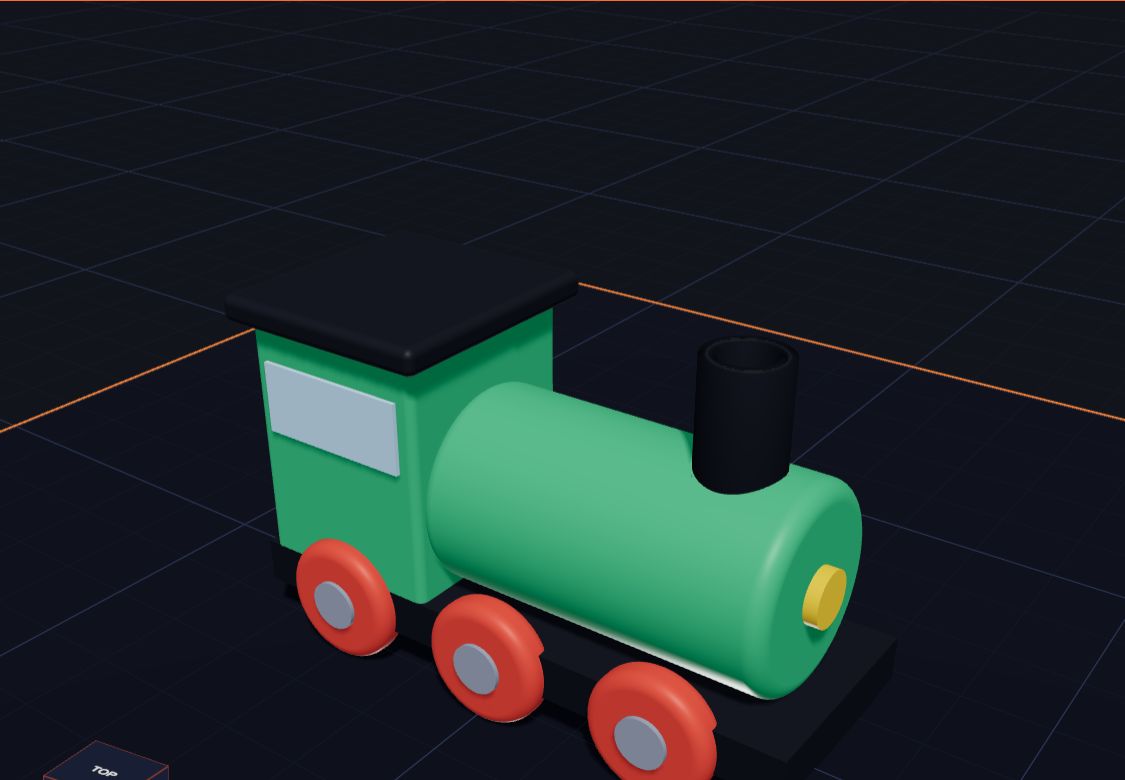
Fifteen easy 3D printing projects kids can design themselves, from name tags and dice to cookie cutters, pen pots and a little train.
6 min read
3D Printing Projects for Kids: 15 Easy Ideas
Fifteen easy 3D printing projects kids can design themselves, from name tags and dice to cookie cutters, pen pots and a little train.
6 min read
 Make a Name Keychain, Step by Step
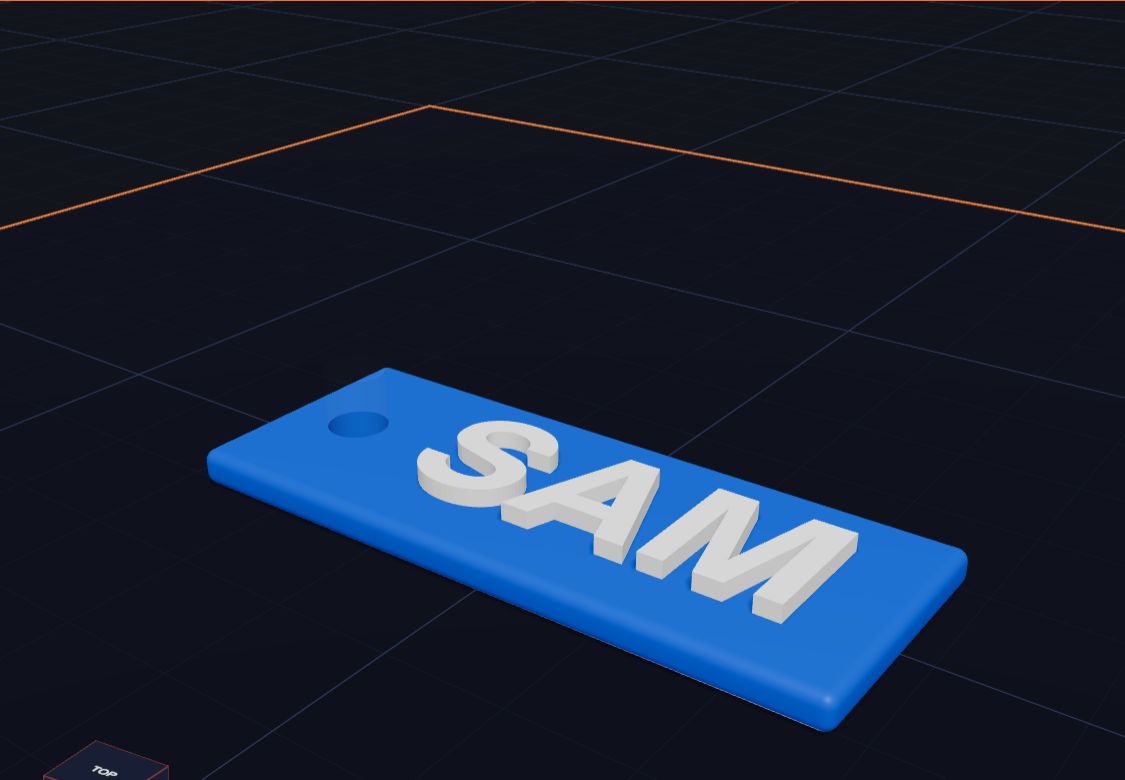
Design your own name keychain in Kids 3D Lab — a tag, your name on top and a hole for the ring — then get it ready for a 3D printer.
6 min read
Make a Name Keychain, Step by Step
Design your own name keychain in Kids 3D Lab — a tag, your name on top and a hole for the ring — then get it ready for a 3D printer.
6 min read
 Design Your Own Toy Car
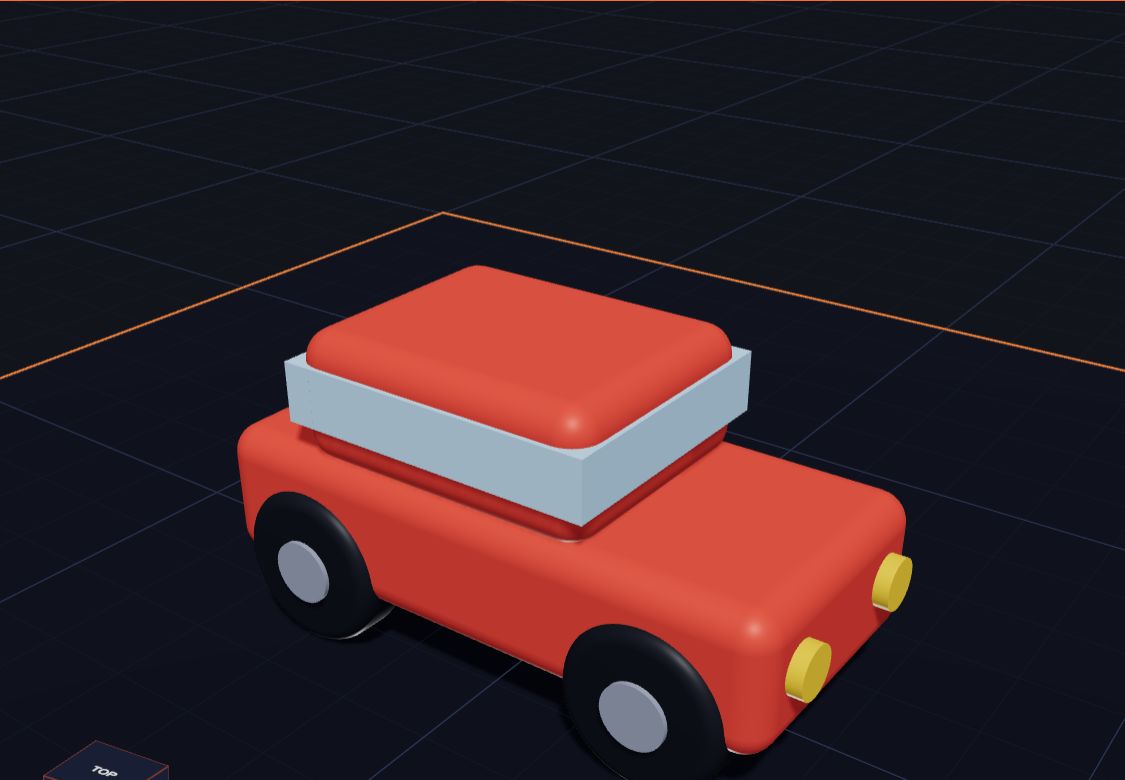
Build a toy car in Kids 3D Lab from boxes and cylinders — a body, a roof, windows, lights and four wheels — and learn to turn and copy shapes.
6 min read
Design Your Own Toy Car
Build a toy car in Kids 3D Lab from boxes and cylinders — a body, a roof, windows, lights and four wheels — and learn to turn and copy shapes.
6 min read