Pro Mode: Exact Sizes, Patterns and Boolean Tools in Kids 3D Lab
Kids 3D Lab started as the easiest way for young children to build in 3D: drag a shape, change its colour, press print. But many of the people using it are older now, and they keep asking for the same things: exact sizes, patterns and the boolean tools that "real" CAD programs have. So we built Pro mode.
Pro mode is a switch. Turn it on and you get the tools below. Turn it off and Kids 3D Lab is exactly as simple as before, so a little brother or sister can still use it. It's free, it runs in your browser, and nothing is uploaded.
How to turn on Pro mode
- Open Kids 3D Lab.
- Click the Pro switch in the top bar. It turns orange.
- Pick a shape. Measurement lines appear around it, and a new group of buttons appears at the end of the tool row: Repeat, Combine and Overlap.
Kids 3D Lab remembers the switch, so Pro mode is still on next time. Click it again to go back to the simple tools.
1. Measurement lines (dimensions)
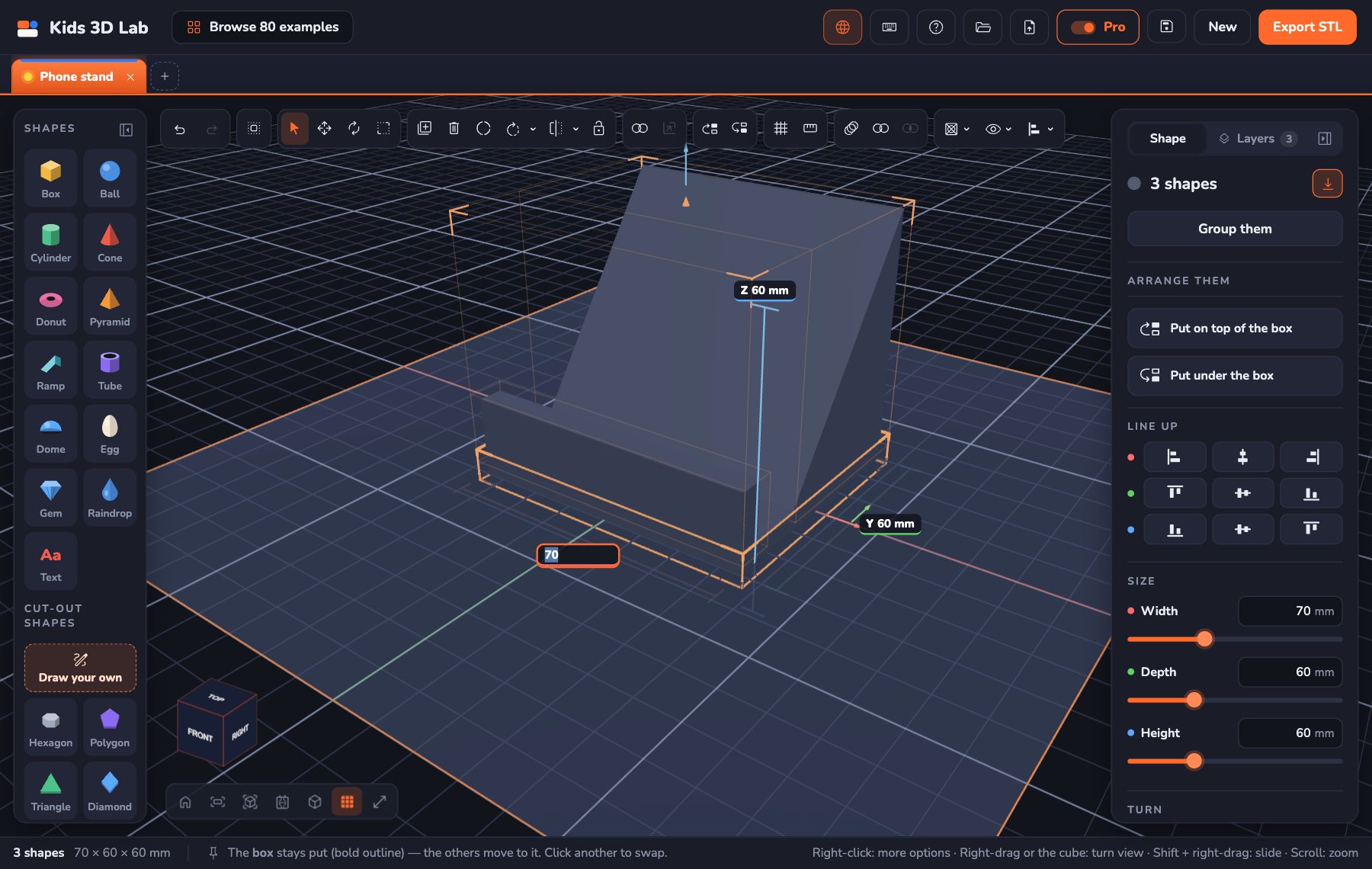
In technical drawings, the sizes of a part are shown with dimension lines: a thin line with a mark at each end and the length written beside it. Pro mode draws them right in the 3D view:
- X (red) along the front: the width.
- Y (green) along the right side: the depth.
- Z (blue) up the front corner: the height.
Pick several shapes and the lines measure all of them together, so you can check the size of a whole build at a glance. Holes don't count, and nor does any part that sits under the plate, because those parts won't be printed. What you see is the size of the real object.
2. Type an exact size
This is the feature most people asked for. Click any number on a measurement line, type a new size and press Enter.
- If one shape is picked and it isn't turned, only that size changes. A box that is 20 mm wide becomes exactly 47.5 mm wide, and its depth and height stay the same.
- If several shapes are picked (or the shape is turned), they grow or shrink together, keeping their shape. Type 120 on the X line of a whole car, and the whole car becomes exactly 120 mm long.
- Press Esc to cancel.
In Pro mode, sizes also show to two decimal places: hundredths of a millimetre. You won't print that precisely, but it matters when you add up parts. Three parts of 33.33 mm are not quite 100 mm, and when two parts must fit together, those small differences count.
Practice gameMeasure itCount 10 mm blocks to find how long a pencil is.Play →3. Repeat: patterns without the boring part
Real CAD programs call this a pattern. You design one thing, then tell the computer to copy it evenly. Pick something and click Repeat. There are three kinds:
In a row (a linear pattern)
Choose how many, which way (X, Y or Z) and the gap between them. The dialog tells you how far apart each copy is and how long the whole row will be. It's perfect for fence posts, the teeth of a comb, the keys of a keyboard, or a stack of shelves going up.
Round a ring (a circular pattern)
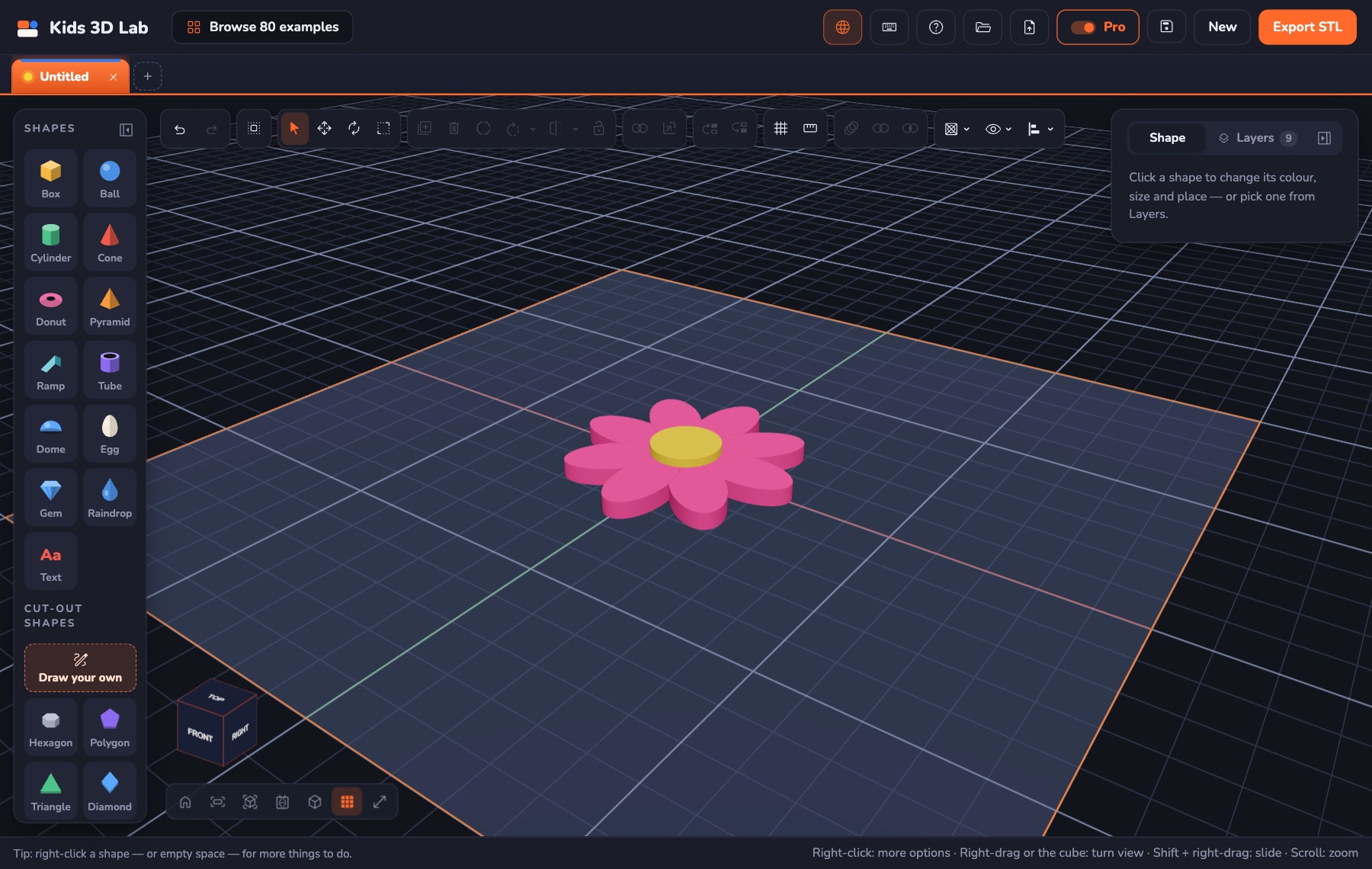
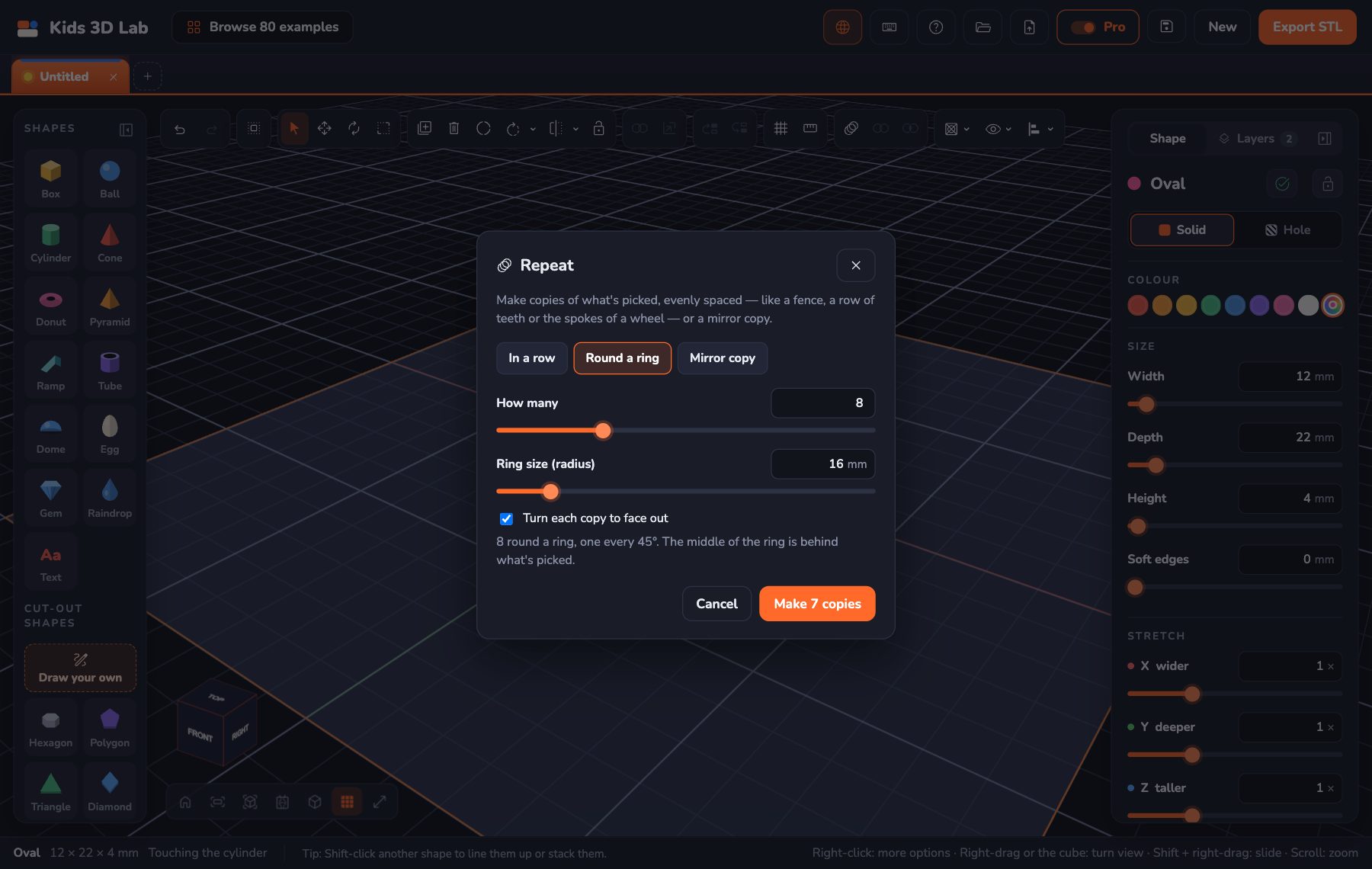
Choose how many and how big the ring is (its radius). The copies are spread evenly round a circle, one every 360 ÷ n degrees. With Turn each copy to face out ticked, each copy turns as it goes round, like the petals of a flower or the spokes of a wheel.
Mirror copy
Choose on the right or at the back, and a gap. You get a mirrored copy, the other half of something symmetrical: the second wing of a plane, the other side of a face, the left and right halves of a car. Set the gap to 0 to make the halves touch, or below 0 to make them overlap so they print as one piece.
4. Combine and Overlap (boolean tools)
Inside every CAD program there are three basic ways to mix two solids, called boolean operations (after George Boole, the mathematician who described this kind of logic):
| Boolean | What it keeps | In Kids 3D Lab |
|---|---|---|
| Union | Everything in A or B | Combine |
| Difference | A, minus whatever B covers | Make B a hole |
| Intersection | Only what is in A and B | Overlap |
Holes have always been in Kids 3D Lab. Pro mode adds the other two.
Combine (union)
Pick two or more shapes and click Combine. They become one solid, with their holes cut out, in exactly the same place. In the Layers list it's called "Combined". It takes the colour of its biggest part.
Why would you want that? A combined part moves, turns and resizes as one, it can't come apart by accident, and it's one clean piece when you export. It also lets you build in steps: combine a finished part, then use it in something bigger.
Overlap (intersection)
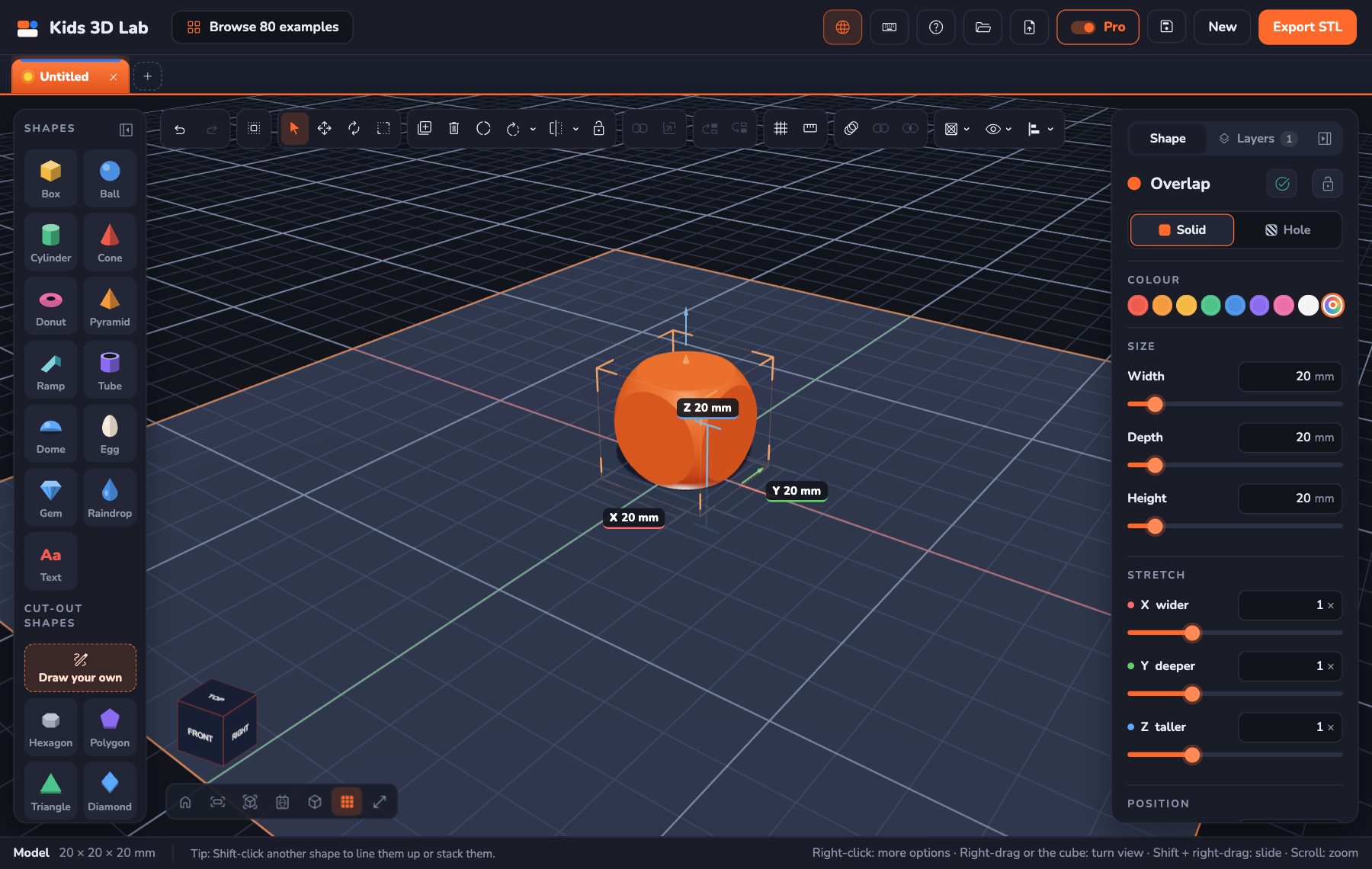
Pick two or more shapes that overlap and click Overlap. Only the space they all share is kept. This makes shapes that are hard to build any other way. The classic example is a dice with rounded corners:
- Add a Box and make it 20 × 20 × 20 mm.
- Add a Ball 27 mm across, and move it so its middle is in the middle of the box.
- Pick both and click Overlap.
The flat sides come from the box, and the round corners come from the ball. Make the ball bigger for sharper corners or smaller for rounder ones.
Three projects to try
Project 1: a phone stand that really fits
Measure your phone's thickness with a ruler, for example 9 mm. Open the Phone stand example from the start screen. The phone rests in the gap between the little front lip and the slope. Use the Measure tool (M) to check that gap, then move the lip until the gap is your phone's thickness plus 0.5 mm. That extra bit is called clearance: printed parts often come out slightly bigger than designed, so something that should slide in needs a little room. Finally, pick everything and type the width you want on the X line, so the stand is a little wider than your phone.
Project 2: a coaster with a ring of holes
Make a cylinder 90 mm across and 4 mm tall, in the middle of the plate. Add a small cylinder 6 mm across, make it a hole, and move it 35 mm in front of the middle (Y = −35). Click Repeat, choose Round a ring, 12 copies, ring size 35 mm: the ring's middle is exactly the middle of the coaster. Then Combine everything into one clean coaster. Change the number of holes and see how the pattern changes.
Project 3: a symmetrical spaceship
Build only the left half of a spaceship: body, wing, engine, fins. Pick everything and make a Mirror copy on the right with a gap of 0. Now any change to the design is easy: delete the right half, change the left, mirror again. Designers call this design for symmetry, and it halves the work.
How these tools match "real" CAD
Everything in Pro mode has a name in professional software, so the ideas carry straight over when you move on to programs like Onshape or Fusion:
- Measurement lines → dimensions in a drawing.
- Typing a size → driving dimensions: the number controls the shape.
- In a row / round a ring → linear pattern / circular pattern.
- Mirror copy → mirror.
- Combine / hole / Overlap → union / difference / intersection (or join / cut / intersect).
In those programs you usually draw a flat sketch first and pull it up into a solid. In Kids 3D Lab you start with ready-made solids. Both ways end up with the same thing: an exact, printable part. If you're doing Design and Technology at school, read CAD in DT: A Student's Guide to see how this fits your coursework.
Questions teens ask
Is Pro mode free?
Yes. Kids 3D Lab is completely free, with no account and no adverts. Pro mode is just a switch.
How exact can I make a size?
You can type sizes to a hundredth of a millimetre (0.01 mm). Most home 3D printers are accurate to about 0.1–0.2 mm, so design to the hundredth, but expect the print to be within a few tenths.
What's the difference between Combine and Group?
A group keeps its shapes separate. You can ungroup them and change each one. Combine melts them into one solid for good (only Undo brings the parts back). Group while you're still designing; combine when a part is finished.
Why is the Overlap button greyed out?
Overlap needs at least two solids that really overlap. If their boxes don't meet, there's nothing to keep.
Can I still use Kids 3D Lab with my younger brother or sister?
Yes. Turn Pro mode off and everything goes back to the simple version, with big buttons and no extra numbers.
For parents and teachers
Pro mode is our first step in making Kids 3D Lab useful for the whole of childhood, from 5 to 17. It adds the core CAD ideas taught in secondary Design and Technology (dimensions, patterns, symmetry and boolean operations) without changing the simple default that younger children rely on. Everything still runs in the browser, with nothing uploaded and no accounts. It's a gentle bridge before tools like Onshape or Fusion. For project ideas that use exact sizes and fair tests, see 8 Science Fair Projects With 3D Design and 3D Printing, and for where these skills can lead, Jobs That Use 3D Design. Every button is explained in The Kids 3D Lab Guide.
Keep reading
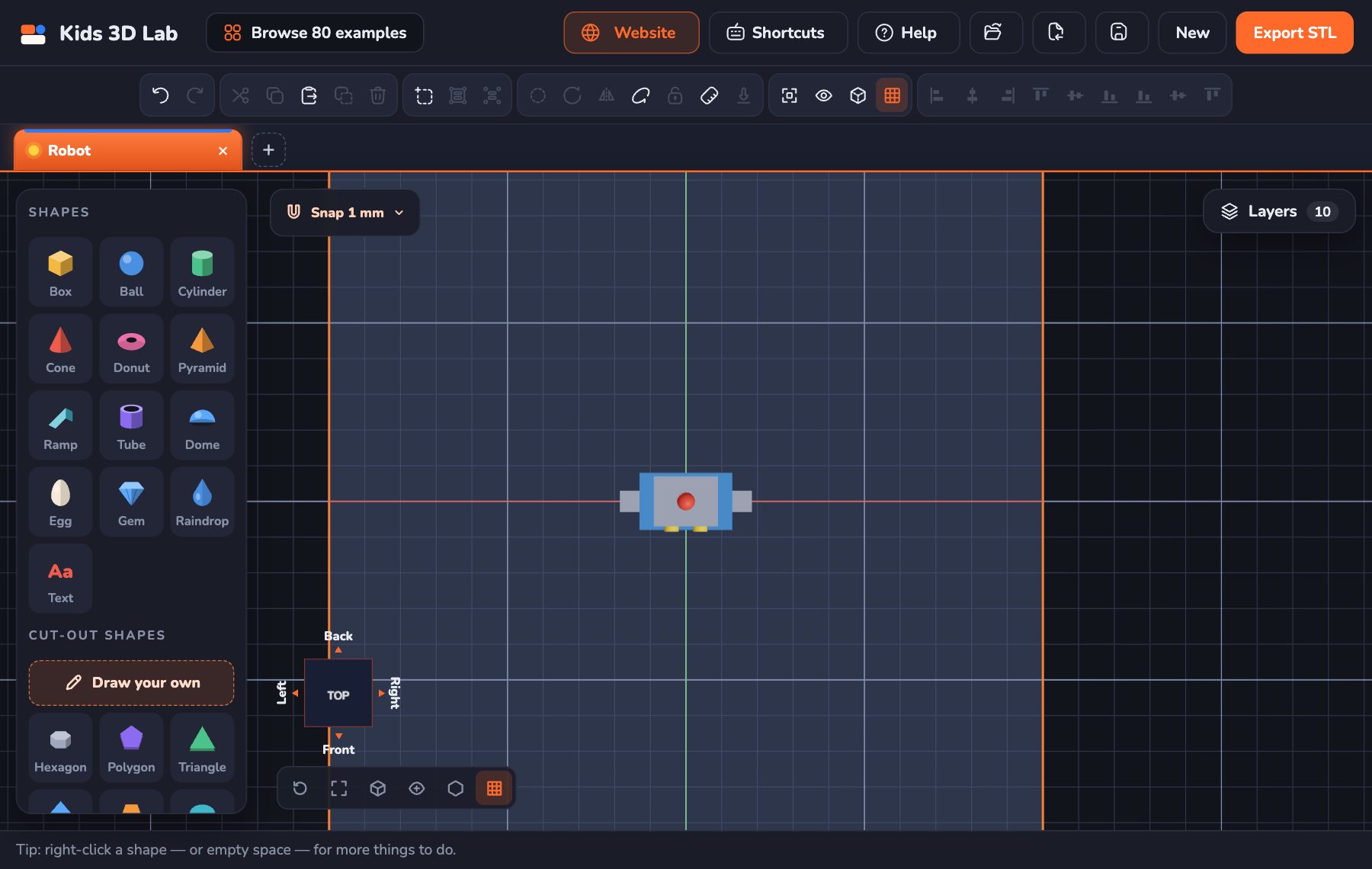 For teens
CAD in DT: A Student's Guide for GCSE Design and Technology
What CAD stands for in DT, how CAD and CAM are used in GCSE Design and Technology, which software schools use, and how to show good CAD work in your NEA project.
9 min read
For teens
CAD in DT: A Student's Guide for GCSE Design and Technology
What CAD stands for in DT, how CAD and CAM are used in GCSE Design and Technology, which software schools use, and how to show good CAD work in your NEA project.
9 min read
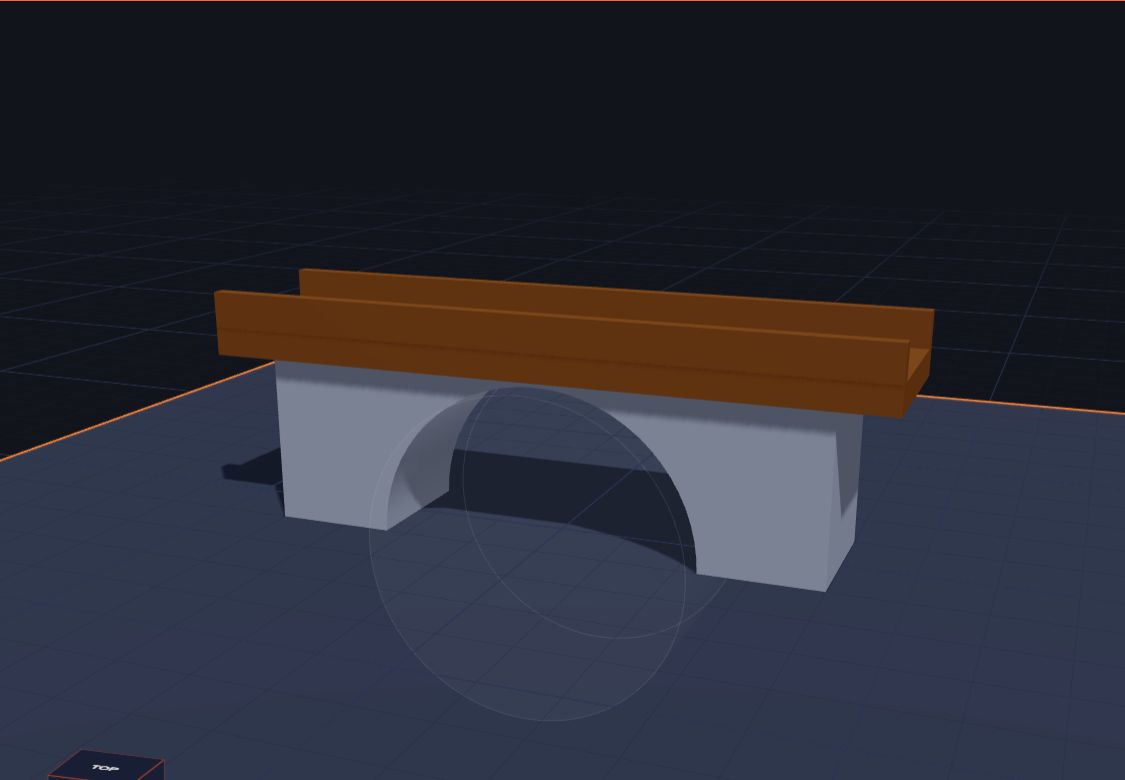 For teens
8 Science Fair Projects With 3D Design and 3D Printing
Science fair project ideas for teens using 3D design and 3D printing — with a real question to test, variables to change, and how to measure, repeat and present the results.
8 min read
For teens
8 Science Fair Projects With 3D Design and 3D Printing
Science fair project ideas for teens using 3D design and 3D printing — with a real question to test, variables to change, and how to measure, repeat and present the results.
8 min read
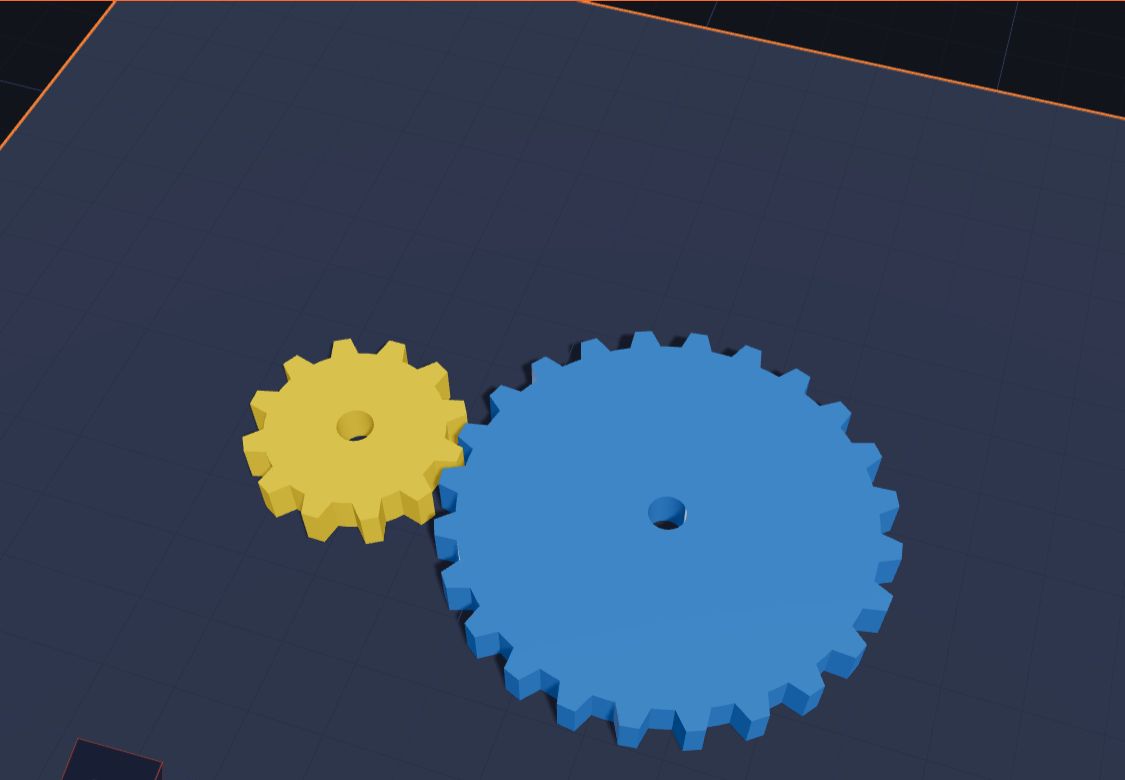 For teens
Jobs That Use 3D Design: CAD Careers for Teens to Explore
Which jobs use CAD and 3D design? Engineers, product designers, architects, game artists, dental technicians and more — what they do, which school subjects help, and free tools to start learning now.
7 min read
For teens
Jobs That Use 3D Design: CAD Careers for Teens to Explore
Which jobs use CAD and 3D design? Engineers, product designers, architects, game artists, dental technicians and more — what they do, which school subjects help, and free tools to start learning now.
7 min read