Blog ›
Draw Your Own Shape and Make It 3D
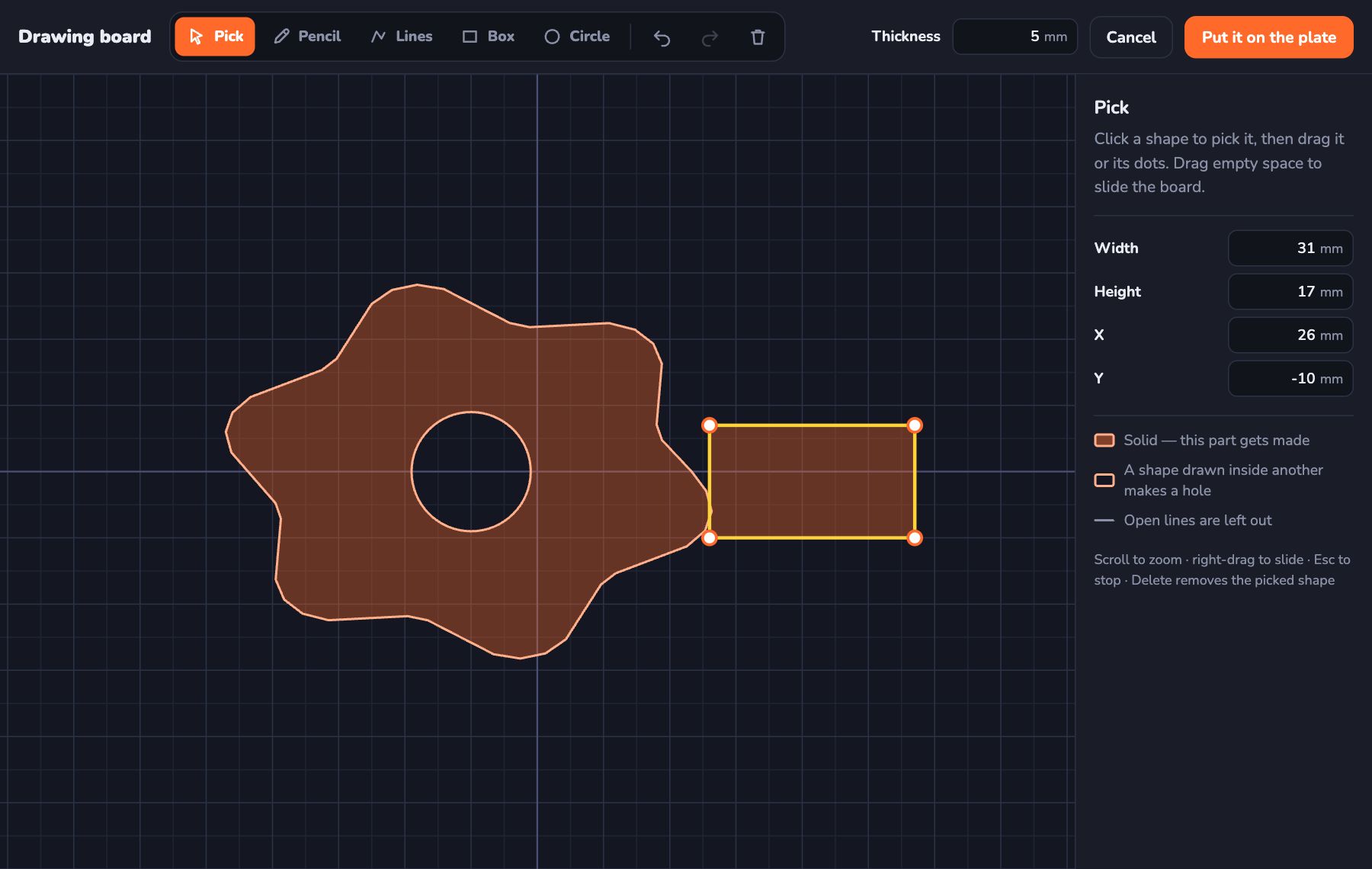
What if the shape you want isn't in the list? Draw it yourself! The drawing board lets you draw any flat shape. Then Kids 3D Lab makes it thick, like a cookie.
Open the drawing board
In the Shapes list on the left, click Draw your own. A big board with little squares opens. Each small square is 1 millimetre.
The drawing tools
- Pencil (P): hold the mouse button down and draw, just like on paper. When you let go, the ends join up.
- Lines (L): click for each corner. Click the first dot again to finish.
- Box (B): drag from one corner to the other.
- Circle (C): drag out from the middle.
- Pick (V): click a shape to move it or change it. Press Delete to remove it.
While you draw, the board shows the size. When you draw lines, it even shows the length and the angle.
Joining and holes
Here is the clever part:
- If two shapes overlap, they join into one piece.
- If you draw a shape inside another one, it becomes a hole.
So to make a donut shape, draw a big circle, then a small circle inside it. To make a flower, draw some circles that overlap.
The light purple colour shows what will really be made. If a part is not purple, it will not be printed.
Put it on the plate
At the top, type how thick you want it, like 5 mm. Then click Put it on the plate. Your drawing is now a real 3D shape!
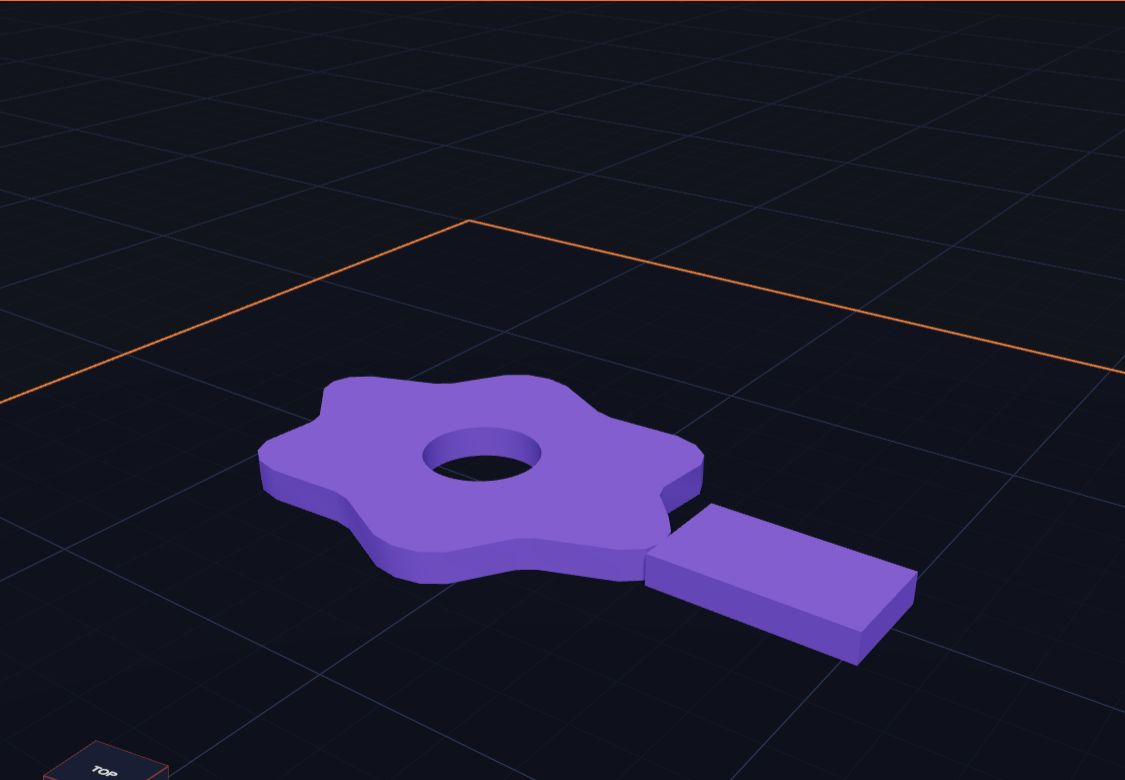
You can colour it, make it bigger, make it a hole, or give it soft edges, just like any other shape.
Change it later
Changed your mind? Pick the shape and click Change the drawing. The board opens again with your drawing, ready to fix.
Ideas to draw
- Your own cookie cutter shape
- A monster with spiky edges
- The first letter of your name, in your own handwriting
- A map of a treasure island
Drawing exact sizes
Drawing by hand is fun, but sometimes you need an exact size, like a hole that fits a pencil. You can type numbers too:
- Draw a Box or a Circle.
- Switch to Pick (press V) and click the shape.
- On the right, type the Width, Height or Diameter you want, and where it should go (X and Y).
You can also drag the white dots on a picked shape to change its size. With Lines, you can drag any corner to a new place.
Common mistakes
- The shape isn't purple. A run of Lines only becomes part of your shape when it is closed. Click the first dot again, or press Enter, to close it. Open lines are drawn with dashes and left out.
- I wanted a hole, but it filled in. A hole must be drawn completely inside another shape. If it pokes out of the edge, the two shapes join instead.
- Two pieces instead of one. If your shapes don't overlap, they become separate pieces. Move them so they touch or overlap a little.
- Oops! Press Ctrl + Z (on a Mac, ⌘ + Z) to undo. The drawing board has its own undo.
Try this next
- Your first letter. Draw the first letter of your name with Lines. Make it 5 mm thick. It makes a great fridge magnet or keyring.
- A cookie cutter. Draw a shape, then draw the same shape a little smaller inside it. You get a thin wall. Make it 15 mm tall.
- A puzzle piece. Draw a square with two bumps and two dents. Print four and see if they fit together!
- A monster. Use the Pencil to draw a spiky monster, then add round holes for eyes.
- Trace a drawing. Put a real drawing next to your screen and copy its outline with the Pencil.
Questions kids ask
Can I change my drawing later?
Yes. Pick your shape on the plate and click Change the drawing. The board opens with everything you drew, ready to fix.
How thick should my shape be?
For a flat shape like a badge or a magnet, 3 to 5 mm is good. For a cookie cutter, make it about 15 mm tall so it's easy to push into dough.
Can I make it round on the edges?
Yes. After you put it on the plate, use Soft edges in the panel. It rounds every edge of your drawing.
For grown-ups
The drawing board is a gentle introduction to 2D sketching, which is how most real design software starts: draw a flat profile, then give it depth. It also teaches the idea of positive and negative space, because shapes inside shapes become holes. Try asking children to design something that must fit a real object they can measure, like a pencil or a coin. See Millimetres Made Easy for measuring tips.
Keys on the drawing board
These keys make drawing faster:
| Key | What it does |
|---|---|
| P L B C V | Pencil, Lines, Box, Circle, Pick |
| Enter | Finish a run of lines |
| Esc | Stop drawing, or stop picking |
| Delete | Remove the picked shape |
| Mouse wheel | Zoom in and out |
Keep reading
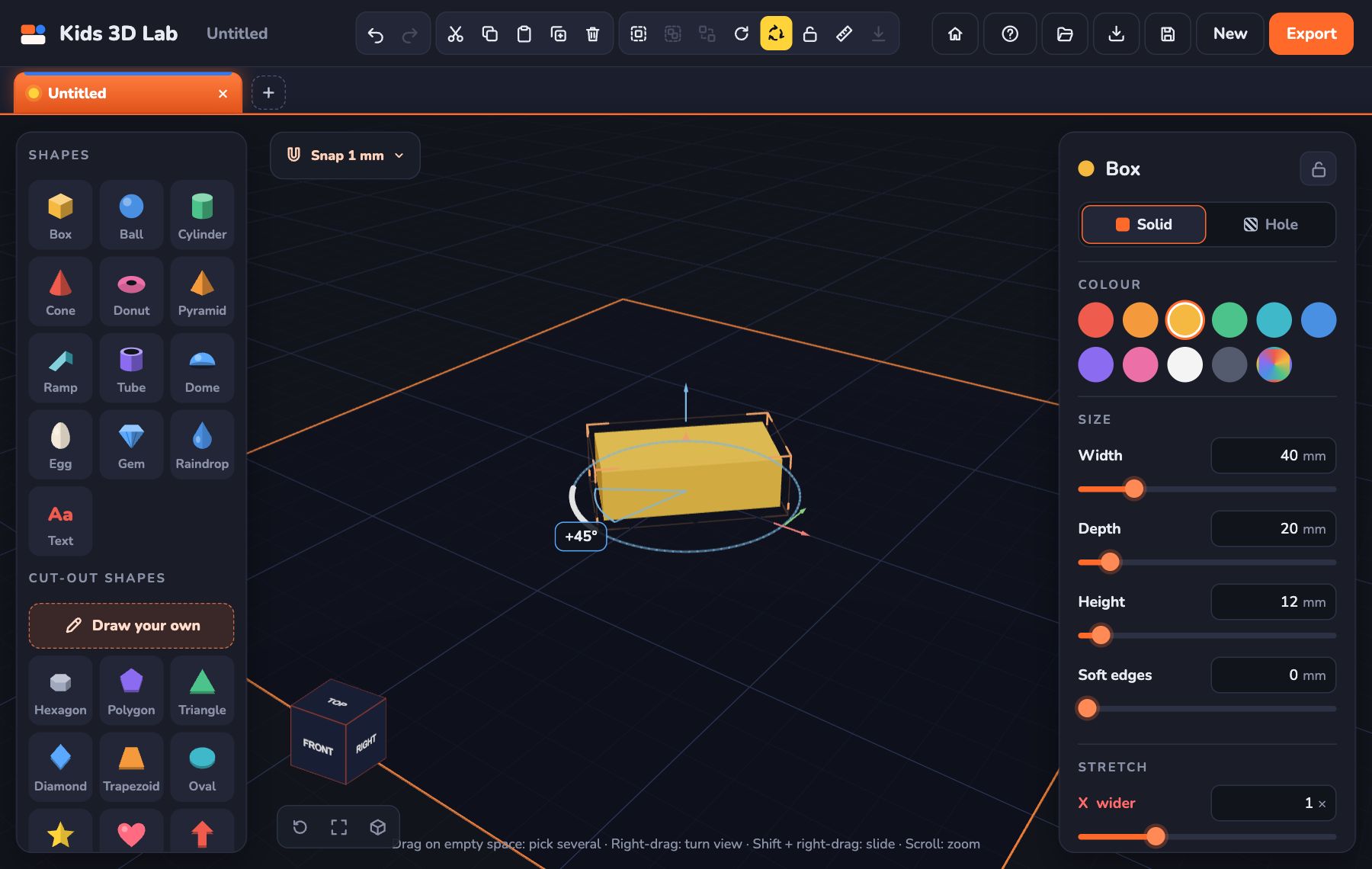 Turn, Flip and Stretch: Change Any Shape
Learn three ways to change a shape in Kids 3D Lab — turn it with the coloured turn arrows, flip it over, and stretch it to make new shapes.
5 min read
Turn, Flip and Stretch: Change Any Shape
Learn three ways to change a shape in Kids 3D Lab — turn it with the coloured turn arrows, flip it over, and stretch it to make new shapes.
5 min read
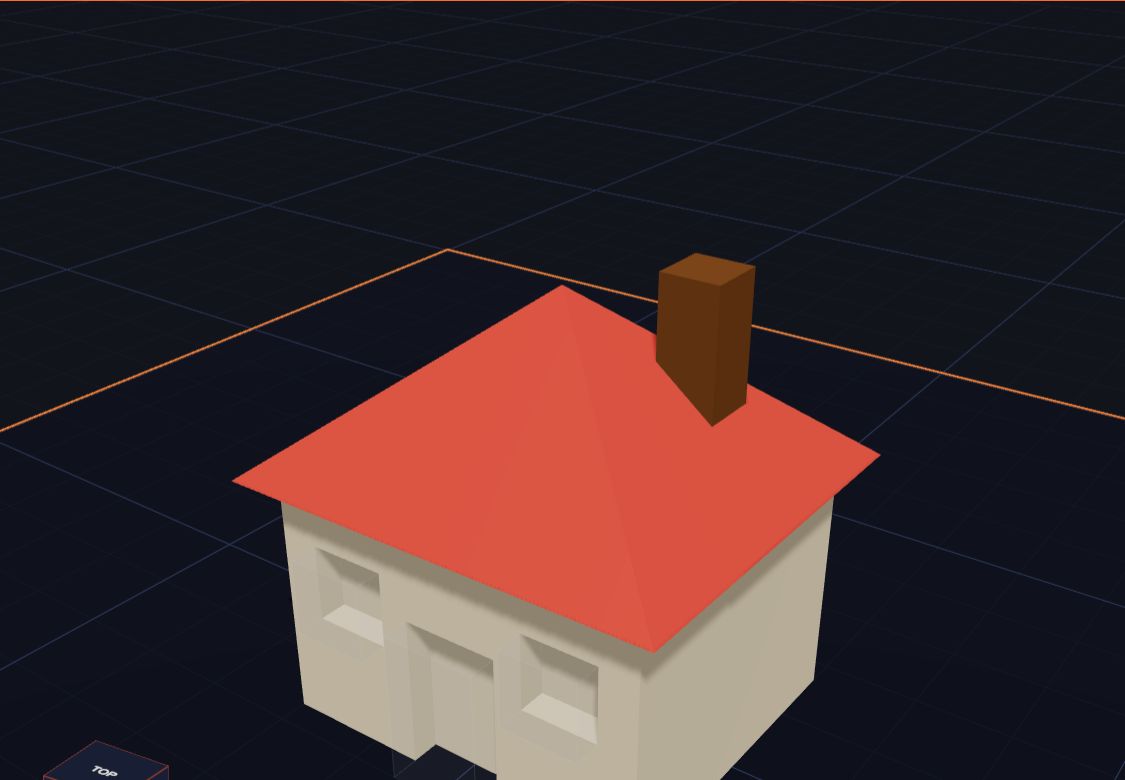 Getting Your Model Ready to Print
Six simple checks before you 3D print — flat bottoms, no floating parts, the right size — plus how to save the file for your printer.
6 min read
Getting Your Model Ready to Print
Six simple checks before you 3D print — flat bottoms, no floating parts, the right size — plus how to save the file for your printer.
6 min read
 20 Fun Things to Make in Kids 3D Lab
Need an idea? Here are 20 fun, easy things kids can design in Kids 3D Lab, from name tags to crowns, rockets and robots.
5 min read
20 Fun Things to Make in Kids 3D Lab
Need an idea? Here are 20 fun, easy things kids can design in Kids 3D Lab, from name tags to crowns, rockets and robots.
5 min read