Blog ›
Millimetres Made Easy: How Big Is Your Model?
Every size in Kids 3D Lab is in millimetres. We write it as mm. Once you know how big a millimetre is, you can make your model exactly the size you want.
How big is 1 millimetre?
Look at a ruler. The tiny lines between the centimetre numbers are millimetres. There are 10 millimetres in 1 centimetre.
Here are some things to help you remember:
- A grain of rice is about 1 mm thick.
- A coin is about 2 mm thick.
- A LEGO brick is about 16 mm wide.
- Your thumb is about 20 mm wide.
- A pencil is about 7 mm wide.
Sizes in Kids 3D Lab
When you pick a shape, the panel shows its sizes:
- Width is how wide it is, from left to right.
- Depth is how far it goes back, away from you.
- Height is how tall it is.
Under the shape you also see a little label, like 20 × 20 × 20 mm. That is width × depth × height.
Use the tape measure
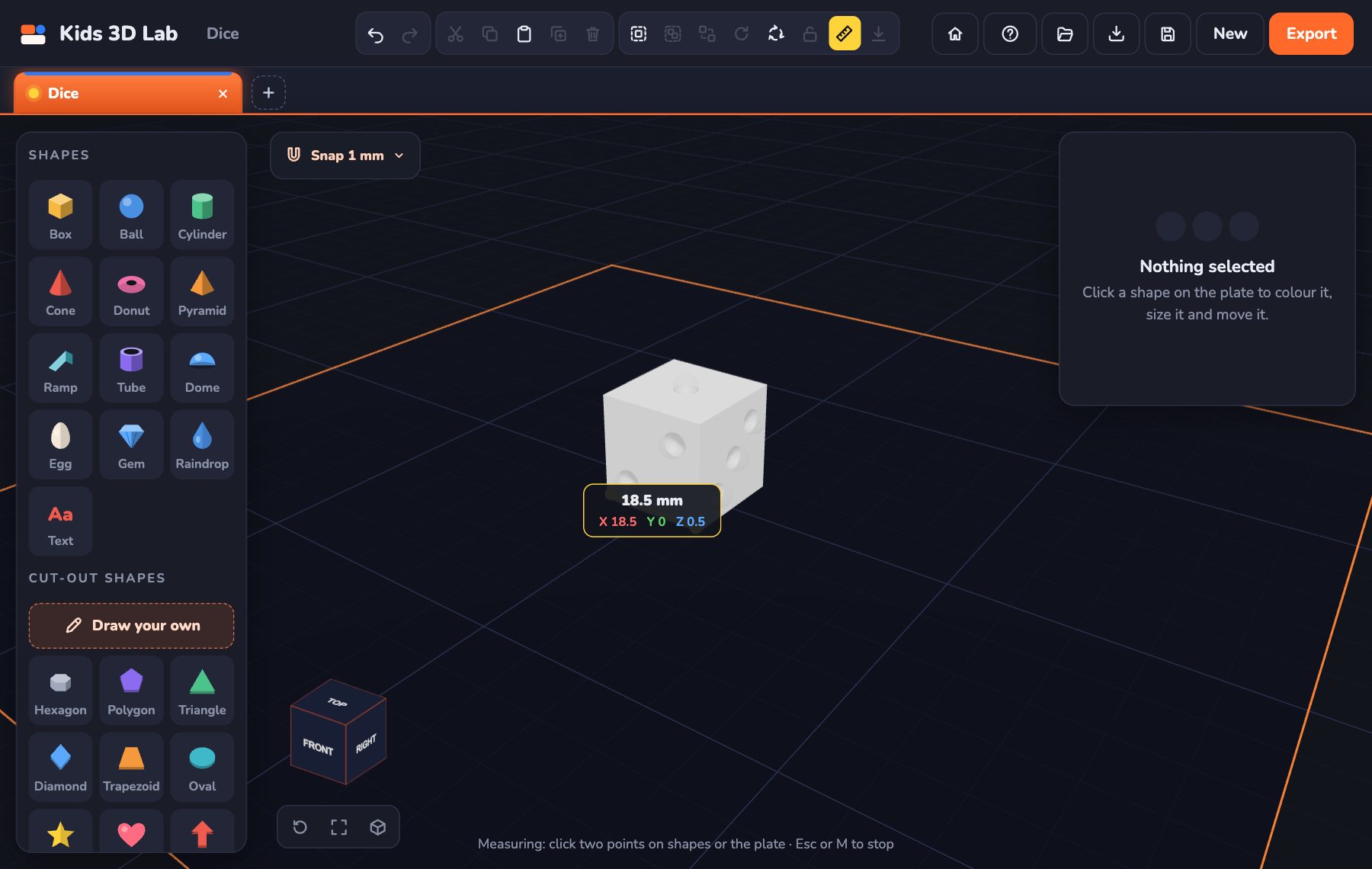
Want to know how far apart two things are? Click the ruler button at the top, or press M. Then click two points. Kids 3D Lab shows the distance in millimetres.
When you pick a shape, Kids 3D Lab also tells you how far away the nearest other shape is. It says things like "8 mm to the ball".
Snap: moving in neat steps
When you drag a shape, it jumps in small steps. This is called snapping. It helps you line things up neatly.
You can change the step with the Snap button above the plate. Pick 0.1 mm for tiny, careful moves, or 5 mm for big jumps. Hold the Alt key while you drag to move freely.
How big can I make it?
The plate is 200 mm by 200 mm. That is about the size of a big book. Many home printers can print about that big. Check your printer to be sure.
Try this
Measure something on your desk with a real ruler, like an eraser. Then build it in Kids 3D Lab at the same size. When you print it, hold the two side by side. Are they the same?
Measuring real things
A ruler is the best tool for measuring things around you. Here's how to use it well:
- Put the 0 at one edge of the thing you're measuring. (It's often a little way in from the end of the ruler!)
- Look straight down at the other edge.
- Count the big numbers (centimetres), then the little lines (millimetres). 3 big and 4 little is 34 mm.
To measure how wide a round thing is, like a pencil or a coin, measure straight across its middle. That's its diameter, and it's the same word Kids 3D Lab uses for balls and cylinders.
Make it fit
The best part of millimetres is making things that fit real objects. Here are some useful sizes:
| Thing | About how big |
|---|---|
| A pencil | 7 to 8 mm across |
| A key ring | 25 mm across |
| An AA battery | 14 mm across, 50 mm long |
| A LEGO stud | 5 mm across |
| A credit card | 86 mm wide, 54 mm tall |
Common mistakes
- Mixing up centimetres and millimetres. If your model looks tiny, you might have typed centimetres. 3 cm is 30 mm.
- Forgetting the height. Width and depth are easy to see from above. Check the height too!
- Holes that are a tiny bit too small. Add a little extra room, as in the tip above.
Try this next
- Measure your eraser with a ruler. Build it in Kids 3D Lab at the same size. Print it and compare!
- Design a stand for your phone. Measure how thick your phone is first.
- Make a pencil holder with holes that really fit your pencils.
Questions kids ask
Why doesn't Kids 3D Lab use centimetres?
3D printers work in millimetres, so every 3D design app does too. Millimetres are small, so you can be very exact.
How exact can I be?
You can type sizes like 12.5 mm. Use the Snap button above the plate to choose how far a shape jumps when you drag it: 0.1, 0.5, 1 or 5 mm.
What is the biggest thing I can print?
It depends on the printer. Many can print about 200 × 200 mm. When you click Export, pick your printer and Kids 3D Lab tells you if your model fits.
For grown-ups
Kids 3D Lab is a natural way to practise measurement and estimation. Every number is a real size, and every mistake shows up clearly when a print doesn't fit. Encourage children to estimate first ("How wide do you think it is?"), then measure, then design. For more on getting prints right, read Getting Your Model Ready to Print.
Use the numbers in Kids 3D Lab
Every shape in Kids 3D Lab has boxes for its sizes in the panel on the right. You can type a number, or drag the purple slider under it. While you drag a shape, a little label shows exactly where it is, and how many millimetres away the nearest shape is. That's how you can line things up perfectly, even without a ruler!
Keep reading
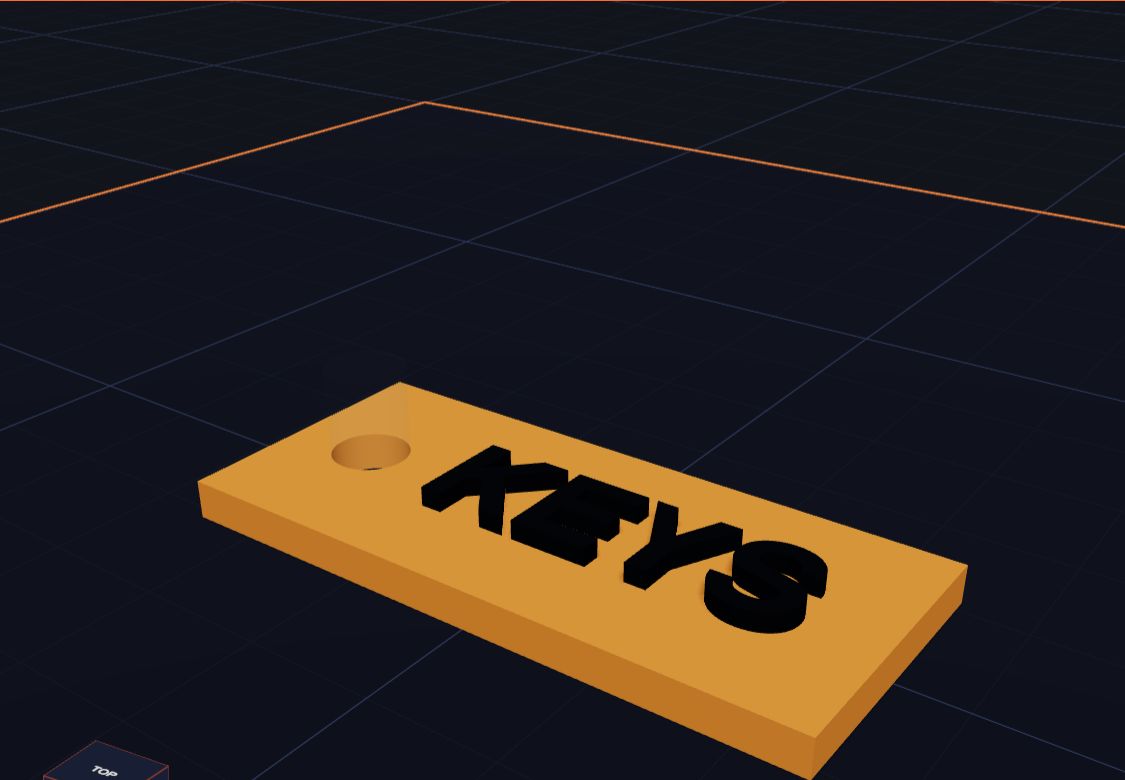 How Holes Work (and How to Make a Key Tag)
In Kids 3D Lab any shape can become a hole. Learn how holes cut into other shapes, and make a key tag with a hole for the ring.
5 min read
How Holes Work (and How to Make a Key Tag)
In Kids 3D Lab any shape can become a hole. Learn how holes cut into other shapes, and make a key tag with a hole for the ring.
5 min read
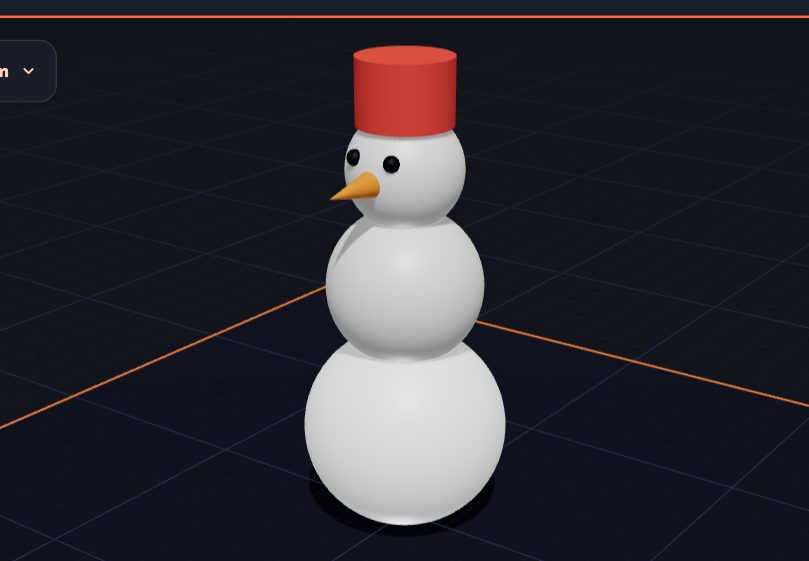 Build a Snowman by Stacking Shapes
Stack three balls, add a carrot nose and a hat. A fun first project that teaches you how to put shapes on top of each other.
5 min read
Build a Snowman by Stacking Shapes
Stack three balls, add a carrot nose and a hat. A fun first project that teaches you how to put shapes on top of each other.
5 min read
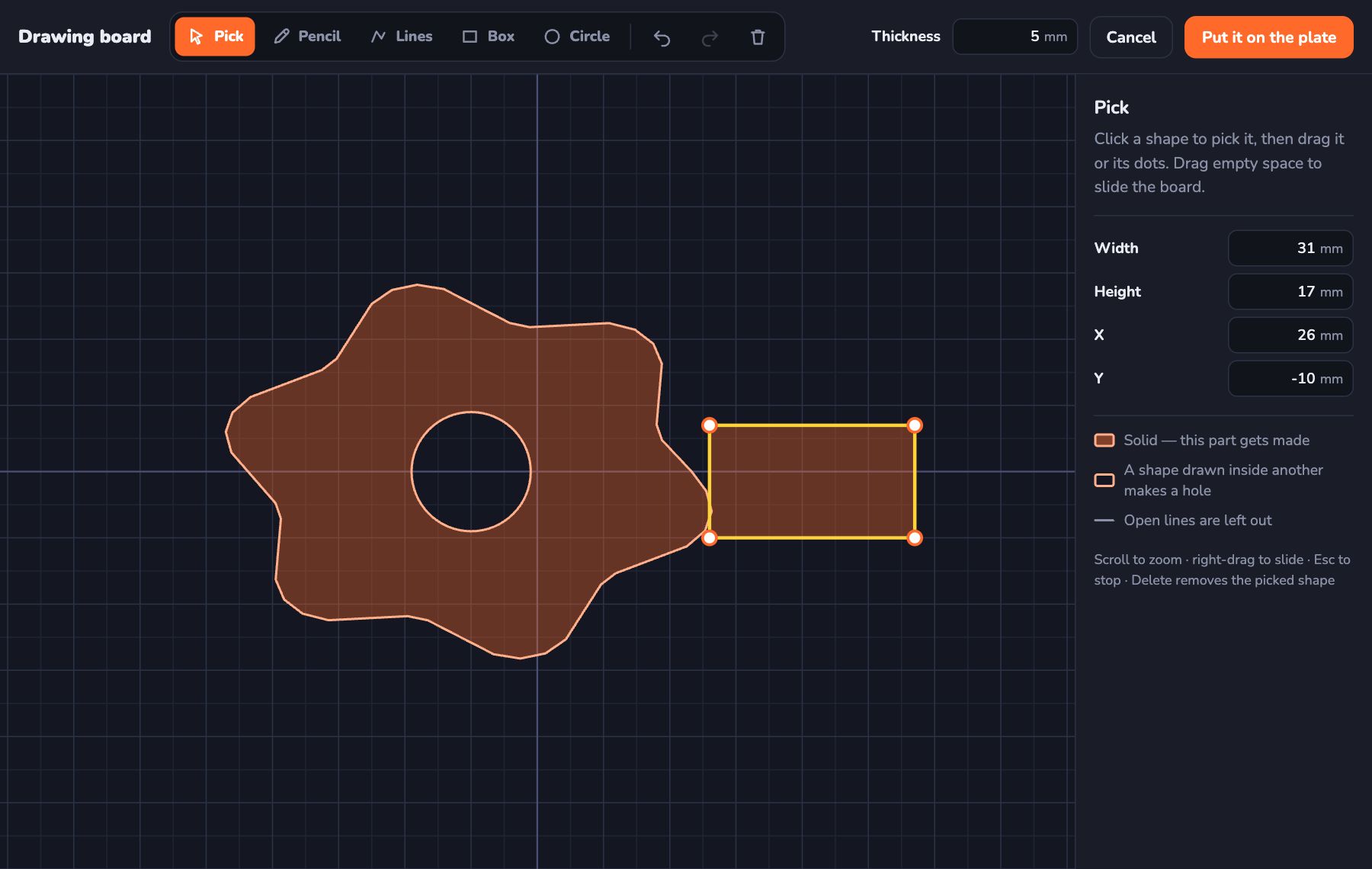 Draw Your Own Shape and Make It 3D
Use the Kids 3D Lab drawing board to draw any shape you like — with a pencil, lines, boxes and circles — and turn it into a 3D model.
5 min read
Draw Your Own Shape and Make It 3D
Use the Kids 3D Lab drawing board to draw any shape you like — with a pencil, lines, boxes and circles — and turn it into a 3D model.
5 min read