CAD for Kids: Free Computer-Aided Design for Ages 5 and Up
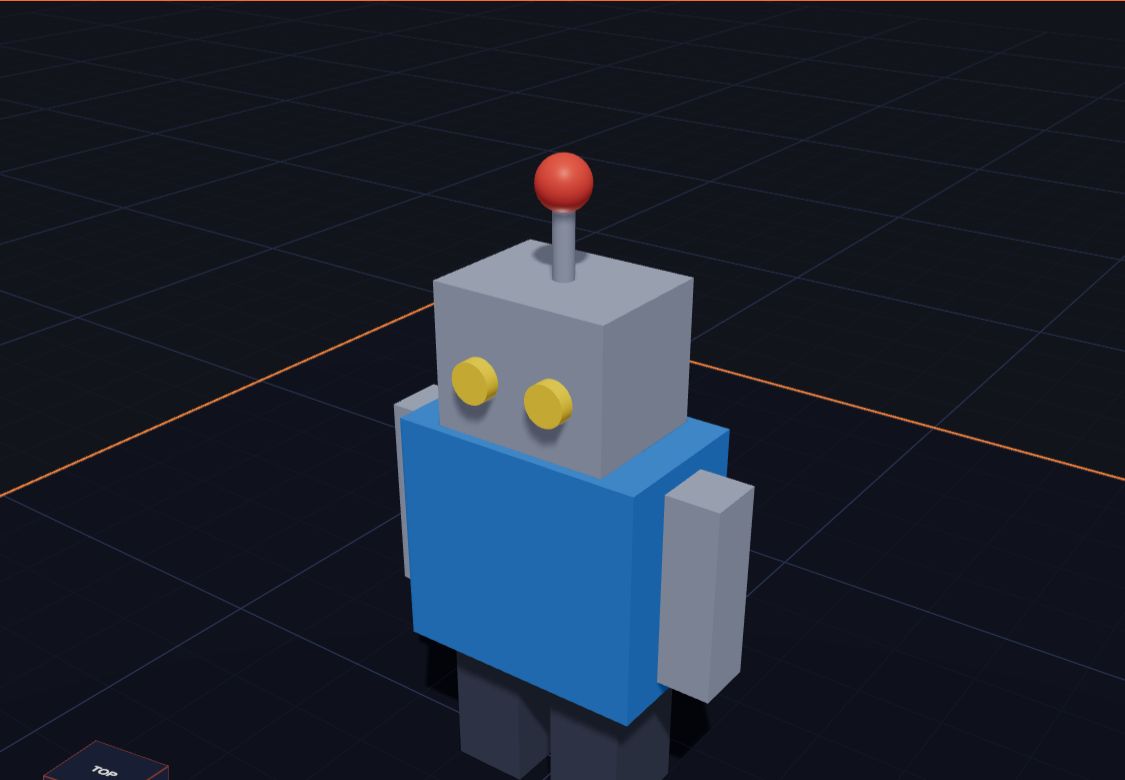
CAD sounds like something only engineers do. But the big idea is simple enough for a five-year-old: you build a thing on a computer first, with exact sizes, and then a machine like a 3D printer makes it for real. This page explains what CAD for kids looks like, why it's so good for children, and how your child can start today, for free.
What is CAD?
CAD stands for computer-aided design. It means using a computer to design something instead of only drawing it on paper. The computer helps in three big ways:
- Exact sizes. Every part has a size in millimetres, so it can really be made.
- Easy changes. Make it taller, wider or a different colour in a second. No rubbing out.
- See it from every side. Turn your design round on screen before anything is made.
Grown-up designers use CAD for cars, phones, buildings and toys. For a longer answer, read What Is CAD?.
What makes CAD "for kids"?
Big CAD programs are made for engineers. They have hundreds of buttons and long words. CAD for kids keeps the same ideas but makes them easy:
| Big CAD programs | CAD for kids |
|---|---|
| Hundreds of tools | A few big, clear buttons |
| Long technical words | Easy words like Hole, Line up and Put on top |
| An account and a big download | Opens in the browser, no sign-up |
| Start with a flat sketch | Start with ready-made shapes, like building blocks |
| Made for computers with a mouse | Works with touch on a tablet, too |
The thinking is the same. A child who builds a car from boxes and cylinders is doing what an engineer does: breaking a big thing into simple parts and getting the sizes right.
Why CAD is good for children
- Shapes and space. Kids learn the names of 3D shapes and how they fit together. See 3D Shapes for Kids.
- Real maths. Every number is a real size in millimetres. "Make it 30 mm wide" is measuring with a purpose. Millimetres Made Easy helps.
- Problem solving. It doesn't fit? It wobbles? Change one thing and try again. That's the design process.
- Patience and pride. A model that turns into a real object you can hold is a big reward.
- Creative screen time. Making something is very different from watching something.
The four big ideas of CAD (kid version)
1. Build from shapes
Almost everything is made of boxes, balls, cylinders and cones. A snowman is three balls. A house is a box with a pyramid on top. Kids learn to see the shapes inside things.
2. Exact sizes
Every shape has a width, a depth and a height. In Kids 3D Lab they're in millimetres and shown with red (X), green (Y) and blue (Z), the same colours real CAD programs use.
Practice gameMeasure itCount 10 mm blocks to find how long a pencil is.Play →3. Adding and taking away
You can add shapes together, and you can take shapes away by making them holes. A ball with a box-shaped hole becomes a bowl. A box with a cylinder hole becomes a pen pot. Grown-ups call this a boolean, but kids just call it "a hole".
Practice gameMake a holeTurn a shape into a hole and watch it cut.Play →4. Check before you make
Before printing, CAD lets you check: does it fit on the printer? Is anything floating in the air? Is it one piece? Kids 3D Lab has a Ready to print? check that does this for you.
How kids can start CAD today (free)
You don't need to buy anything. Here's how to start in Kids 3D Lab:
- Go to kids3dlab.com on a tablet, Chromebook or computer, and open the app. There's no account and nothing to install.
- Click Box. A box appears on the plate.
- Change its Width, Depth and Height in the panel. Make it 60 × 30 × 5 mm: a name tag.
- Click Text, type your name, and put it on top with Put on top of the box.
- Add a small Cylinder, make it a Hole, and put it at one end for a key ring.
- Click Export to see if it's ready to print.
That's a real CAD project, start to finish. The full steps, with pictures, are in Make Your First 3D Model.
CAD for kids by age
Ages 5 to 7. Building from big shapes, changing colours, stacking and simple holes. Sit together for the first sessions. The Practice corner games are a gentle start, and work with touch.
Ages 8 to 11. Exact sizes, lining up, groups, measuring and the drawing board. Projects like a key tag, a pen pot, a phone stand or a board game.
Ages 12 and up. Kids 3D Lab's Pro mode adds measurement lines, sizes you can type, patterns and the boolean tools real CAD uses. From there, it's a short step to programs like Onshape and Fusion. Teens doing Design and Technology at school can read What Does CAD Stand For in DT?.
Does my child need a 3D printer?
No. CAD is the designing part, and it's useful on its own: kids learn shapes, sizes and problem solving on screen. When a design is ready, you can print it at a library, a school or a print service. Read How to 3D Print Without Owning a 3D Printer.
Questions parents ask
What is the best free CAD for kids?
For young children, pick a tool with no account, few words and big buttons. Kids 3D Lab is made for ages 5 and up and is completely free. Older children often move on to Tinkercad, then Onshape or Fusion. See The Best Free 3D Design Software for Kids.
At what age can kids learn CAD?
From about 5, with a grown-up nearby, using a simple tool. By 8 or 9 most children can build their own ideas, and by 12 many are ready for exact sizes and more powerful tools.
Can kids do CAD on a tablet?
Yes. Kids 3D Lab works in the browser on iPads, Android tablets and Chromebooks, with touch. See Free 3D Design for Kids on a Tablet.
Is it safe for children?
Kids 3D Lab has no accounts, no adverts and no chat, and nothing your child makes is uploaded. Their work stays on your device.
For grown-ups
CAD is one of the most useful skills a child can start early: it joins maths, art, science and making in one activity, and it grows with them from first shapes to real engineering. Keep the first sessions short and playful, let your child open an example and take it apart, and celebrate the first finished design, printed or not. For lesson ideas, see Kids 3D Lab for Parents and Teachers and 3D Design Lesson Plans for Grades 3 to 5. Every button is explained in The Kids 3D Lab Guide.
Keep reading
 App skills
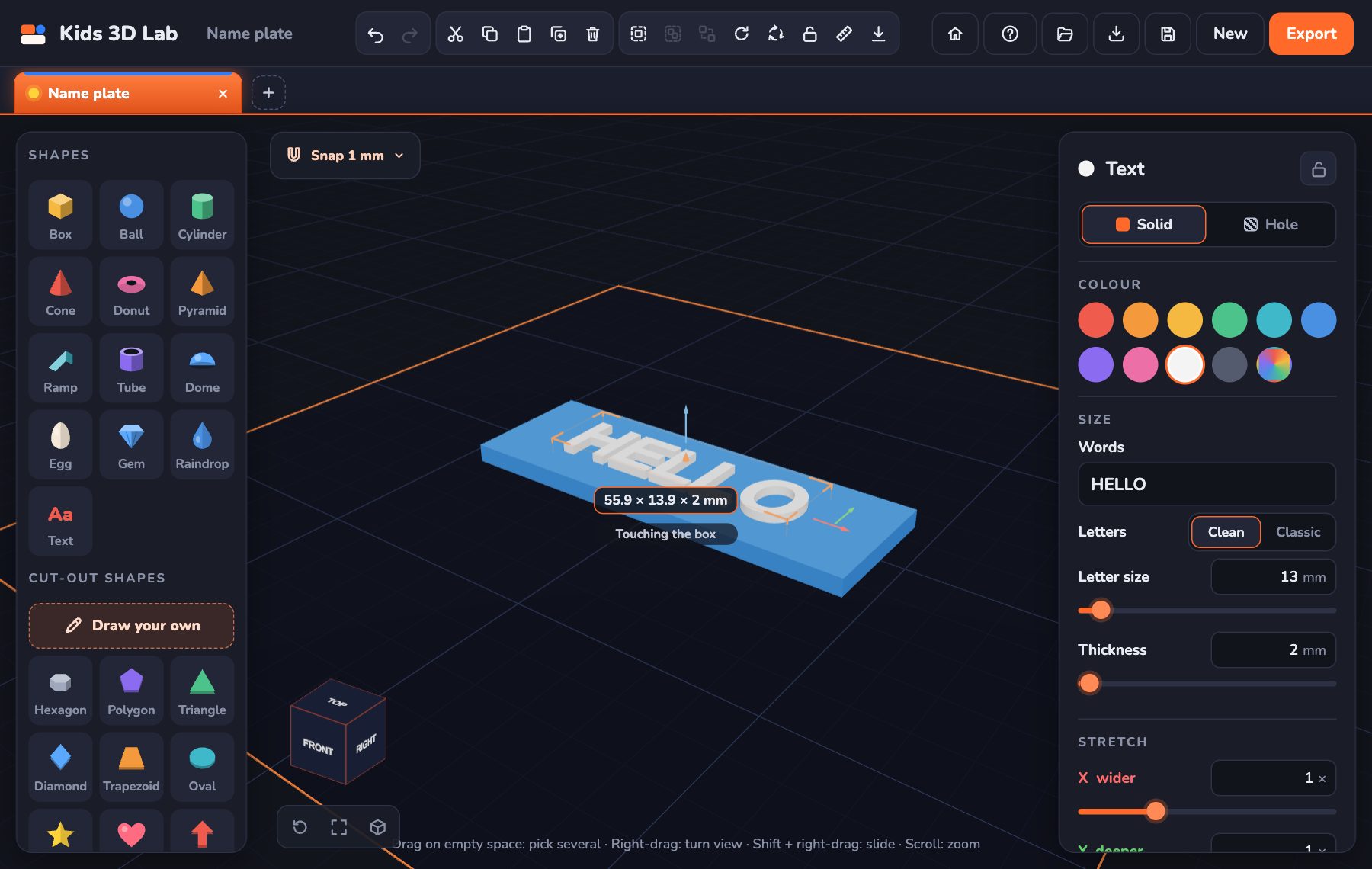
How to Make a 3D Model: An Easy First Project for Kids
How to make a 3D model in 10 minutes, step by step and for free — a name tag with your own name on it. Perfect for beginners, ages 5 and up, and school projects.
6 min read
 App skills
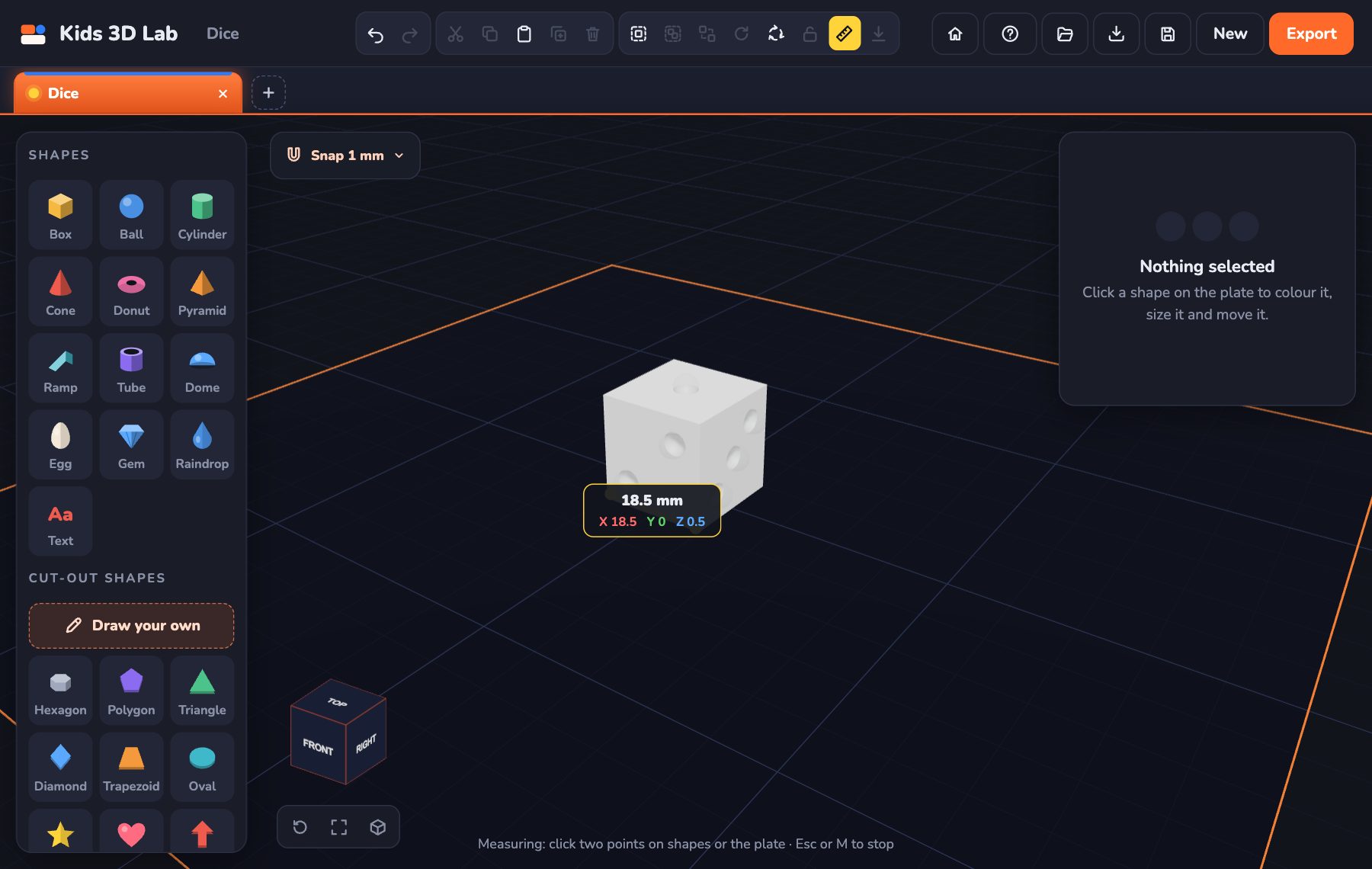
Millimetres Made Easy: How Big Is Your Model?
How big is 1 mm, 3 mm or 4 mm? Millimetre sizes with everyday examples, how to find 3 mm on a ruler, and how to make your model just the right size.
7 min read
 App skills
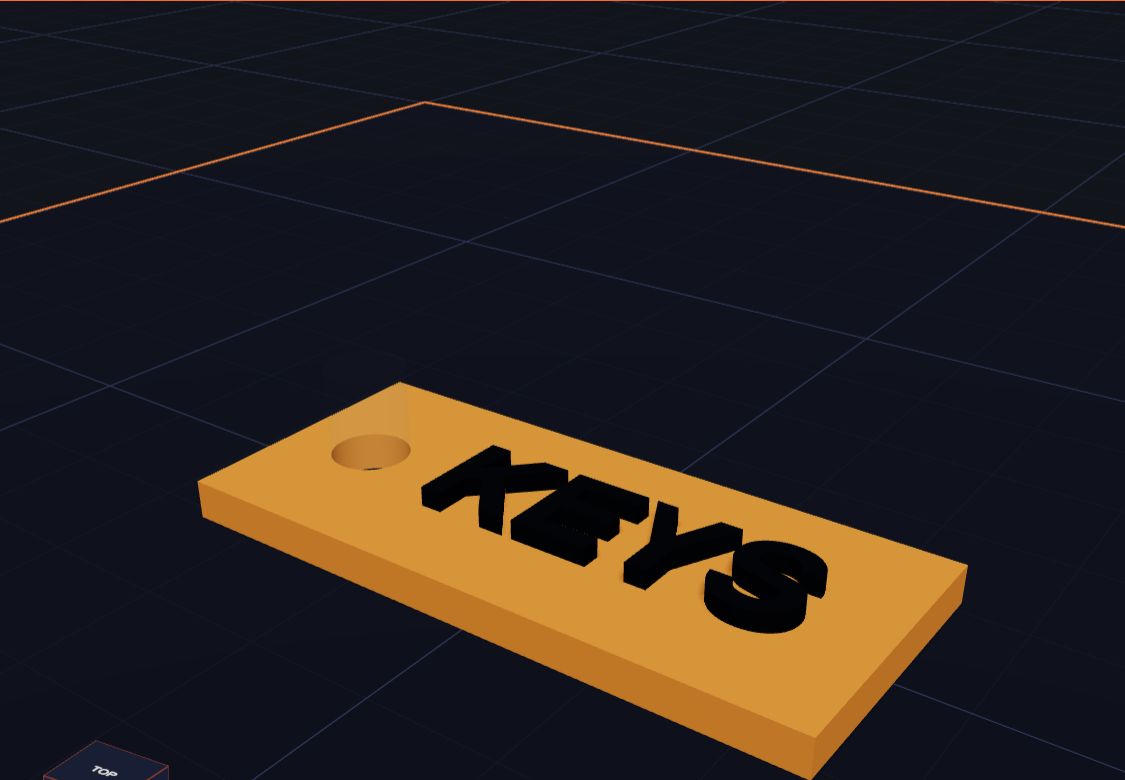
How Holes Work (and How to Make a Key Tag)
In Kids 3D Lab any shape can become a hole. Learn how holes cut into other shapes, and make a key tag with a hole for the ring.
6 min read